

Does Storage Sense delete files? Yes. In Windows 11, Storage Sense can remove temporary files, clear eligible items from the Recycle Bin, and delete files in Downloads if that cleanup rule is enabled. It can also make eligible OneDrive files online-only, which removes the local copy without deleting the cloud file. See Microsoft’s Storage Sense guidance.
The risk depends on your settings, not just the feature’s name. Before switching it on or running it, check the four areas below and protect anything you cannot afford to lose.
What files can Storage Sense delete?
Storage Sense is a built-in Windows feature for freeing space on the system drive, usually C:. It can act automatically based on its schedule and the cleanup options selected. It is not a general cleaner for every drive connected to your PC.
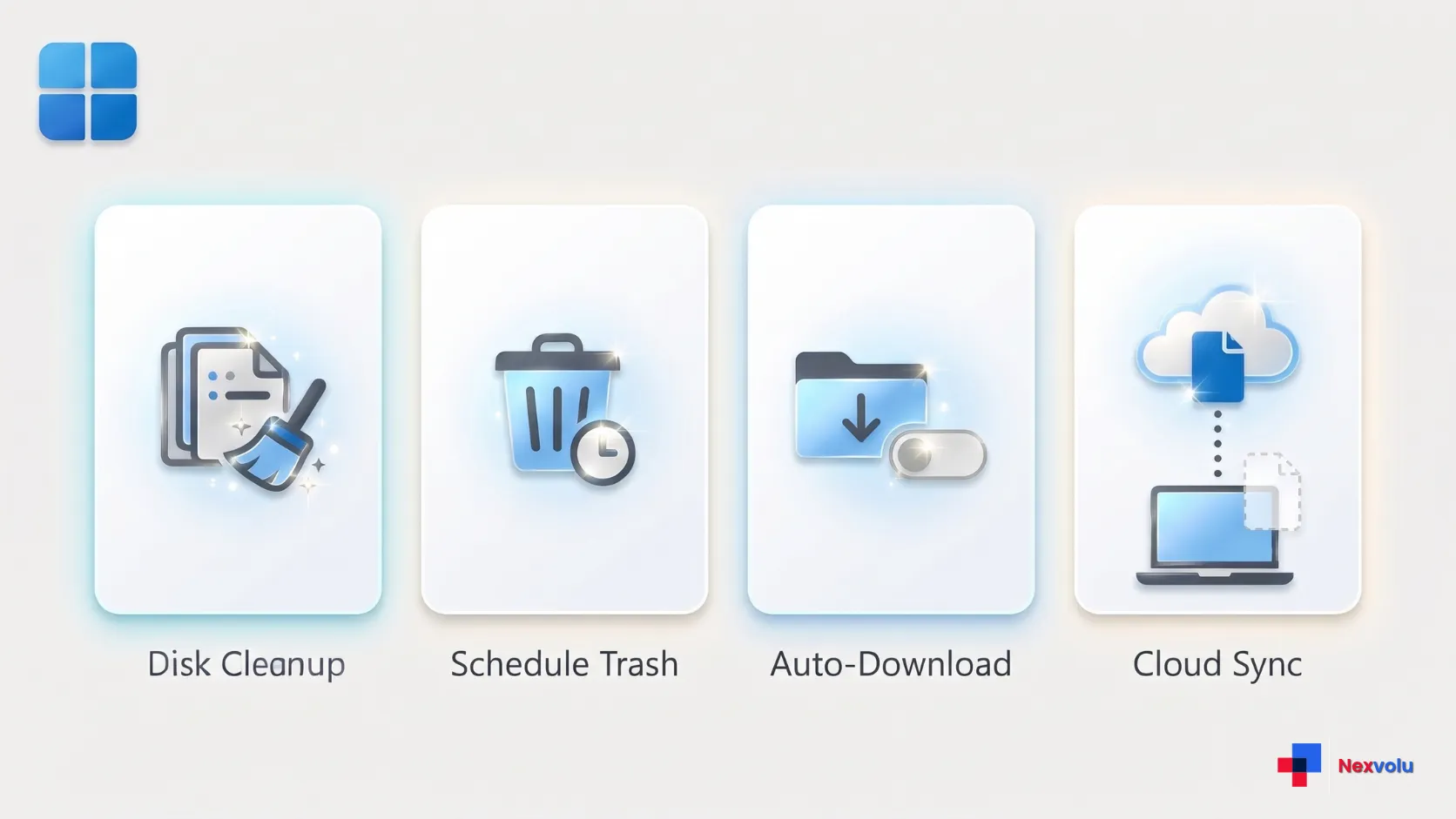
Here is the distinction that matters: deleting a file and making a cloud file online-only are different actions. Use this table as a guide, then check the actual controls on your device.
| Item | What can happen | Safer choice |
|---|---|---|
| Temporary files | Windows can remove eligible temporary files that are not in use. | Review the temporary-file cleanup option and understand what is selected. |
| Recycle Bin | Items older than the configured retention period can be removed. | Choose Never if you want to decide when to empty the bin yourself. |
| Downloads | Files can be deleted if they have not been opened for longer than the configured period and Downloads cleanup is enabled. | Choose Never if you use Downloads to keep important files. |
| OneDrive files | Eligible local copies can become online-only while the cloud files remain available. | Check the cloud-content setting and keep essential files available on your device. |
Storage Sense defaults and drive limits
Microsoft says Storage Sense works on the system drive only. Its settings also apply to the user who configures them, so other people using the same PC may have their own choices. On a work or school computer, device-management policies can control some settings. Read Microsoft’s explanation of Storage Sense settings and drive limits and its Storage Sense configuration guide.
Microsoft’s consumer guidance says Storage Sense is off by default. If a PC runs low on space and the user has not interacted with the feature before, Windows may turn on selected temporary-file management and notify the user. When Storage Sense is on with its default settings, it runs when the device is low on disk space. Microsoft explains this default behavior.
There is one detail worth checking rather than guessing: Microsoft’s guidance gives a 30-day online-only threshold for OneDrive cloud files starting with Windows 11 version 22H2, while its general default-settings explanation says cloud content is not managed unless configured. Check the actual cloud-content option shown on your PC before relying on a general default.
Find your Storage Sense settings
- Open Start > Settings > System > Storage.
- Select Storage Sense itself, not just its main switch, to open the detailed settings.
- Check whether automatic user content cleanup is on. Then review the temporary-file option, run schedule, Recycle Bin, Downloads, and any cloud-content controls.
- If you are unsure what the current settings will do, leave automatic cleanup off while you review them. Do not select Run Storage Sense now yet.
The available controls can vary by Windows version, account, and organizational policy. Cloud-content settings appear only when you are signed in to the relevant cloud account. On a work or school PC, some options may be unavailable or managed by IT. Ask your administrator about the applied policy rather than trying to bypass it.
Microsoft says the settings you choose apply only to your user account; other users on the same device can manage their own settings. However, managed-device policies can control Storage Sense at the device level. For the distinction between user settings and managed configuration, see Microsoft Support and Microsoft’s Storage Policy CSP.
Can Storage Sense delete files from Downloads or the Recycle Bin?
Recycle Bin: a holding area, not a backup
When you delete a file normally, it may go to the Recycle Bin. Storage Sense can delete files from the Recycle Bin after they meet the configured retention period. Microsoft’s Storage Policy CSP lists 30 days as the default Recycle Bin cleanup threshold, but your visible setting or an organization policy may differ. You can check the official Recycle Bin cleanup policy.
Open the Recycle Bin and restore anything you want to keep before changing cleanup settings. To stop Storage Sense from automatically clearing it, select Never under the Recycle Bin cleanup option if that choice is available. You can still empty it yourself when you are ready.
A time limit is a trade-off: it recovers space but shortens your opportunity to notice a mistaken deletion. The Recycle Bin is not an independent backup, and some deletions may bypass it altogether.
Downloads: unopened does not mean unwanted
Storage Sense can delete files in the Downloads folder if they have not been opened for longer than the configured threshold. That may include installers, receipts, PDFs, or project files you deliberately saved for later.
For example, a tax document downloaded months ago could qualify under an age setting even though you still need it. This is an illustration, not a claim about a particular device. A file’s lack of recent use is not proof that it has no value.
Microsoft’s policy documentation says a zero-day threshold means Storage Sense will not delete files from Downloads, and that Downloads cleanup is not configured by default in the policy. The actual setting on your PC is what matters. See Microsoft’s Downloads cleanup threshold documentation.
Choose Never for Downloads cleanup if you use the folder as storage. Move important material into clearly named folders and keep a separate backup. If you do enable cleanup, review the interval and folder contents first. Do not assume a deleted download will be easy to restore.
Does Storage Sense delete OneDrive files?
Storage Sense may make eligible, locally available OneDrive files online-only after the selected period. In that case, the cloud file remains, but its local content is removed to save space. You normally need an internet connection to download and open it again.
Making a file online-only does not mean Storage Sense will delete the file from OneDrive. Microsoft explains that Free up space makes a file online-only, while Always keep on this device downloads a copy so it remains available offline. Deleting a synced file is a separate action and can remove it from OneDrive. Read Microsoft’s OneDrive Files On-Demand instructions.
If you need a file during a flight or an outage, open File Explorer, right-click the OneDrive file or folder, and choose Always keep on this device. Allow it to download, then check its status before going offline. Microsoft says files marked this way are exempt from Storage Sense’s cloud-content management.
Also inspect the locally available cloud content option in Storage Sense. Choose Never if available and you do not want automatic conversion, or choose a period that fits your needs. The cloud option may appear only when you are signed in. Pinning files helps offline access, but it is not a substitute for a separate, restorable backup.
Choose a conservative setup
There is no single safe setting for every person. If you want automatic cleanup but prefer to make decisions about personal files yourself, start here:
- Back up important files to a separate destination. Open a sample of the copies and check that the backup covers what you need.
- Review temporary-file cleanup. Leave it enabled only if you accept that eligible temporary files can be removed.
- Set Downloads and Recycle Bin cleanup to Never, where available. This favors control over maximum space savings.
- Protect offline cloud files. Set the cloud-content threshold to Never if available and you need files kept locally. Independently mark essential OneDrive files as Always keep on this device and verify that they have downloaded.
- Choose a schedule carefully. If you decide to enable automatic user-content cleanup, choose a schedule such as During low free disk space, then recheck every setting before leaving the page.
These choices do not prevent all other cleanup, manual deletion, sync changes, or software actions. If you would rather make every cleanup decision yourself, leave automatic user-content cleanup off and review the separate temporary-file option as well. Turning one switch off is not a universal deletion safeguard.
A separate backup matters even when your settings are conservative. If you use an external drive for copies and it does not appear in Windows, follow our guide to an external hard drive not showing up in Windows 11 before considering a format. Never format a drive containing files you need just to make it appear.
Review files before running Storage Sense
When you select Run Storage Sense now, Storage Sense can delete files according to its configured rules. Do not assume it provides a detailed preview of every automatic action. Check the settings and back up important files before using it.
For a more deliberate review, return to Settings > System > Storage and open Cleanup recommendations. Windows can suggest categories such as temporary files, large or unused files, files synced to the cloud, and unused apps. Review the categories and select only the items you intend to remove. Microsoft describes this process in its Windows cleanup recommendations guidance.
The separate Temporary files page also lets you review categories before selecting Remove files. Read each description and do not blindly accept preselected categories. In particular, inspect anything involving Downloads, the Recycle Bin, or previous Windows installations if shown.
Previous Windows installation files can support rollback after an upgrade. Microsoft says that if it has been fewer than 10 days since the upgrade, the previous installation may appear under system files. Deleting it removes the Windows.old folder and the option to go back to the previous Windows version. Check before removing it; Microsoft says this action cannot be undone. See Microsoft’s instructions for freeing up drive space.
What to do if a file is missing
First, stop additional automatic cleanup and check the actual Storage Sense settings. Storage Sense can delete files, but a missing file does not prove it caused the loss; another app, account, sync change, or user action may be responsible.
Next, search File Explorer for the filename and look in the original folder. Check the Windows Recycle Bin and restore the item if it is there. If you use OneDrive, sign in to the correct account online and check both the file location and the OneDrive recycle bin. An online-only file may still appear in File Explorer but need an internet connection to open.
Microsoft explains how to check the OneDrive recycle bin and restore deleted files in its OneDrive file-recovery guidance. Recovery depends on the account, retention settings, and whether the item was permanently deleted.
Then check File History or another backup if you previously configured one. Restore a copy to a safe location and open it. If the missing data is irreplaceable and no backup is available, minimize further use of the affected drive and seek qualified recovery help. Recovery is not guaranteed.
A Windows reset is not a file-recovery shortcut. If you are considering one for a separate problem, read our guide to what Windows 11 Keep my files preserves and removes and verify a backup first.
Frequently asked questions
Does Storage Sense delete all files in Downloads?
Not necessarily. If Downloads cleanup is enabled, it targets files that meet the configured inactivity threshold, not every file at once. Select Never to prevent that automatic Downloads rule where available; other actions can still delete files.
Does turning off Storage Sense restore deleted files?
No. Turning off automatic cleanup changes future behavior; it does not undo past deletions. Check the Recycle Bin, the relevant cloud service’s recycle bin, and independent backups instead.
Can Storage Sense clean an external drive?
Microsoft says Storage Sense works on the system drive, normally C:. It is not an automatic cleanup tool for a separate external drive. To review other drives, open Settings > System > Storage > Advanced storage settings > Storage used on other drives.
Why did a OneDrive file stop opening offline?
It may have become online-only, though that is not the only possible cause. Check its status in File Explorer, reconnect to the internet, and choose Always keep on this device if you need an offline copy. Allow the download to finish before disconnecting.
Storage Sense can delete files, so check that its rules match how you use your PC. Protect important files and keep a separate backup before allowing cleanup to run.
Related reading
A separate backup matters even more than the cleanup settings: if you use an external drive, see External Hard Drive Not Showing Up in Windows 11? What to Check Before You Format, and if a reset is the next step, Reset Windows 11 and Keep My Files: What Stays and What Gets Removed? explains what stays and what gets removed. More Windows guides are in the Technology category. Nexvolu is an independent publication covering AI, technology and digital marketing. Learn more on our About Us page.


