
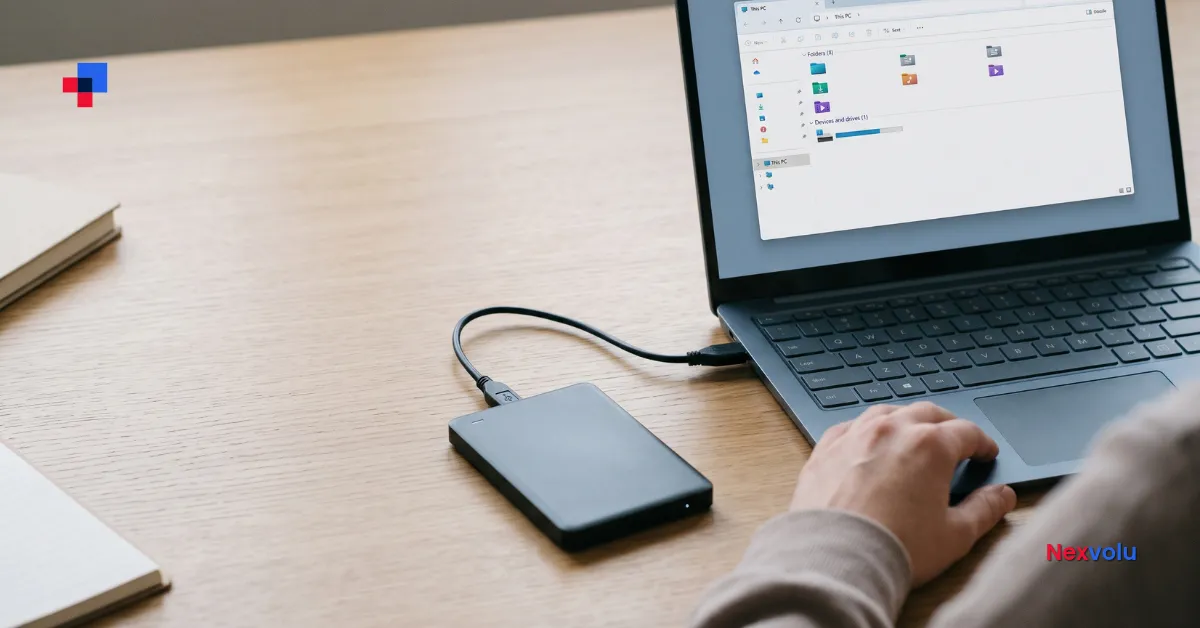
If your external hard drive is not showing up in Windows 11, don’t format it just because Windows suggests it. A loose connection, a missing drive letter, an incompatible file system, or a failing device could be responsible. The right next step depends on what Windows detects and whether the drive contains files you need.
Start with the safety checks below. Then use Disk Management to identify the drive’s status. If your files matter and the drive clicks, disconnects repeatedly, or looks damaged, stop and consider professional help. None of these checks guarantees recovery.
Table of contents
External hard drive not showing up? Stop before you format
First, decide whether the disk holds files you might need. If it does, cancel any prompt to format or initialize it. Do not create a new volume, delete partitions, run DiskPart’s clean command, or approve a repair just to make the warning disappear. These actions can change disk data or metadata and make recovery harder.
Also stop if an older hard drive clicks or grinds repeatedly, smells burnt, has suffered a drop, or repeatedly connects and disconnects. Power it off and disconnect it; do not keep restarting it to test theories. An SSD may fail silently, so the absence of noise does not prove it is healthy.
If the files are irreplaceable or you lack a verified backup, ask a reputable data-recovery specialist for an assessment before further testing. In particular, avoid opening the enclosure or swapping components yourself. A drive may have encryption or electronics that complicate recovery.
An important distinction: A new, genuinely empty drive may need setup. A previously used drive showing as empty may instead have a damaged partition or another problem. Its appearance alone does not tell you the files are gone.
External hard drive not showing up? Check the cable and power
If your files are not critical or you have backed them up, and the drive shows no physical-failure warning signs, begin with a few controlled checks. When an external hard drive is not showing up, a faulty cable or port is one possibility, not a diagnosis. Stop if the drive starts clicking, repeatedly disconnecting, or reporting read errors.
- Check power. If the drive uses a separate power adapter, connect it securely. If it has a power switch, turn it on. Use the correct manufacturer-specified adapter.
- Connect directly. Bypass the hub, dock, or adapter and try a compatible port on the computer. A hub or port may not supply enough power.
- Try a known-good data cable. The cable must fit the drive and support data; a cable that provides power is not necessarily suitable for data transfer.
- Try another computer once. Use a compatible machine, preferably one that previously read the drive. Cancel any format prompt there too.
A successful test on another computer points toward the first computer’s connection, software, or configuration. However, failure on two machines does not prove the disk itself is broken: the cable, enclosure, power adapter, or compatibility may still cause the problem. Microsoft recommends checking the connection, testing another computer, and using Disk Management to distinguish connection problems from disk or volume problems. Its Disk Management guide for Windows explains how Windows manages disks, partitions, formatting, and drive letters.
External hard drive not showing up in File Explorer? Check Disk Management
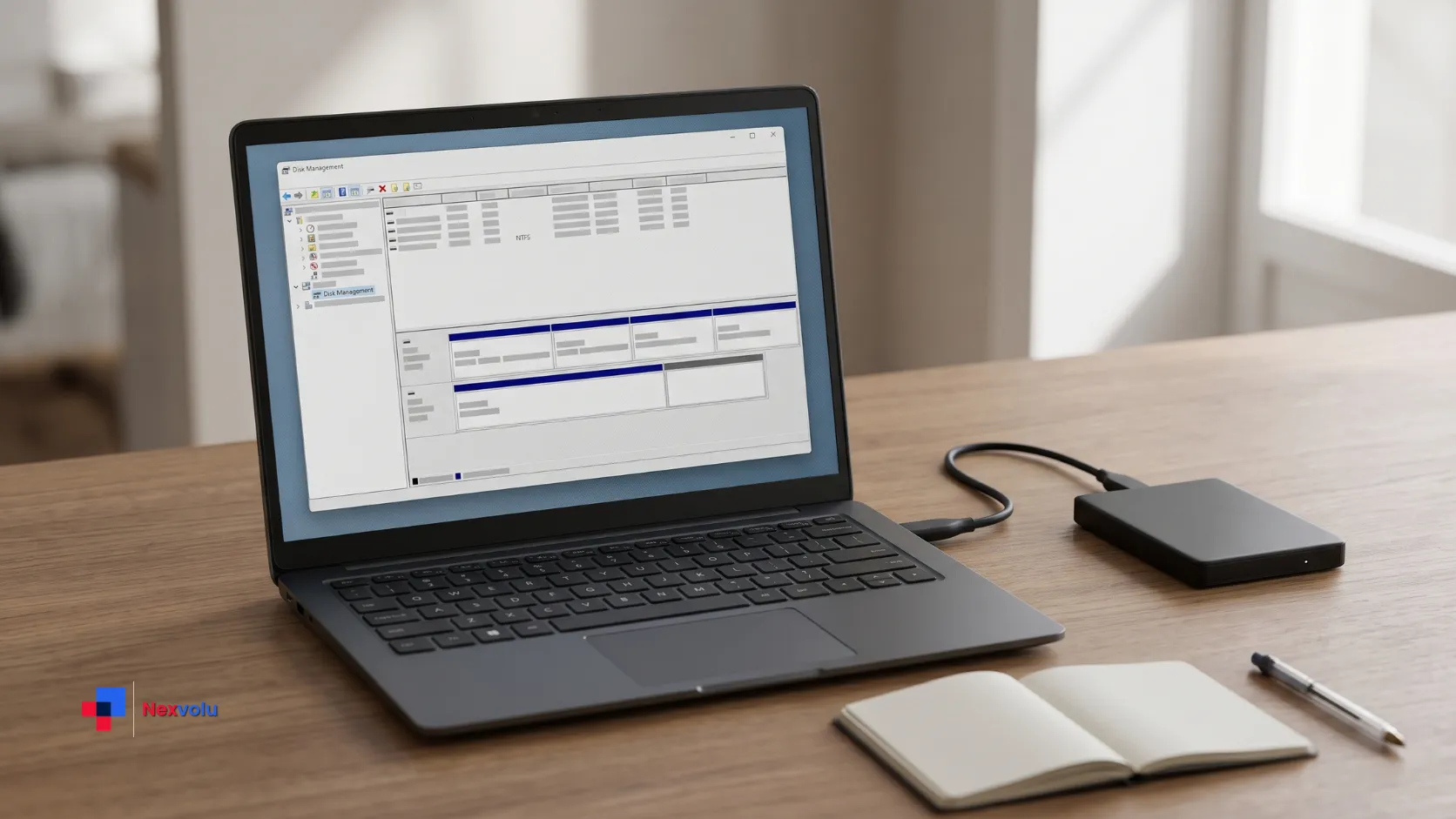
File Explorer and Disk Management show different levels of information. If your external hard drive is not showing up in File Explorer, it may still appear in Disk Management.
- Right-click Start and select Disk Management. If an initialization dialog appears, choose Cancel.
- Look at the lower panel. Identify the external disk using its approximate capacity, disk label, and connection context. Capacity alone is not enough when drives are similar.
- Note the disk’s status, the volume’s file system, and whether a drive letter appears. Take a photo or write the details down without changing anything.
- If you cannot confidently identify the disk, stop. Do not make changes to the Windows system disk, EFI system partitions, or recovery partitions.
A disk is the physical storage device; a volume is a usable area on it. The words Healthy, RAW, and Unallocated describe different things. In particular, a Healthy label does not guarantee the physical drive is healthy or that every file is readable.
Choose the right next step
Use this table only after identifying the correct external disk. If you are unsure, or the drive contains your only copy of important files, get help rather than experimenting.
| What you see | What it can mean | Safer next step |
|---|---|---|
| Healthy, recognizable volume; no drive letter | Windows sees a volume but it may not be mounted with a letter. | Check the conditions before adding a letter. |
| RAW, Unallocated, or Not Initialized on a used drive | The file system or partition information may be unreadable. Hardware or compatibility problems are also possible. | Cancel prompts; do not format, initialize, or create a volume. |
| Offline, unreadable, or repeatedly disconnecting | Windows detects a problem, but the cause is not established. | Record the status; avoid repeated reconnection attempts. Seek help if files matter. |
| No disk in Disk Management | The connection, power supply, enclosure, hardware, or computer may be responsible. | Review limited connection checks; stop if failure symptoms appear. |
| New disk, confirmed empty | The drive may need initialization or a new volume. | Set it up only after confirming its identity and that no data is needed. |
These are decision cues, not diagnoses. For example, Unallocated on a used drive is not proof that it was always empty. Similarly, Offline is not a reason to click Online blindly when you cannot identify the cause or the drive.
External hard drive not showing up? Check for a missing drive letter
An external hard drive not showing up in File Explorer may have a recognizable volume without a letter in Disk Management. If the volume is clearly the correct external data volume, shows a Windows-readable file system such as NTFS or exFAT, has no failure symptoms, and has no letter, you can try adding one.
- Right-click the volume area of the confirmed external drive, not the disk label.
- Select Change Drive Letter and Paths. Choose Add.
- Select an unused letter, then choose OK and confirm any prompt you understand.
- Open File Explorer > This PC and check the new letter. If you can open the files, copy important ones to a separate destination and verify the copies.
Do not change an existing letter as a routine fix, especially for a drive containing apps or software paths. Microsoft warns that changing a letter can prevent apps from finding their files. See Microsoft’s drive-letter instructions.
If Add is unavailable, the volume is RAW, or Windows asks to format it, cancel and investigate rather than forcing the step. Permissions, an unsupported format, or a different disk condition may explain the problem. Adding a letter is not a repair for a failing disk and may not resolve the problem.
Handle RAW, unallocated, or unknown drives
If your external hard drive is not showing up and a used volume appears RAW or unallocated, do not treat it as empty. A RAW volume means Windows does not recognize its file system as a usable one. Unallocated describes space without a Windows-recognized volume; Not Initialized describes a disk Windows does not recognize as initialized. None of these labels proves a used drive is empty.
If the drive contains needed files, avoid Format, Initialize Disk, New Simple Volume, and Delete Volume. Avoid running CHKDSK with repair options on a drive containing files you need, especially if the drive may be failing, until you have a verified backup or professional advice. CHKDSK without parameters reports the volume’s status without fixing errors; options such as /f, /r, /x, and /b perform repairs or other changes to the file system. Those operations may affect recovery options when a drive is already damaged. Preserve the disk’s condition and seek specialist advice before attempting repairs on an important, unbacked-up drive. Even a status-only check reads the drive, so avoid it if the drive may be failing and the files matter.
Instead, note the exact message, capacity, and recent events: a power loss, a drop, a move from another computer, or an interrupted transfer. Check for a separate verified backup. If no usable backup exists, ask a recovery service about assessment, expected cost, privacy, and whether it can work from an image or clone. Do not assume recovery will succeed.
Microsoft distinguishes genuinely empty disks from disks with important files and warns that formatting erases data in its troubleshooting guidance.
Check compatibility and encryption
If an external hard drive is not showing up after use with a Mac or Linux computer, it may use a file system Windows cannot read natively. A format prompt can reflect incompatibility rather than an empty disk. If the drive has no failure symptoms, try it on the original compatible computer and copy the files to another storage device. Do not format the original first.
For example, Apple’s external-drive file-system guidance identifies APFS as a Mac file system and exFAT as Windows-compatible. This does not mean every drive should be reformatted as exFAT: first protect the files and check the devices that must use it.
Encryption is another possibility. A BitLocker-protected or manufacturer-encrypted drive may need the correct password, recovery key, compatible software, or original device. Follow the drive maker’s instructions. For BitLocker, Windows may require the 48-digit recovery key when it cannot automatically unlock an external data drive. Check that you can access the key before attempting recovery or changing the drive’s configuration. See Microsoft’s guide to finding a BitLocker recovery key. Do not disable security or guess at recovery procedures if the files are important.
External hard drive not showing up in Disk Management? Check Device Manager
If the external hard drive is not showing up in Windows 11’s Disk Management, open Device Manager by right-clicking Start. Expand Disk drives and look for the device or a warning icon. You can also inspect Universal Serial Bus controllers, but do not uninstall unfamiliar devices.
If you find an entry, open Properties and record its name and status. This information can help the manufacturer or a technician distinguish a device or connection issue from a volume issue. A visible device entry does not prove the disk’s contents are readable.
For a stable drive with no failure signs, you can return to Disk Management and select Action > Rescan Disks once. If Windows detects the drive intermittently, or if the drive becomes unusually hot or produces errors, stop rather than repeatedly scanning or cycling power. Avoid random driver downloads and firmware updates; use the manufacturer’s support process if needed.
Set up a genuinely empty new drive
If a new external hard drive is not showing up, it may need initialization or a volume. However, some new drives are ready to use. Proceed only when you are certain the identified disk is new or its contents are expendable. Check the model, capacity, and connection again. If there is any doubt, stop.
For a confirmed empty disk, follow Microsoft’s Disk Management instructions. The usual process is:
- Initialize the disk if necessary. In Disk Management, right-click the disk label and select Initialize Disk. Confirm the correct disk before proceeding. GPT is generally suitable for modern UEFI-based PCs; older hardware or operating systems may require MBR for compatibility. Do not initialize a previously used disk containing files you need.
- Create a new volume. After initialization, locate the Unallocated space, right-click it, and select New Simple Volume. Follow the wizard and select an unused drive letter.
- Choose the file system. NTFS is a common choice for Windows-only storage. exFAT can be more suitable when you also use the drive with compatible Mac computers. Check the requirements of other devices before selecting a format.
- Confirm before formatting. Recheck the disk identity and confirm it is genuinely empty or that its contents are expendable. Formatting can destroy access to existing files.
Disk Management cannot initialize some USB drives, which may require a different setup process. Follow the manufacturer’s instructions rather than forcing an initialization procedure.
Formatting removes access to existing files and may overwrite data. Choose a file system based on the computers and devices you actually use, not a universal compatibility claim. If you received the disk for a work system or backup appliance, check its instructions before changing its layout.
Protect your files after access returns
If the drive opens normally, copy important files to a separate device or another appropriate destination. Open a selection of the copied files to check that they are usable. For critical material, confirm the backup covers the complete set you need; a successful copy of one document is not proof that everything transferred.
If copying triggers repeated errors, disconnections, or unusual noises, stop. Continuing to read a failing disk can make recovery more difficult. If a verified backup exists, consider replacing an unreliable drive rather than trusting it with the only copy.
Keep an independent, tested backup going forward. Cloud synchronization can be useful, but check its deletion and version-history behavior rather than assuming sync alone is a complete backup. For more practical device and software explainers, browse Nexvolu’s Technology guides.
Frequently asked questions
Can I recover files if Windows asks me to format the drive?
Possibly, but the prompt alone cannot tell you whether recovery will work. Cancel it, avoid writing to the drive, and check for an independent backup. If the files matter and the drive remains unreadable, consult a recovery specialist.
Why is my external hard drive not showing up in File Explorer but visible in Disk Management?
It may lack a drive letter, use an unsupported or damaged file system, require unlocking, or have another volume or hardware issue. Check the exact status first; do not assume a missing letter is the only cause.
Should I run CHKDSK on a missing external drive?
Not as a first step when important files are unbacked-up or the drive may be failing. CHKDSK without parameters reports the volume’s status but does not repair errors. Repair options such as /f, /r, and /x can change the file system. If the drive is missing entirely or shows RAW, do not assume CHKDSK is an appropriate fix. Preserve the drive and seek professional advice before attempting repair. See Microsoft’s CHKDSK command reference.
Does a new external drive always need formatting?
No. Many arrive ready to use. Others require setup, and the right process depends on the device. Only format after confirming that no existing data is needed.