
Learning how to use NotebookLM for research starts with a simple shift: treat the AI as a guide to your documents, not as the final authority. Upload relevant sources, ask focused questions, and check the passages behind the answers before you use them.
Google now calls NotebookLM Gemini Notebook. In this guide, we use both names so readers can find the product. You’ll learn how to build a notebook, compare sources, verify claims, and export a useful research brief. The examples are illustrative, not results from a product test.
Table of contents
- What is NotebookLM, and is it now Gemini Notebook?
- Set up your notebook
- Add and Check Sources
- Ask Better Questions
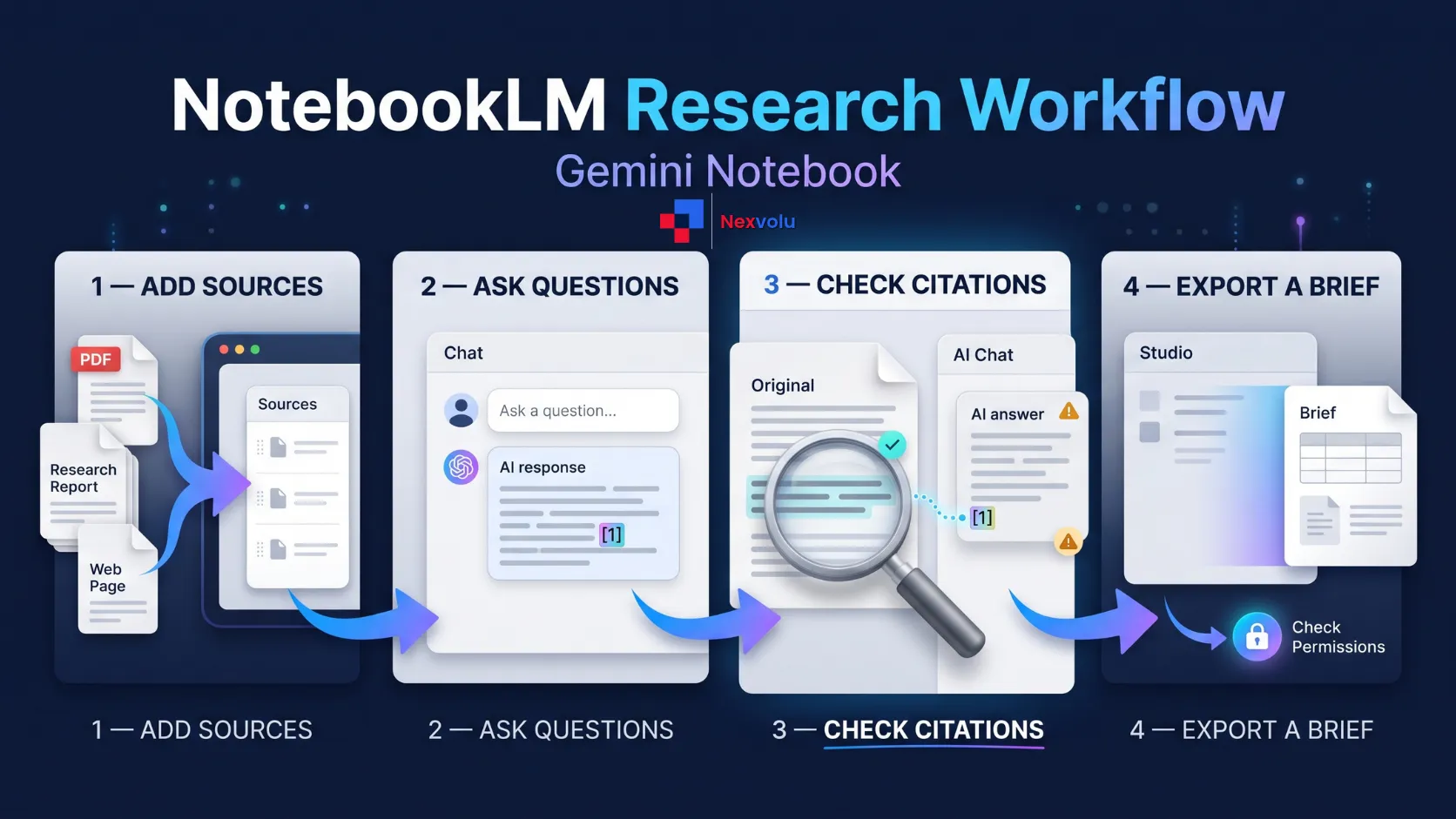
- How to Use NotebookLM for Research and Verify Citations
- Create and Export Outputs
- NotebookLM vs ChatGPT: Which should you use?
- How to Use NotebookLM for Research Safely
- Your printable research checklist
- Frequently asked questions
- Nexvolu’s verdict
What is NotebookLM, and is it now Gemini Notebook?
Gemini Notebook is Google’s AI research tool for working with collections of sources. A notebook brings materials for one project together, allowing you to ask questions and create outputs such as reports or audio overviews.
Google officially announced the NotebookLM-to-Gemini Notebook rename on July 16, 2026. The product remains a standalone AI research tool, while Google is also expanding its integration with the wider Gemini ecosystem. Older tutorials, bookmarks, and search results may still use the NotebookLM name, so this guide includes both names. The instructions below focus on the desktop web experience; mobile features and interface labels may differ.
The useful distinction is source grounding: you give the tool material to work from and can inspect cited passages. That is not the same as proof that every statement is true. An answer can misread a source, overlook context, or reflect errors already present in the source.
How to use NotebookLM for research: Set up your notebook
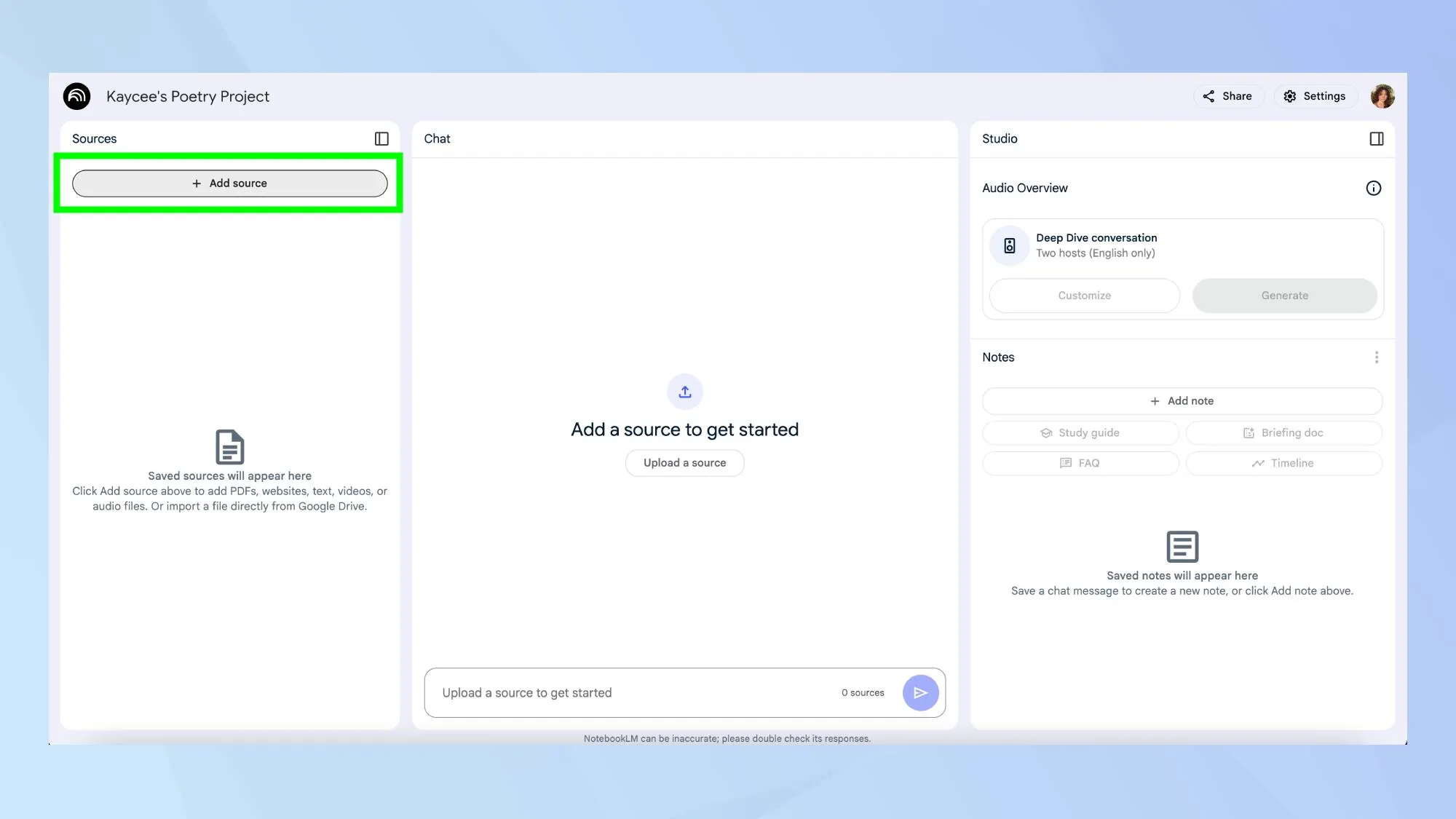
Start with a specific research question, not a broad folder of everything you have. For example, “What do three reports say about remote-work productivity, and where do their methods differ?” gives you a clearer task than “Tell me about remote work.”
Then follow Google’s notebook creation instructions:
- Visit Gemini Notebook and sign in with an eligible Google account.
- Select Create new notebook. Name it after your project or question.
- Choose Upload a source, or use the source options to add material.
- In the Sources panel, select the documents you want included in your question.
- Use Chat for questions and Studio for supported outputs.
Labels, access, and options may change. If you use a work or school account, an administrator may also control access. For a larger project, use a separate notebook for each distinct question. Google says each notebook is independent, so keep related evidence together when you want to compare it.
Choose a useful starting set
When learning how to use NotebookLM for research, begin with a small, deliberate collection: a primary study or official report, a second relevant source, and a document representing a different perspective. Add more only when they answer a specific gap. For academic work, check your assignment’s source and citation rules first.
How to Use NotebookLM for Research: Add and Check Sources
Google’s source documentation supports several types of research material. Choose Add sources in an existing notebook, select the relevant source type, and follow the upload, import, or search prompts.
| Source type | Good use | What to check before relying on it |
|---|---|---|
| PDF, Word, PowerPoint, text, Markdown, CSV, and EPUB files | Research papers, reports, presentations, and working notes. | Check important paragraphs, tables, figures, and formatting against the original file, especially in scanned or complex documents. |
| Google Docs, Slides, and Sheets | Collaborative research documents, presentations, and datasets. | Google Slides supports up to 100 slides, while Google Sheets has a 100,000-token limit. Google file comments and footnotes are not imported. |
| Web pages | Official policies, research articles, and public information. | Only webpage text is imported. Images, embedded videos, and nested pages are excluded. Paywalled webpages are unsupported. |
| Public YouTube videos | Recorded lectures, interviews, and public presentations. | Only the text transcript is imported. The video must have captions, and automatic captions can contain errors. |
| Audio files | Recorded interviews, lectures, and spoken research material. | The audio is transcribed during import. Low-quality recordings and audio without speech may fail. |
| Images | Photographed notes and visual research material. | Some image types may not work as well. Verify extracted text, diagrams, and important visual details yourself. |
| Eligible Google Play Books and textbooks | Textbook chapters and eligible educational reading material. | Only text is supported, and ebook eligibility and access restrictions apply. |
Google also lists Gemini Chats as a source type where supported.
Find sources with Fast Research and Deep Research
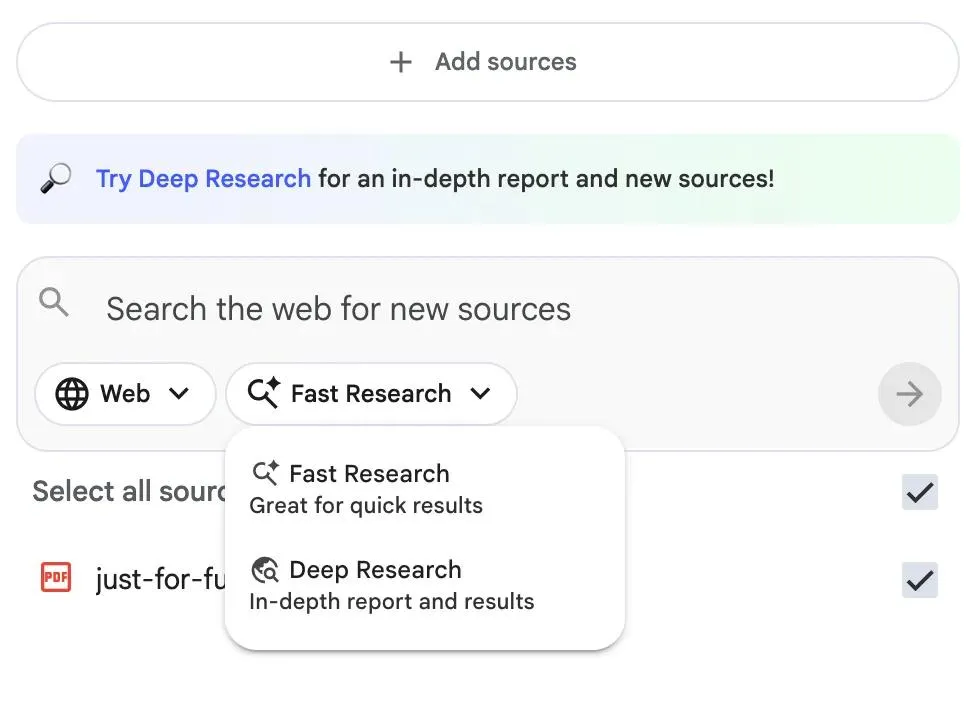
When deciding how to use NotebookLM for research, remember that you do not have to collect every source manually. Gemini Notebook includes tools that can help you discover relevant material before adding it to your notebook.
Fast Research
Fast Research lets you search for sources from the web or your Google Drive.
- Open the Sources panel in your notebook.
- Enter a research topic or question in the search box.
- Choose Web to find online sources or Drive to look for accessible Google Drive files.
- Review the search results, including their titles and descriptions.
- Open relevant results, then select the sources you want to import.
This is useful when you already know your research topic and want to build a collection of relevant documents.
How to Use NotebookLM for Research With Deep Research
Deep Research is a more extensive research option. Google describes it as an agentic feature that can browse up to hundreds of websites, organize its findings, and create a multi-page research report.
To use it:
- Open the Sources panel and enter your research question.
- Select the web research option and enable Deep Research if available.
- Start the search and allow the research process to produce its report.
- Review the report and the sources it identifies.
- Select the sources you want to import into your notebook.
Deep Research can help broaden your initial collection, but it does not remove the need to evaluate source quality. Review the original publications, publication dates, research methods, and relevance of the evidence before using it.
Results may also be partially imported when account usage limits are exceeded. Availability and limits depend on your account; Google says Deep Research is currently available only to users over 18.
For the current instructions, see Google’s guide to finding and adding research sources.
NotebookLM Research and Usage Limits
Google currently lists up to 50 sources per notebook on the Standard no-cost tier. Each source can contain up to 500,000 words, and uploaded files can be up to 200 MB. Paid plans provide higher source limits.
Source-count limits are separate from AI usage limits. Gemini Notebook also uses compute-based limits that depend on factors such as prompt complexity, the selected model, the features you use, and conversation length. Google says these usage quotas can refresh every five hours until the applicable weekly limit is reached.
Check the usage indicator in your account before starting a large research project. Source allowances, compute limits, and paid-plan features can change. See Google’s Gemini Notebook usage limits.
Test the import, not just the upload
Knowing how to use NotebookLM for research includes checking imports: an upload does not prove that every detail came through. Compare a passage with the original, then ask a question whose answer you already know, such as the report’s publication year.
If a scanned PDF produces a weak answer, inspect the source and try a text-readable copy or optical character recognition. If a web page omits a chart, inspect the original chart yourself. Likewise, review video captions before quoting a speaker. These checks are troubleshooting steps, not guarantees that every format will import perfectly.
Google Drive sources can synchronize automatically every few minutes. Changes to the original document can update when you open your notebook, and Google also provides a manual sync option within the source viewer.
However, updating or deleting a source does not automatically update Studio outputs that were previously generated from it. Regenerate and review those outputs whenever the underlying research material changes.
How to Use NotebookLM for Research: Ask Better Questions
When learning how to use NotebookLM for research, write prompts that name the task, the evidence, and the shape of the answer. Your prompts should also allow the tool to say that the material does not answer the question. Start with a map of your documents, then move to comparison and gaps.
A three-prompt research sequence
1. Map the material
For each selected source, identify its author or organization, date, main question, and stated limitations. Cite the relevant passages. If a detail is not in the source, say so.
2. Compare the evidence
Compare what these sources say about [your research question]. Separate areas of agreement from differences. Identify differences in dates, populations, definitions, or methods, and cite the supporting passages.
3. Find the gaps
What important questions remain unanswered by these selected sources? List possible missing evidence without assuming it exists or inventing citations.
Replace the bracketed phrase with your question. Select relevant sources first; prompts do not make the tool infallible.
Optional: Build a first-pass claim ledger
Create a draft evidence table using the selected sources. Include these columns: claim, source title, exact supporting passage, source publication date, relevant limitations, and what still needs independent verification. Only include information supported by the selected sources. Write “not stated” when a detail is missing. Do not invent quotations, publication dates, or citations.
Treat the generated table as a starting point. Open the original passages and verify the entries before using them.
Example: Separate a contradiction from a different question
Imagine two hypothetical reports: one surveys office employees and another measures a small group of remote workers. Both discuss productivity, but they use different populations and measures. A summary might describe their findings as a direct conflict.
Instead, ask the comparison prompt above. Then open each cited passage and record what each report actually measured. If the definitions differ, your conclusion might be “the studies are not directly comparable,” not “one study disproves the other.” The example illustrates a method; it does not describe real studies or results.
How to Use NotebookLM for Research and Verify Citations
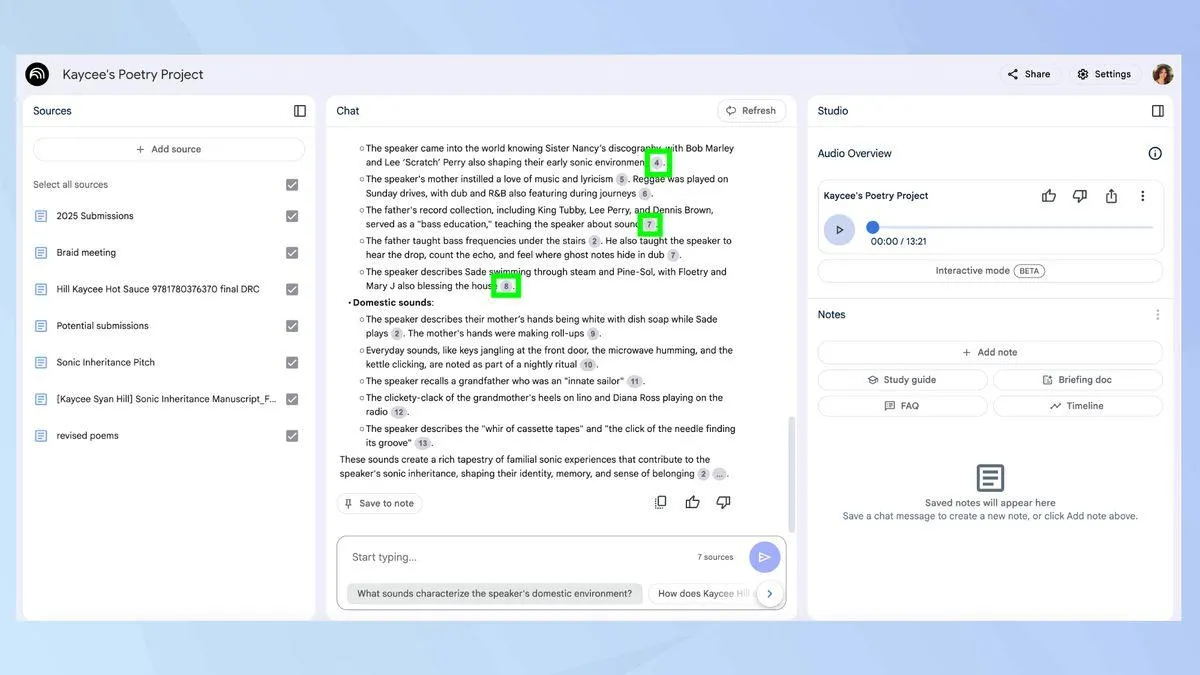
Google says you can hover over a citation to see quoted text and select it to navigate to the relevant passage. Its chat instructions describe citations as a way to check response accuracy. Use that navigation as the beginning of verification, not the end.
An essential part of how to use NotebookLM for research is checking every important claim against the passage and its surrounding context in the original document. Confirm who made the claim, when, what was measured, and whether the AI preserved qualifiers. For current facts, check the latest authoritative source separately. Two articles repeating the same study are not two independent confirmations.
A compact claim ledger helps you carry evidence into a report. The following is a simple template you can maintain in a document or spreadsheet; it is not a separate built-in Gemini Notebook feature:
| Draft claim | Source and context | Verification status and next action |
|---|---|---|
| “The reports disagree.” | Illustrative example: different groups and measurement methods. | Needs qualification. Explain whether the studies are actually comparable before calling their findings contradictory. |
| “The policy applies today.” | Illustrative example: an older policy document. | Unverified. Check the latest official policy before using this statement. |
| A quotation or number | Original document, relevant passage, and publication date. | Verify the exact wording, units, date, and context. Remove the claim if you cannot confirm it. |
Keep your own full bibliographic details alongside the ledger. Notebook citations help locate passages; they do not replace the citation format required by your school, publication, or employer. For a broader process, see our guide on how to fact-check AI answers.
How to Use NotebookLM for Research: Create and Export Outputs
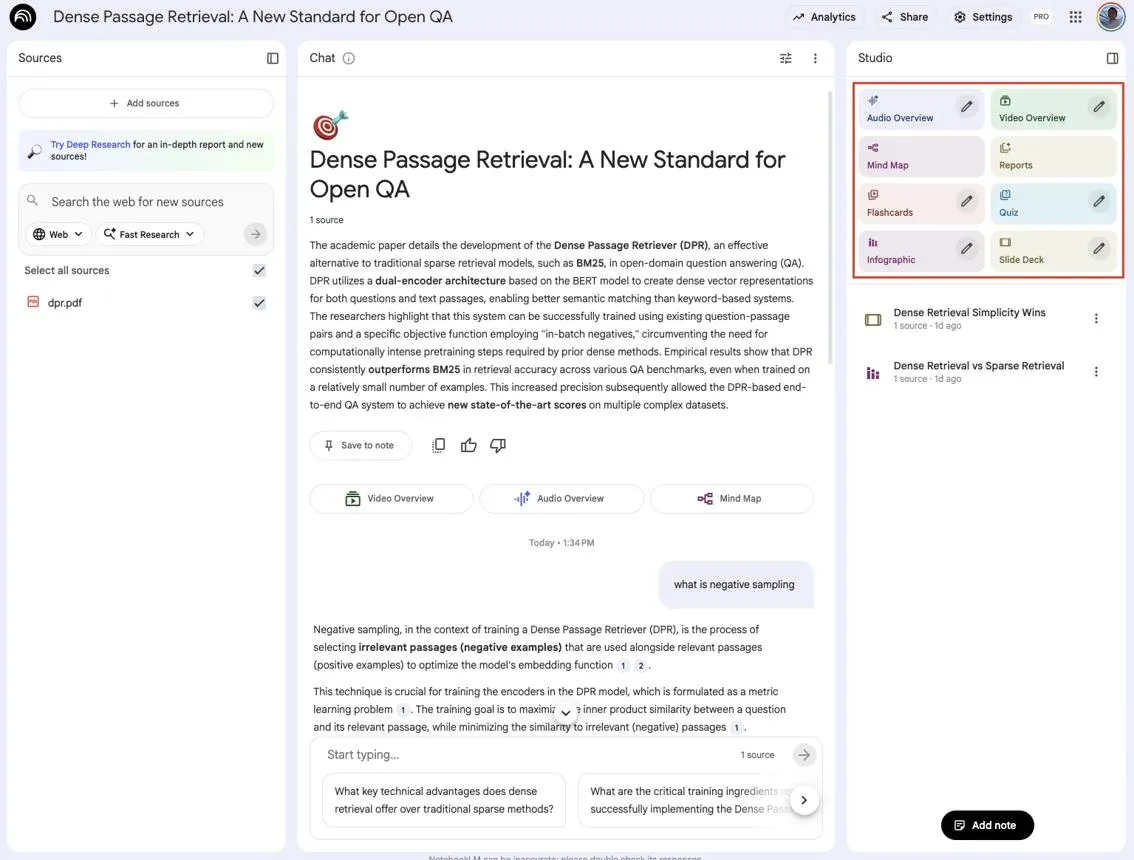
Once you have checked the main claims, the next step in how to use NotebookLM for research is turning the material into a useful output with Studio. Depending on your account and available features, Gemini Notebook can create Notes, Audio Overviews, Video Overviews, Mind Maps, Reports, Data Tables, Flashcards, Quizzes, Slide Decks, and Infographics.
Choose the output according to your research goal. A briefing document can help a team review the evidence, a Mind Map can organize related concepts, and a Data Table can help compare information across multiple sources. An Audio or Video Overview can make lengthy reading material easier to review.
These outputs are AI-generated summaries or transformations, not independent verification of the underlying research. Listen to recordings critically, inspect important figures and slides, and return to the original documents before relying on any important claim.
According to Google’s Gemini Notebook guide, you can use the three-dot menu beside a generated report to select Export to Docs. If the report contains data tables, the available Sheets export can place each table in its own spreadsheet tab.
For standalone Data Tables, selecting Export to Sheets creates a Google Sheet with the data in the first tab and its citations in the second tab.
Export options and availability can depend on the output type and your account.
After exporting, check the formatting and verify that the evidence trail remains usable. Google notes that edits in exported Docs or Sheets do not sync back to the notebook, and notebook sharing permissions do not carry over. Review the exported file’s sharing settings before sending it to anyone.
NotebookLM vs ChatGPT: Which should you use?
Use Gemini Notebook when your immediate job is to interrogate a defined set of documents and trace an answer to a source passage. Consider a general-purpose assistant such as ChatGPT when you need broader brainstorming, drafting, or a different set of tools. Both can work with documents, depending on the product and plan; neither should be treated as automatically accurate.
This is a workflow distinction, not a claim that one model always performs better. You can brainstorm a research question in a general assistant, gather credible sources, and then examine those sources in a notebook. If you are weighing paid options, our AI subscription decision guide explains when paying may be worthwhile.
It is important to distinguish source-grounded notebook chat from source discovery. Google’s chat documentation explains that standard notebook answers use information from the notebook’s selected sources. You can find additional material through Fast Research and Deep Research in the Sources panel.
When those tools discover additional material, review the results and deliberately import the sources you want included. You can then ask notebook chat to compare the selected documents and cite the relevant passages. This separates source discovery from source-grounded analysis.
Google also documents experimental agentic chat features that can search the web or conduct research within chat, with availability varying by account. Check which mode you are using rather than assuming all chat is source-only. See Google’s Gemini Notebook chat instructions and source discovery guide.
How to Use NotebookLM for Research Safely
Understanding how to use NotebookLM for research safely starts with checking whether you have permission to use the material and whether its sensitivity fits your account and organization’s rules. Avoid putting confidential client, patient, student, or employer data into an unapproved account. For work-related decisions, see our guide to using AI at work.
Google’s Gemini Notebook privacy notice says that content in Gemini Notebook is not used to directly train its foundational AI models unless a user chooses to provide feedback.
However, feedback has important privacy implications. When you submit thumbs-up or thumbs-down feedback, Google may collect the associated prompts, customizations, sources, uploads, and generated responses. Specially trained reviewers may examine this material. Google says reviewed feedback, included content, and related data may be retained for up to three years, disconnected from your Google Account.
Google also states that uploads, queries, and model responses from Google Workspace and Google Workspace for Education users are not reviewed by human reviewers, even when feedback is provided, and are not used to train AI models.
The applicable protections and terms depend on your actual account and service. Data shared with other Google services may also be covered by those services’ separate privacy notices.
Do not interpret these protections as permission to upload confidential material. Check your employer’s policies, applicable account terms, and document-sharing rights before importing sensitive information.
How to Use NotebookLM for Research: Troubleshooting
What If the answer misses a source: Check that it is selected and accessible, then name it in your question. If it still misses the point, open the relevant passage yourself.
If a citation seems wrong: Read around the cited passage and check the original file. Ask a narrower question, but do not treat a second AI answer as independent verification.
If an import fails: Check file type, size, permissions, and whether a web page is paywalled. Try a supported, accessible version that you have the right to use.
If an output looks outdated: Confirm that the source is current, sync or replace it as needed, and regenerate the output. Recheck the important facts rather than assuming the new version fixed everything.
Your printable research checklist
- ☐ Write a specific research question and define the scope.
- ☐ Gather relevant sources you have permission to use.
- ☐ Review Fast Research or Deep Research discoveries before importing them.
- ☐ Record author, date, purpose, and important limitations.
- ☐ Check imports against original text, tables, or captions.
- ☐ Select the sources relevant to each question.
- ☐ Ask for agreement, differences, missing evidence, and citations.
- ☐ Open cited passages and verify each important claim in context.
- ☐ Check time-sensitive facts against current authoritative sources.
- ☐ Record unresolved claims and remove unsupported statements.
- ☐ Review exported content and its sharing permissions.
Frequently asked questions
Is NotebookLM free to use for research?
Google currently provides a Standard no-cost tier. Its documentation lists up to 50 sources per notebook on this tier, with a maximum of 500,000 words per source and 200 MB per uploaded file. AI generation and research usage limits are separate from source-count limits and can change. Check your account’s current plan and usage information before starting a large project.
Can NotebookLM read a PDF?
Yes. PDF is a supported source type. However, the fact that a PDF uploads does not establish that every figure, table, or passage is represented correctly. Check the imported source against the original, especially when the file is scanned or visually complex.
Does a NotebookLM citation mean the answer is correct?
No. A citation helps you locate supporting material, but you must check whether the passage actually supports the claim and whether the source itself is reliable and current. For high-stakes medical, legal, or financial decisions, seek qualified professional advice.
Does Gemini Notebook search the web automatically?
Not every notebook chat response automatically searches the web. Google says standard source-grounded chat answers questions using the selected notebook sources. Its documentation also describes experimental agentic chat capabilities that can search the web, depending on availability and the request.
For source discovery, use Fast Research or Deep Research through the Sources panel. Fast Research helps find web or Google Drive sources, while Deep Research can explore a much larger collection of websites and compile a research report. Review the results and select the sources you want to import before relying on their findings. Feature availability and usage limits can vary by account.
Nexvolu’s verdict
Gemini Notebook is most useful when you need to collect, organize, and compare research material without losing track of the original evidence. Fast Research can help you find relevant sources, Deep Research can broaden your initial investigation, and source-grounded chat can help you compare the material.
But neither an AI-generated research report nor a citation guarantees that a conclusion is correct. The best workflow is to discover, select, question, verify, and then export.
Use Gemini Notebook as a research assistant, not a replacement for your own judgment. No matter how you use NotebookLM for research, the strength of your final work depends on the quality of your sources and how carefully you evaluate them.