

To stop AI training on your data, start by checking each assistant’s privacy settings. ChatGPT, Gemini, and Claude document training opt-outs for personal accounts, but no single switch makes every conversation private. Microsoft Copilot needs extra care: its older personal app had training controls, while the current privacy guide for the updated app does not list an equivalent training toggle.
This guide explains where to find the documented controls, what they change, and what providers may still store or review. Turning off model training does not stop a service from processing your prompts to answer you. It also does not automatically delete older conversations, clear saved memories, or reverse training that has already happened.
The instructions are based on official provider documentation, not hands-on product testing. Settings and availability can differ by account type, country, device, and app version. Documentation checked November 7, 2026.
Table of contents
- What it means to stop AI training on your data
- Stop AI training on your data: controls compared
- How to stop AI training on your data in ChatGPT
- Where to stop AI training on your data in Gemini
- How to stop AI training on your data in Claude
- Check AI training on your data in Microsoft Copilot
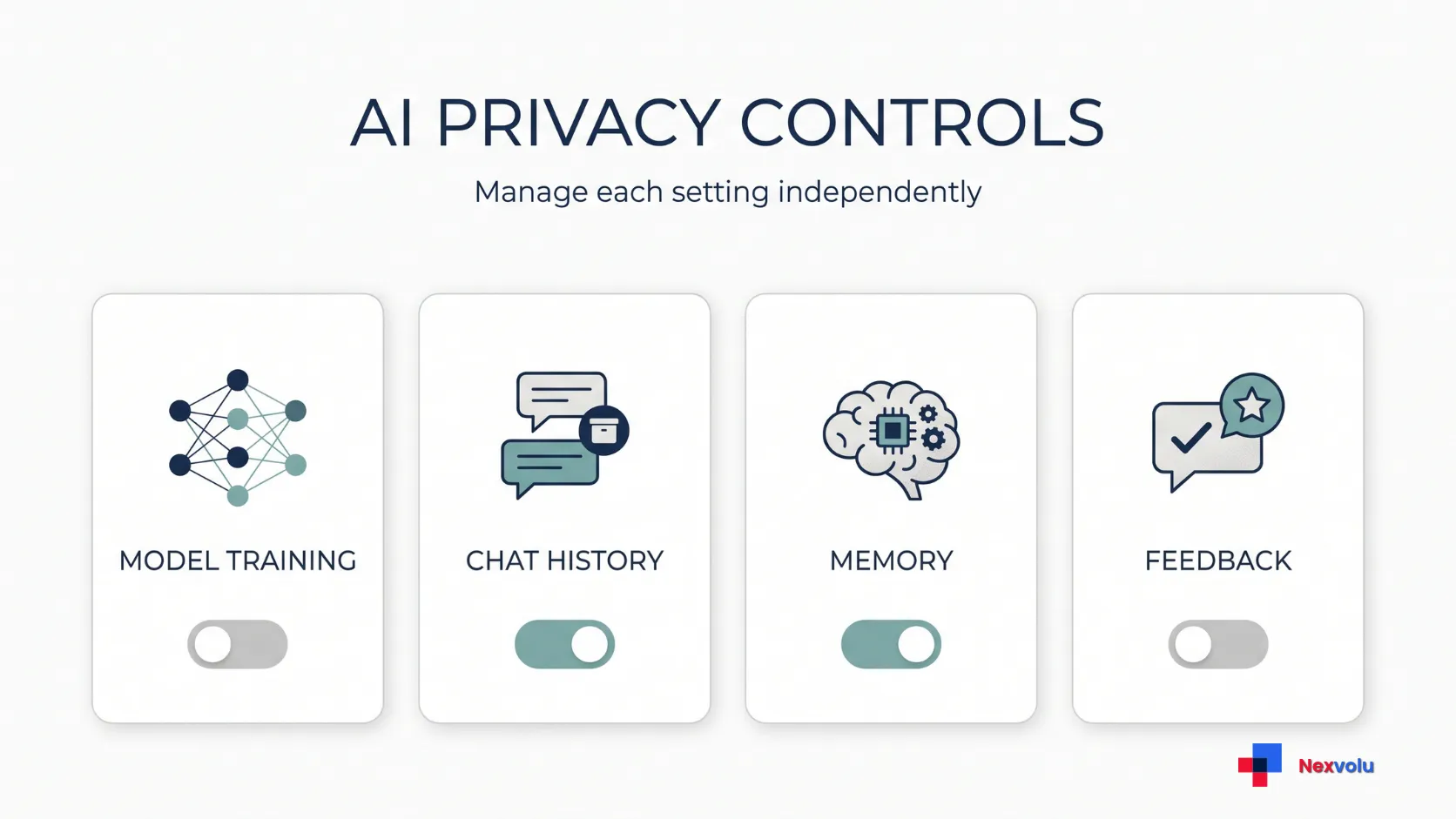
- Training, history, memory, and feedback are different
- What to do about older chats
- Five-minute checklist to stop AI training on your data
- Frequently asked questions
- Nexvolu’s verdict
What it means to stop AI training on your data
Model training uses examples to improve an AI model. A training opt-out limits how a provider may use eligible material for that purpose under its stated rules. It does not prevent the provider from processing your prompt to answer it.
Nor does it automatically remove chat history, memories, shared links, or material already used in a completed training run. In some cases, feedback or safety rules create exceptions. Therefore, think of training, storage, personalization, and sharing as separate decisions.
These steps can help you stop AI training on your data in eligible consumer conversations, but this guide does not cover every app that uses the same models. An AI feature in your email, meeting app, browser, or a third-party service can have different terms. Check each service separately.
Stop AI training on your data: controls compared
This comparison covers the documented controls for personal consumer accounts. Microsoft Copilot is an important exception: the updated app’s privacy documentation currently provides a different set of controls from the older version. Check your product and account before following any instructions.
| AI assistant | Where to check | What the control does not guarantee |
|---|---|---|
| ChatGPT | Personal account: Settings → Data controls → Improve the model for everyone → Off. | Existing chats remain in history. Feedback can create a training exception. Voice recordings and additional Codex environment data have separate controls. |
| Google Gemini | Gemini Apps Activity → Keep Activity → Turn off. | Google retains future chats for up to 72 hours for service and safety purposes. Submitted feedback can result in human review and retention for up to three years. Audio and Live recordings have a separate opt-in control. |
| Claude | Settings → Privacy → Help improve our AI models → Off. | The setting does not reverse training already underway or completed. Safety-flagged conversations and submitted feedback have separate rules. |
| Microsoft Copilot | The updated personal app has no model-training opt-out documented in Microsoft’s current privacy-control guide. The older app had separate conversation and voice-training controls. | Do not apply legacy instructions to the updated app. Microsoft 365 home apps and organizational accounts have different data protections. |
How to stop AI training on your data in ChatGPT
To stop AI training on your data in a personal ChatGPT account, check the model-improvement setting. OpenAI says it can use eligible personal-workspace conversations for model improvement. To opt out on the web:
- Sign in and open your account menu.
- Choose Settings, then Data controls.
- Select Improve the model for everyone.
- Turn it off and select Done if prompted.
On iOS or Android, open the sidebar, select your profile icon, and find the same control under Settings → Data controls. OpenAI says the signed-in choice applies across devices. Its ChatGPT data controls guide also explains the limits.
Your existing chats remain in history unless you delete them separately. OpenAI says it will not train its models on new conversations after you opt out. However, if you submit a thumbs-up or thumbs-down, OpenAI may use the entire associated conversation for training. Review the feedback notice before sending it.
Stop AI training on your data with Temporary Chat
For a conversation you do not want in the regular history, start a Temporary Chat. OpenAI says it does not use the chat to improve its models while it remains temporary, but it may retain a copy for up to 30 days for safety. If you save it as a regular chat, regular account settings apply.
Temporary does not mean invisible to the provider. OpenAI may retain Temporary Chats for up to 30 days for safety purposes, even though it does not use these chats to improve its models while they remain temporary.
Voice and Codex also require separate checks. The main model-improvement setting applies to eligible ChatGPT conversations and Codex tasks, but Codex has an additional Include environments setting for allowing broader environment context to be used for model training.
OpenAI may use voice transcripts and other files according to your plan and settings. Associated audio and video recordings have separate sharing controls, including Include your audio recordings and Include your video recordings. Review these choices under Settings → Data controls and see OpenAI’s ChatGPT Voice data-control instructions.
OpenAI also documents certain Trusted Access programs, such as Daybreak Blue, where OpenAI may still use content from those specific sessions to improve models even when the ordinary training setting is off. These are program-specific exceptions. Do not assume that one ChatGPT setting covers every OpenAI product or data type.
Where to stop AI training on your data in Gemini
To stop AI training on your data in Gemini, check Keep Activity for your personal Google account. This setting also affects your activity history. On a computer:
- Open Gemini and sign in to the Google account you actually use.
- Select Settings & help, then Activity. You can also open Gemini Apps Activity.
- Select On near the top.
- Choose Turn off, or Turn off and delete activity if you also want to request deletion of existing activity. Review the confirmation first.
Google says Keep Activity is on by default for users aged 18 and older. When you turn it off, future chats no longer appear in Gemini Apps Activity, and Google does not use them to train its AI models unless you choose to submit feedback.
This does not mean the conversations disappear immediately. Google retains chats with Keep Activity off for up to 72 hours to provide the service, process feedback, and support safety. For work or school accounts, an administrator may control these settings instead.
On the mobile app, open the menu, select your profile picture, and look for Gemini Apps Activity. The Google activity instructions describe the desktop and mobile paths.
Some connected apps may also be unavailable when Keep Activity is off.
The feedback and deletion exceptions
Google says feedback can include the last 24 hours of chat context, uploads, and connected-app content. Reviewed feedback and associated conversations can remain with Google for up to three years. When you delete past activity, Google does not delete chats it already reviewed and disconnected from your account; it may retain those for up to three years. See the Gemini Apps Privacy Hub before sending feedback or deleting activity.
Google also provides a separate optional control called Improve Google services with your audio and Gemini Live videos & screenshares. This setting is off by default; you can enable it only when Keep Activity is on.
To check it on desktop, open Settings & help → Activity and find the checkbox next to that setting. Make sure it is not selected. In the mobile app, open Menu → Profile picture or initial → Gemini Apps Activity and review the same choice.
There is another distinction worth understanding: when Keep Activity is on, Google may use Gemini Live transcripts and the content you share with Live to improve its services, including AI models. By default, Google does not use the audio or Live video and screen recordings themselves for service improvement unless you explicitly enable the separate recording option or choose to submit feedback.
See Google’s official instructions for managing audio and Gemini Live recordings.
How to stop AI training on your data in Claude
To stop AI training on your data in a personal Claude account, check Anthropic’s model-improvement choice. To find it:
- Open Claude and select your name or account menu.
- Choose Settings, then Privacy.
- Find Help improve our AI models and switch it off.
The same general route applies on mobile. Anthropic’s model improvement instructions cover personal plans and related consumer Claude Code use.
Anthropic says that when you turn the setting off, it will not use new chats or previously stored chats in future model-training runs. That does not undo training already completed or already in progress. Separately, Anthropic may still use conversations flagged by safety classifiers to improve internal trust and safety models or for safety research.
You can also delete individual conversations separately. Anthropic says it removes a deleted conversation from your chat history immediately and deletes it from its backend storage systems within 30 days. This deletion does not reverse model training that is already underway or completed. Anthropic notes exceptions for legal obligations, disputes, safety, and feedback data; see its consumer retention policy.
Feedback is another choice. Anthropic says a thumbs-up or thumbs-down can lead it to store the related conversation for up to five years, and it may use feedback to train AI models. Check the notice before submitting. Its consumer training policy also says Anthropic does not use Incognito chats to improve Claude. Do not treat that as a guarantee of zero retention or zero safety processing.
Check AI training on your data in Microsoft Copilot
If you want to stop AI training on your data in Copilot, first identify the exact experience you use. Microsoft has different privacy documentation for its updated personal Copilot app, the older Copilot app, Microsoft 365 subscriptions, and work or school accounts. Do not assume every version offers the same opt-out.
Updated personal Copilot app
Microsoft released an updated Copilot app for web, desktop, and mobile on August 18, 2026.
Its current privacy controls guide documents settings for Memory, Shared experiences, Chat history, Web search, and personalized advertising. However, it does not currently list a model-training opt-out or provide a training-setting path.
I could not confirm an equivalent model-training switch for this updated version. Do not assume that turning off memory or shared experiences also opts you out of model training.
You can still manage some separate privacy choices:
- Turn off saved memories: Open Copilot Settings → Personalization and switch off Saved memories. To remove memories that already exist, open Manage and select Delete all memories.
- Delete an individual conversation: Find it in your Chats list, select the three-dot More menu, and choose Delete. You can manage the full chat history through Microsoft’s privacy dashboard.
These controls manage personalization and stored conversations, not a verified model-training opt-out.
Older personal Copilot app
Microsoft’s legacy privacy controls guide applies only to the older version.
For eligible signed-in personal accounts, Microsoft documents two separate model-training choices:
- Training on conversation activity
- Training on voice conversations
The documented paths for the older app are:
On the older copilot.com interface: Microsoft says the current web experience uses the updated-app guidance; these historical steps are not a verified path for the current website.
- Select your profile icon.
- Choose your profile name.
- Open Privacy.
- Find Training on conversation activity and Training on voice conversations.
- Turn off the controls you do not want enabled.
The older Windows or macOS app:
- Select your profile icon.
- Open Settings.
- Select Privacy.
- Find the two training controls and turn them off.
On the older mobile app:
- Open the menu.
- Select your profile icon.
- Open Account → Privacy.
- Turn off the relevant conversation and voice training controls.
Microsoft says opting out excludes future conversation activity from training its generative AI models. This does not mean Microsoft deletes older chats or reverses model training it already completed.
Do not apply these instructions to the updated app simply because the older support page is still accessible.
An important Microsoft Copilot migration deadline
If you previously used the older Copilot app, Microsoft says you should sign in to the updated app by December 31, 2026, to preserve eligible chats and content. Microsoft says it will permanently delete content that users have not migrated after that deadline.
See Microsoft’s Copilot privacy FAQ and migration information before relying on older chat-history instructions.
Copilot inside Microsoft 365 apps
Copilot inside Microsoft 365 apps for home subscriptions is a separate case.
Microsoft says it does not use prompts, responses, and file contents from its Microsoft 365 apps to train foundation models. Optional customer feedback can help improve those apps, but Microsoft says it does not use this feedback to train the foundation models Copilot uses in those apps.
This guidance applies to Microsoft 365 home subscriptions such as Personal, Family, Premium, and Pro. It should not be confused with the separate consumer Copilot chat app.
Work and school accounts use different organizational data-protection terms and administrator controls. Check Microsoft’s Microsoft 365 home privacy guidance or the applicable enterprise documentation for your account.
If you cannot confirm which privacy controls apply to your version of Copilot, consult the latest Microsoft documentation or contact Microsoft support. Do not assume that a personalization setting is a model-training opt-out.
Training, history, memory, and feedback are different
Even when you stop AI training on your data, other privacy controls still matter. One common mistake is treating every setting as if it controls the same thing. Review five separate areas:
- Model training: Can the provider use eligible conversations or other submitted content to improve an AI model?
- History and retention: Does the service save conversations to your account, and how long may the provider retain them?
- Memory and personalization: Can the assistant remember information about you and use it in future conversations?
- Feedback: Does submitting a rating or reporting a response send your conversation or other context to the provider for review or improvement?
- Sharing: Have you created a public conversation link or shared a chat with another person?
These choices can have different consequences. Turning off ChatGPT model improvement leaves ordinary chat history in place. Turning off Gemini Keep Activity does not eliminate its 72-hour service and safety retention. Disabling Microsoft Copilot Memory does not remove previously saved memories automatically.
Sharing is another separate issue. For example, deleting a Gemini conversation does not automatically delete the related public sharing link. You must manage that link separately.
A provider may also need to process submitted content to generate an answer, maintain service reliability, enforce safety policies, or meet legal obligations. That processing is not the same as using your conversation to train a foundation model.
A VPN is a separate tool, too. It can change which network parties see connection information, but it does not stop an AI service from receiving the content you submit. Our guide explains what a VPN can and cannot do.
What to do about older chats
If you want to clean up previous conversations, first identify what you shared and whether it included another person’s information. Then review the provider’s history, activity, memory, and sharing settings separately.
To stop AI training on your data, remember that deleting a conversation and preventing future model training are not the same action.
ChatGPT: Turning off Improve the model for everyone does not delete your normal chats. Delete conversations separately, and review shared links under Data controls if you previously created them.
Gemini: You can manually delete activity or change the automatic deletion period. Google currently defaults to deleting Gemini Apps activity older than 18 months, with options for 3 or 36 months or no automatic deletion. However, Google can retain previously reviewed conversations and related feedback for up to three years, even after you delete your activity. If you shared a conversation publicly, revoke its public link separately.
AI chat data deletion: Claude and Copilot
Claude: Anthropic says deleted conversations disappear from chat history immediately and that it removes them from backend systems within 30 days, subject to legal, safety, and feedback-related retention exceptions. Turning off model improvement also prevents Anthropic from using previously stored chats in future training runs. Neither action reverses model training already underway or completed, and safety-related exceptions may still apply.
Microsoft Copilot: Check whether you used the older or updated app before following deletion or privacy instructions. Older-app history, updated-app memory, and model-training choices are different controls. If you still have eligible content in the older app, review Microsoft’s December 31, 2026 migration deadline.
If you accidentally submitted confidential employer material, follow your organization’s incident-reporting process promptly. Avoid trying to conceal the incident by deleting the conversation first. For the distinction between personal and workplace AI use, see our guide to using AI at work.
Five-minute checklist to stop AI training on your data
Use this checklist to stop AI training on your data where the provider offers an eligible control. Follow it for every assistant you use; it is not a guarantee of complete privacy.
- [ ] Confirm whether you use each assistant through a personal, work, school, or third-party account.
- [ ] Find the correct model-improvement or activity setting for the exact product version.
- [ ] Turn off eligible model-training controls and verify that the service saved your choice.
- [ ] Check separate voice, video, coding, and connected-app controls where available.
- [ ] Review memory and personalization settings separately from model training.
- [ ] Review feedback and reporting notices before sending ratings or reports.
- [ ] Delete unwanted conversations and saved memories separately where available.
- [ ] Check shared-chat links and revoke links you no longer want accessible.
- [ ] Read the provider’s retention and deletion exceptions, including safety-review rules.
- [ ] Keep passwords, identity documents, medical records, and confidential work files out of consumer prompts unless you have authorization and understand the applicable terms.
- [ ] Recheck privacy settings after major app updates or account changes.
For account security, use a unique password and available multifactor authentication. Our password manager threat-model guide explains the trade-offs.
Frequently asked questions
Does ChatGPT train on your data by default?
OpenAI says it enables model improvement by default for personal Free, Plus, and Pro workspaces. You can turn it off in Data controls. Feedback and certain special programs have separate rules, so review the terms that apply to your account.
Can you stop AI training on your data and keep chat history?
Yes, in some products. ChatGPT allows you to turn off model improvement while keeping normal chat history. Claude also separates model-improvement preferences from chat deletion. Gemini’s Keep Activity setting is different: when switched off, future chats do not appear in Gemini Apps Activity, but Google retains them for up to 72 hours for service and safety purposes. Check the relevant product’s settings before making assumptions.
Does deleting a chat remove it from a model?
Not automatically. Deleting a conversation does not reverse training that already happened or remove information from a model the provider already trained.
Providers also have different rules for future training. For example, Anthropic says deleting a Claude conversation prevents it from being used for future model training, but deletion does not reverse training already underway or completed. Google also retains certain previously reviewed feedback and associated conversations for up to three years, even after you delete your activity.
Always check the specific provider’s deletion and training policies rather than assuming that deleting a chat has the same effect everywhere.
Does an opt-out make it safe to upload sensitive documents?
Not automatically. The service must still process the content to answer, and other storage, safety, feedback, or sharing rules may apply. For work documents, use only an approved account and follow your organization’s data policy.
Can I turn off model training in the updated Microsoft Copilot app?
Microsoft’s current privacy-control documentation for its updated personal Copilot app does not list a model-training opt-out. The conversation-activity and voice-training switches documented in older Microsoft support articles apply to the older Copilot app, not necessarily the updated version. Do not assume that switching off Memory or personalization disables model training. Check Microsoft’s latest privacy guidance or contact support if you need confirmation for your account.
Nexvolu’s verdict
You can stop AI training on your data for many future personal conversations in ChatGPT, Gemini, and Claude, but the controls are not interchangeable. Microsoft Copilot requires additional care because Microsoft does not document the older app’s training switches as controls for the updated app.
The most important lesson is to separate model training from conversation storage, personalization, feedback, and sharing. Turning off one setting does not automatically remove your history, erase saved memories, prevent every safety review, or reverse training that has already happened.
Use these controls to reduce unnecessary data use, but never treat an opt-out as permission to upload information you cannot afford to expose. When a provider’s current training controls are unclear, verify its terms before submitting sensitive material.