
Where should you store 2FA backup codes? Choose a place that keeps them private and remains accessible if your phone or usual sign-in method is lost. For many people, an encrypted password manager plus a secured paper copy of critical codes is a practical combination. However, keep the password manager’s own recovery material outside the vault it unlocks.
The right choice depends on theft, loss, and lockout risks. This guide compares four approaches and shows how to spot a recovery loop before you need the codes.
Research note:
This guide is based on provider documentation checked November 2026. Storage methods and recovery workflows were not independently tested. Provider rules can change.
Compare 2FA backup code storage options
Two-factor authentication (2FA) adds another verification step to a sign-in. Some services issue saved backup codes that you can use when your usual authentication method is unavailable. These are not the changing time-based codes displayed by an authenticator app.
Providers also use terms such as “backup code” and “recovery code” differently. A one-time code used to complete a sign-in is not necessarily the same credential as a code used to recover an entire account. Always check the instructions for the particular service and credential.
Compare each option against the failure you are planning for. “Independent” means you can access a copy without the device, account, or credential that has failed, not merely that the copy exists elsewhere.
Compare paper, vaults, and encrypted storage
| Storage option | What it helps with | Main risk or dependency |
|---|---|---|
| Paper in a locked location | Provides offline access when your phone, computer, or internet connection is unavailable. | Can be stolen, damaged by fire or water, misplaced, or inaccessible when traveling. |
| Encrypted password manager | Makes codes convenient to retrieve across supported devices after unlocking the vault. | Vault compromise can expose several credentials together; vault lockout can make its stored recovery codes inaccessible. |
| Encrypted file or offline drive | Can keep a protected copy separate from your everyday password-manager vault. | Requires a compatible device, working software, and an independently accessible decryption passphrase. |
| Independent second copy | Can remain available if the primary copy or its storage location is lost. | Creates another exposure point and can become outdated when a service replaces its codes. |
For example, a paper copy at home may survive a lost phone but not a house fire. An encrypted copy elsewhere may survive the fire, provided you can still unlock it. Neither option removes the need to protect each copy.
Store 2FA backup codes on paper
Paper is a straightforward offline option. Print or carefully write the codes, identify the service and account, and check every character against the original. Keep the sheet in a locked location that is appropriate for your circumstances. For example, a suitable fire-resistant safe may offer more protection from heat than an ordinary drawer, though no container guarantees survival in every disaster.
Google specifically suggests printing its backup codes and keeping them somewhere safe, like other important documents. Read Google’s backup-code instructions for its current options and limits.
Paper has downsides. Someone with physical access can copy it, and a single sheet can be destroyed or misplaced. Also, a safe at home will not help immediately when you are traveling. If you keep a second copy elsewhere, decide who can access it and how quickly you can retrieve it. Check your financial institution’s rules before recording or sharing its recovery material.
Store 2FA backup codes in a password manager
A reputable password manager with an encrypted vault can make backup codes easier to find. Save each set under the correct service and account, using a secure note or supported field. GitHub explicitly recommends a secure password manager for its recovery codes.
Convenience comes with concentration risk. If someone gains access to your unlocked vault or compromised device, they may see both passwords and backup codes. Keeping them in separate entries can improve organization, but it does not create independent protection if the same unlocked vault exposes both.
Secure the manager with a strong, unique master password and available account protections. Check how to sign in on another trusted device and how the manager itself can be recovered. For the wider trade-offs, see our password manager threat model.
Most importantly, do not rely on a vault as the only place holding the material needed to recover that same vault. A copy inside it can be useful after you unlock it; it cannot solve a lockout when you cannot reach it.
Store 2FA backup codes in encrypted storage
An encrypted file, a separate encrypted vault, or an encrypted removable drive can keep codes apart from your everyday password manager. Encryption helps protect a lost storage device from casual access, but the protection depends on the tool, setup, and strength of its passphrase. It does not protect secrets displayed on a compromised or unlocked computer.
Before choosing this route, answer three questions: Where is the drive or file? What device and software can open it? Where is the decryption passphrase if the password manager or phone is unavailable? Store any necessary recovery key separately and securely. Otherwise, the encrypted backup becomes another locked box.
Keep a second, separately protected copy if loss or hardware failure would leave you without access. Test that you can open the encrypted container on a suitable trusted device; you do not need to spend a one-time service code to test access to the file.
Avoid the recovery loop
A recovery loop occurs when the only way to get a credential is to unlock the very account or device that needs it. Imagine your password manager requires an authenticator app on your lost phone. If the manager’s only 2FA recovery code is inside that locked vault, you cannot reach the code through that route.
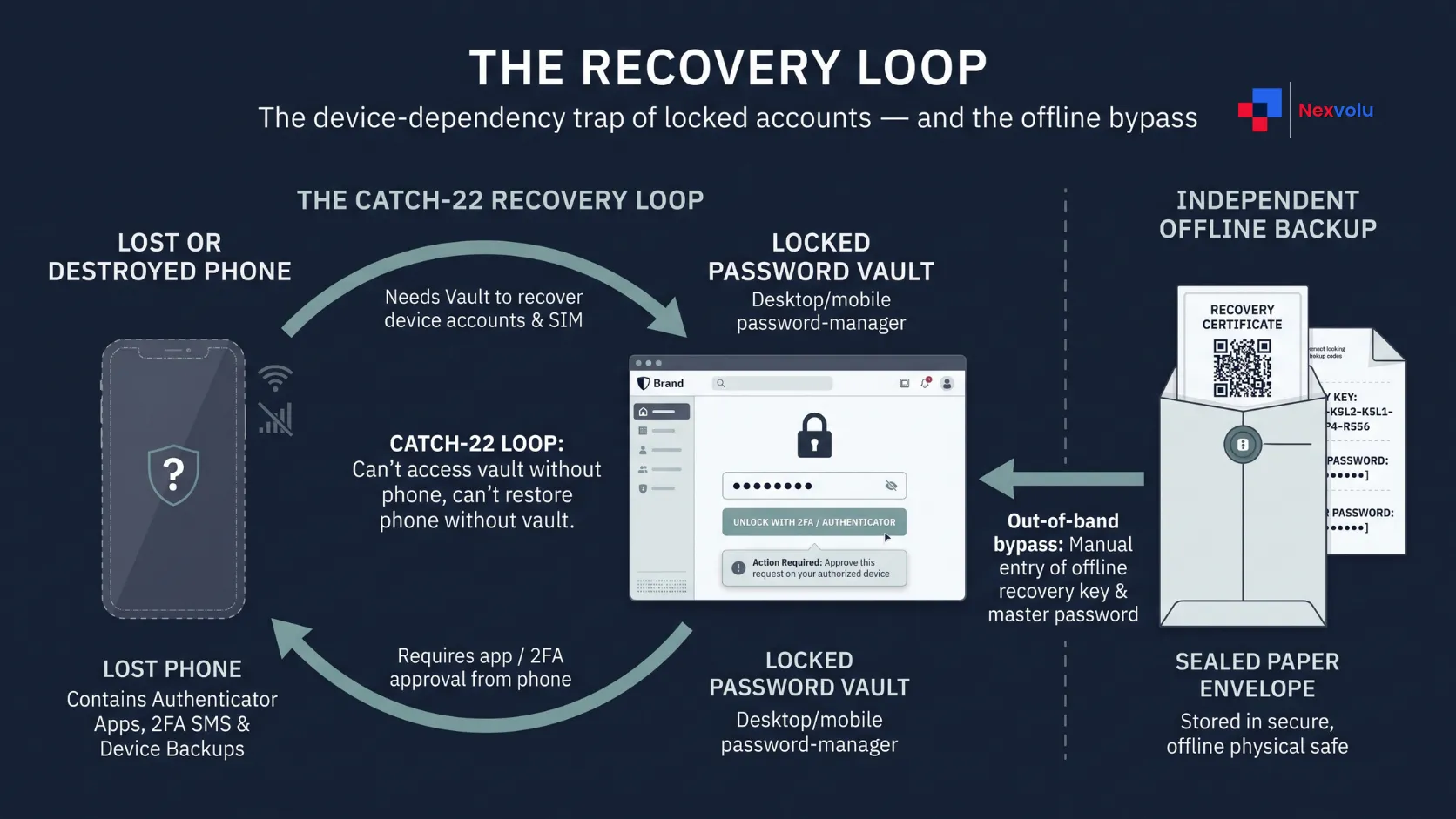
A second loop can involve email. Suppose the manager’s recovery process requires a message sent to your main inbox, but the inbox’s only backup codes are stored in the inaccessible manager. Even if each account has a backup, the two accounts may depend on one another.
Map the recovery path before an emergency: account → storage location → access requirement → independent fallback. Use these failure scenarios to check whether your backup is genuinely accessible:
| Failure scenario | Question to test | What independent access requires |
|---|---|---|
| Phone lost | Can you access the codes without that phone? | A separate device or an offline paper copy. |
| Password manager locked | Can you recover the vault without opening the vault? | The manager’s own recovery material stored elsewhere, plus any independently required email or verification method. |
| Primary email inaccessible | Are the email account’s recovery options stored only inside that inbox or the locked manager? | A separately accessible recovery method that does not depend on the same inbox. |
| Home or primary storage location unavailable | Can you retrieve the second copy somewhere else? | A separately protected copy and an accessible decryption key, if encryption is used. |
A copy is only independent when you can reach it without using the account, device, or location that has failed. Check every step, including password requirements, email verification, and any required recovery device.
How 2FA backup codes differ by provider
Do not assume all “backup codes” and “recovery codes” work the same way. Google says its 2-Step Verification backup codes can each be used once, and generating a new set makes the previous set inactive. GitHub also describes its 2FA recovery codes as one-time credentials and recommends storing them securely in a password manager.
A 1Password recovery code is different. For individual and family accounts, it helps recover the 1Password account, requires access to the associated email address for identity verification, and remains valid for future use. Team and business accounts use administrator-assisted recovery. Do not treat this account-recovery credential as a generic 2FA backup code for other services.
Set up independent backups
Use this process for your most important accounts first, including your main email and password manager. The goal is not to create the maximum number of copies; it is to create a manageable route through the failure you are most concerned about.
- Find the official security settings. Sign in from a trusted device and look for backup codes or recovery options. Some services use another method or do not offer codes.
- Record the context. Note the service, account identifier, date saved, and where each copy lives. Avoid adding a password to the same paper unless you have considered the added exposure.
- Choose protected locations. For example, use an encrypted manager for everyday access and a locked paper copy for critical accounts. Keep vault-recovery material independently accessible.
- Test retrieval without consuming a code. Locate the saved copy, open the protected file or vault, and confirm that you can identify the right service and account. Do not enter a one-time backup code merely to test whether the copy is accessible; using it may make that code unusable.
- Review after changes. When a provider replaces a set, update every intended copy and securely dispose of superseded printouts or files. Check periodically that your locations remain usable.
If the provider supports another registered sign-in method, such as a second security key, consider setting it up in advance. It is an additional option, not a guarantee. For a work or school account, follow your organization’s policy and contact IT rather than storing company recovery credentials in a personal vault without approval.
What if backup codes are lost or exposed?
If you can still sign in, open the service’s official security settings. Check whether you can view, revoke, or replace the codes. A new set may invalidate previous copies immediately, so save the replacement safely before you need it. Google and GitHub both say generating a new set invalidates their previous codes; other services can behave differently.
If you suspect exposure, treat it as a security incident rather than merely a storage problem. Replace or revoke the affected codes where supported, review account activity and sign-in methods, and change a potentially exposed password. Use the provider’s official guidance and contact support or your administrator when appropriate.
If you are already locked out, try another previously registered method or a trusted session. Otherwise, use the provider’s official recovery process. Recovery may take time or fail. For a practical starting point, follow our lost authenticator recovery guide.
Avoid leaving the only copy in an unprotected screenshot, shared folder, unencrypted note, email draft, or download synchronized to accounts and devices you have not secured. Anyone who gains access to those locations may be able to read the codes. When moving a copy, check old synchronized and shared locations; deleting one copy does not necessarily remove every synchronized copy. If exposure may have occurred, revoke or regenerate the codes according to the provider’s instructions rather than relying on deletion alone.
Frequently asked questions
Can I keep recovery codes with passwords?
You can store ordinary-service codes in an encrypted password manager, but doing so concentrates risk. If the vault is unlocked by an attacker, both credentials may be exposed. Separate storage can reduce that concentration, provided you can still access and maintain it.
Are all backup codes single-use?
No. Google and GitHub issue single-use backup or 2FA recovery codes, but other recovery credentials work differently. In particular, 1Password says its individual and family account recovery code remains valid after use. Read the rules for the specific account and credential.
Should I use a backup code to test it?
First check the provider’s instructions. A genuine sign-in test may consume a single-use code. You can test whether you can locate and open your protected copy without entering a code. If you do use one, mark it as used on each copy where relevant.
The best place to store 2FA backup codes is not simply the most hidden one. Choose a protected location you can actually reach, then make sure the accounts and keys required to reach it do not depend on the same failed device.
Related reading
If you are already locked out, Lost Your Authenticator App? How to Recover Your Accounts explains the recovery steps for each major provider. For the wider threat model behind storing codes in a vault, see Are Password Managers Safe? The Honest Threat Model. More security guides are in the Cybersecurity & Digital Privacy category. Nexvolu is an independent publication covering AI, technology and digital marketing. Learn more on our About Us page. If a scam has already moved money from your account, Zelle Scam Refund: Will Your Bank Pay You Back? explains when your bank must refund you under Regulation E. Most payment scams start with a message that looks like it comes from your bank, so How to Spot a Phishing Email: 7 Checks Before You Click shows the checks to run before you click.