
If you lost your authenticator app, you may still recover your accounts with a synced app backup, a saved recovery code, another sign-in method, or a device that is already signed in. The right path depends on what you set up before the loss. Recovery is not guaranteed.
Start by protecting any device or session you still have. Then work through the decision tree below. This guide distinguishes restoring the authenticator app from recovering each account it protects, including Google, Microsoft, and Login.gov.
Research note:
This guide is based on official Google, Microsoft, and Login.gov documentation checked on November 10, 2026. No device-transfer or account-recovery workflow was independently tested. Provider instructions can change, so follow the linked official guidance for your account.
Choose a lost authenticator app recovery path
First, identify what is still available. You may be able to use more than one route, so start with the one that gives you the least risky access.
| What you still have | Your next step | Important limit |
|---|---|---|
| Old phone and working app | Transfer or register the new phone before erasing the old one. | Transfer steps vary by app and account type. |
| Another signed-in device | Open the service’s security settings and add a new method if allowed. | The service may still ask for another verification step. |
| An existing app backup or sync | Follow the app provider’s restore instructions. | A restored entry may still require registration or sign-in. |
| A saved backup code or other registered factor | Select another sign-in option and use the method for that specific service. | Some codes are single-use; options depend on what you configured. |
| None of the above | Use each service’s official account-recovery process; contact IT for managed accounts. | Recovery can take time or fail. |
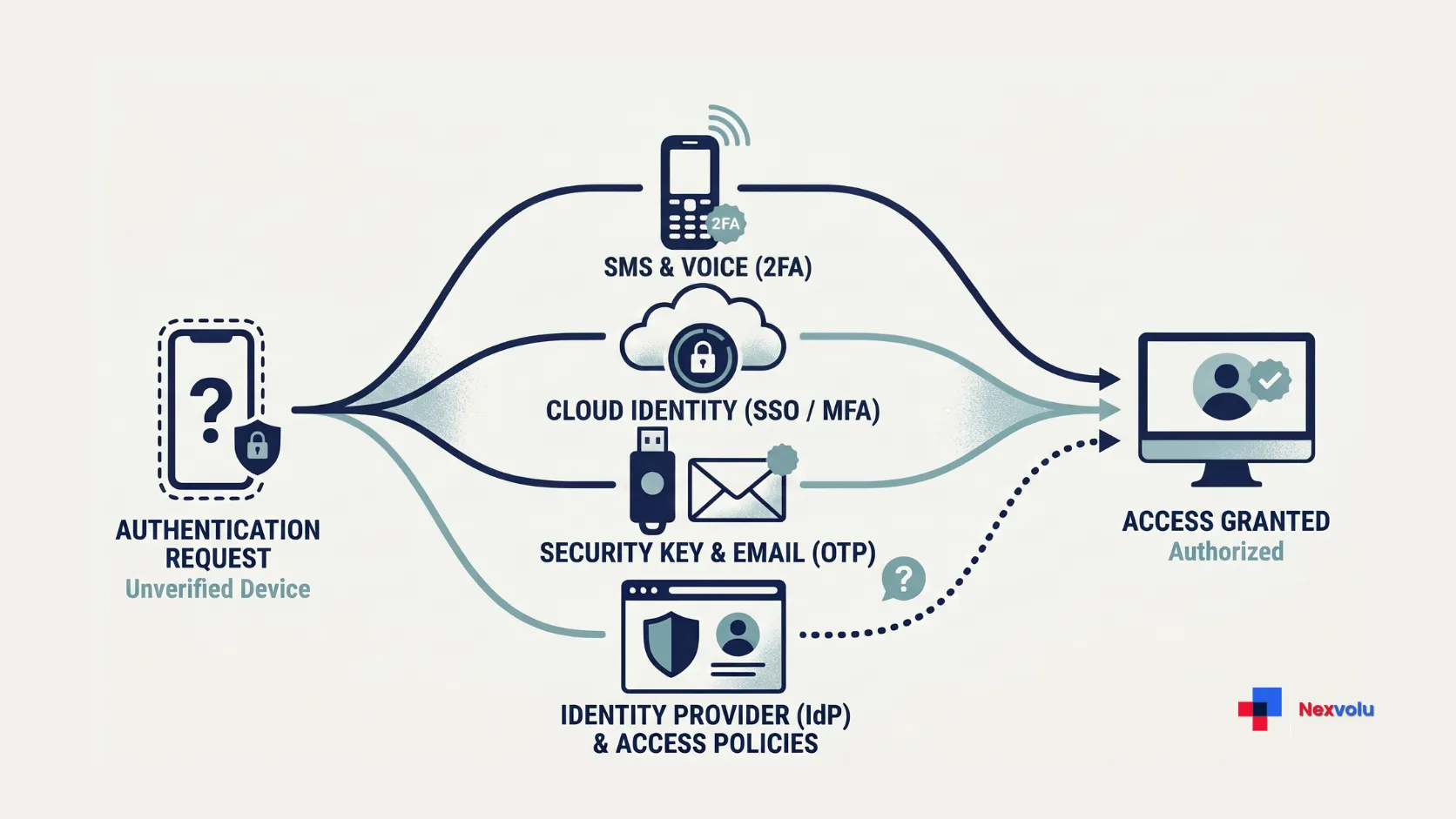
For example, keep an email session open on your laptop and try to add a new sign-in method. If the provider demands the missing code, use a registered alternative or account recovery.
A lost authenticator app can affect several services, but each service controls its own security settings. There is no universal reset that unlocks every account.
Protect access after a lost authenticator app
Do not reset, trade in, or erase an old phone that still works until the replacement method works. Likewise, keep trusted browser sessions open while you check your options. Avoid clearing cookies, logging out, or reinstalling an app on a working device just to troubleshoot.
If the phone is lost or stolen, use the device maker’s official lost-device tool to locate it or mark it as lost and lock it, where supported. Treat remote erasure as a last-resort decision because it permanently removes local data, including authenticator entries stored only on that device. The consequences differ by platform: Google says a factory-reset Android device will no longer be available in Find Hub, while Apple says Find My can still locate an erased iPhone running iOS 15 or later. Review Google’s Find Hub instructions or Apple’s Find My guidance before erasing a device.
Use a trusted device to review important accounts, beginning with your primary email and any account used for app backups. Your email can be a gateway to password resets for other services. Next, check banking, work, and other accounts that hold sensitive information or money.
If you suspect someone accessed the phone or an account, contact the affected service through its official website or app. Change a potentially exposed password and review active sessions and recovery methods where available. Do not assume a password change alone signs out every session.
How to restore a lost authenticator app
Restoring an app means recovering its stored entries or registering them again on a new device. It is not the same as proving ownership to each protected website. Before you try to restore a lost authenticator app, identify which app you used and whether you enabled backup or sync before the loss.
Google Authenticator app: sync and transfer
Google says codes saved to a Google Account can sync when you sign in to Google Authenticator on a new device. Install the app from the official store and sign in to the same Google Account used for those codes. If the list is incomplete, check whether you saved entries under another Google Account or only on your device.
If the old phone and its app still work, Google also supports a manual transfer. On the old phone, open the app’s transfer option and export the chosen accounts; on the new phone, import them by scanning the displayed QR code. Treat that QR code like a secret: anyone who captures it may be able to add the same entries. Follow Google’s Authenticator transfer instructions.
If your lost authenticator app stored entries only on the missing phone, reinstalling the app will not recreate them. Google’s lost-device guidance says that if you synced codes to a Google Account, you can remove access by removing the lost device from that Google Account. If you did not sync codes, visit each service where you used Google Authenticator, remove the old authenticator method through another sign-in method or its recovery process, and then register the replacement device. Removing the app itself is not the same as revoking the old authenticator at every service. See Google’s instructions for a lost or stolen device.
Microsoft Authenticator app: backup and recovery
Microsoft’s restore guidance distinguishes account types. Eligible personal Microsoft and third-party entries that use changing one-time codes can restore from a prior backup. A personal Microsoft account using passwordless sign-in may restore only the account name and require sign-in again.
The backup does not restore work or school credentials. Only the account name returns; you must sign in and register the account again. If you cannot complete registration, contact your organization’s IT team. A restored name is not proof that approvals or passwordless sign-in will work.
Microsoft says backups restore to the same device type: iPhone to iPhone or Android to Android, not across those platforms. To restore a lost authenticator app on Android using the current process, select Restore from backup or Begin recovery before signing in, then use the same recovery account associated with the backup. On iPhone, Microsoft lists iCloud Drive, iCloud Keychain, and iCloud Backup as prerequisites.
For Android, Microsoft’s current support page announces a change beginning January 2027: instead of using a Microsoft personal account to enable backup, users will enable Microsoft Authenticator through Google One backup. Recheck Microsoft’s backup instructions before relying on the Android backup process after that change. This change affects how users enable Android backups; it does not make work or school credentials restorable.
Other authenticator apps
Check your app provider’s documentation for its backup, encryption, transfer, and recovery requirements. A phone’s general backup is not necessarily an authenticator backup. A replacement SIM does not by itself restore app-generated codes.
Before deleting or replacing anything, test the restored entry on the actual service. A visible label or rotating number does not guarantee the service accepts it.
Recover accounts after a lost authenticator app
If restoring your lost authenticator app fails, work through the accounts that depended on it. Start at each service’s official sign-in page, not a link from an unsolicited message. Choose Try another way, Use a different method, or the equivalent option if offered.
Use another registered authenticator app or sign-in method
If a lost authenticator app locks you out, look for an unused backup code, a security key, a passkey on another device, a trusted-device prompt, or a phone number or email method the service already accepts. The options vary. A recovery email is not automatically a substitute for a second factor on every account.
Backup codes usually belong to one particular service. A Google Account backup code cannot sign you in to your bank simply because Google Authenticator displayed the bank’s code. Google states that its own backup codes are single-use and that creating a new set invalidates the old set. See Google’s backup-code instructions.
Check that an old list belongs to the right account and that you have not replaced it. Enter codes only in the service’s legitimate sign-in flow.
Use an existing session
On a trusted computer or tablet, open the service’s account security settings. If the service allows it, add a new authenticator or another sign-in method, then test that method before removing the old one. Some services require fresh authentication before security changes, even when you are already signed in.
If you cannot make the change, keep the session open while exploring alternatives. Never send anyone an active code.
Lost authenticator app with no backup? Start official recovery
Open the provider’s account-recovery page or help center and follow its identity checks. Provide accurate information and use a familiar device or location if the provider recommends it. Check whether the account has a recovery waiting period or restrictions before starting a reset.
For work or school accounts, contact your administrator or help desk through an established channel. Organization policies may block self-service registration or require identity verification. For a bank, contact the institution through official channels.
Recovery may fail. Avoid paid bypass promises. Never disclose passwords, one-time codes, or recovery codes to someone claiming to be support.
Lost authenticator app: Google, Microsoft, and Login.gov routes
The name of your authenticator does not determine the recovery rules for every account inside it. These examples describe the account provider’s route, not a universal method.
Google Account
If you lost the phone used for Google’s 2-Step Verification, Google recommends signing out of the lost or stolen phone and changing your Google Account password. You may be able to sign in using another phone already signed in to the account, another registered phone number, a previously saved backup code, a registered security key, a passkey on another device, or a trusted computer. The options depend on your account and its protection settings. Start with Google’s lost-phone guidance, then use account recovery if none of the available methods works.
A lost authenticator app can create a recovery loop: Google Authenticator sync may require access to the Google Account where you saved the codes. If that account itself asks for the missing codes, use an independent Google sign-in method or account recovery first. Restoring the app cannot solve that loop until you regain the backup account.
Personal Microsoft account and managed accounts
For a personal Microsoft account, try the alternative verification options offered during sign-in. If those fail, follow Microsoft’s current account-recovery or security-information instructions; the available route and any waiting period depend on the situation. Passwordless and two-step verification settings can limit recovery, so do not assume a support agent can override them.
For Microsoft work or school accounts, use your organization’s registered alternative method if available, or contact IT. Microsoft’s new-phone guidance explains that restoring Authenticator does not restore the work or school credential itself.
Login.gov
For Login.gov, sign in with your email and password, choose Choose another security option when prompted, and use a previously configured method. If you already enabled SMS or phone calls, regaining the same number may allow a code on a replacement phone. That is different from restoring codes inside an authenticator app. See Login.gov’s lost-phone instructions.
Login.gov says that if you lose your authentication method and have no backup connected, you must delete the existing Login.gov account and create a new one. This does not delete information held by partner agencies, but you will need a new Login.gov account to sign in to agencies that require it. Read Login.gov’s lost-method instructions and its account-deletion guidance before proceeding. A Login.gov personal key serves a different purpose from its backup authentication codes; do not assume it substitutes for a missing second factor.
Secure accounts after authenticator app recovery
After a lost authenticator app locks you out, make your next sign-in reliable once you regain access. Do this before you remove anything that still works. The sequence matters:
- Add and test a replacement method. Use the service’s security settings, then confirm it works on a separate sign-in where practical.
- Remove the lost method or device where supported. Review registered authenticators, passkeys, and trusted devices. If someone stole the phone, use the provider’s session-management tools too.
- Review recovery details. Remove unfamiliar phone numbers, email addresses, or security methods, and update outdated ones.
- Replace exposed backup codes. Follow the provider’s rules; a new set may invalidate an older set.
- Investigate suspicious activity. Follow the service’s compromise guidance and contact its support or your IT team when needed.
If you suspect that someone could access codes stored on the missing phone, consider re-registering the authenticator for affected accounts rather than merely deleting the app’s label. Google’s lost-device guidance distinguishes synced and local codes. Each service determines how to remove or replace its own authentication method.
Prevent an authenticator app lockout
Set up at least one independent fallback for important accounts before the next phone change. A registered security key or a passkey available on another trusted device may be an option, depending on the service. Check how your provider backs up the passkey: a credential stored only on one lost device may be unavailable with it.
Save recovery codes securely where you can reach them without the lost phone. That way, a lost authenticator app will not also leave those codes out of reach. A locked physical location or an encrypted password-manager vault can work, depending on your risks. However, avoid a circular dependency: if your password manager requires the same lost authenticator to unlock, its stored recovery codes may be inaccessible when you need them.
For a closer look at the trade-offs of storing sensitive credentials, read our password manager threat model. Whatever storage you choose, protect it against both theft and loss, and make sure you can recover the storage account itself.
When changing phones, keep the old device until you test important accounts and confirm your backups and alternate methods.
Frequently asked questions
Can I recover 2FA without my old phone?
Sometimes. A synced authenticator backup, a previously registered alternative, an unused backup code, or the service’s recovery process may work. Your options depend on the app and each account’s policies; access is not guaranteed.
Can I restore a lost authenticator app without a backup?
If you still have the old device and its working app, a supported transfer may be possible. Without the old device or a usable backup, you generally need to recover each protected account and register a new authenticator using that service’s process.
Will a new SIM restore my authenticator codes?
No. A replacement SIM may help you receive SMS or phone-call codes at a previously registered number, if the service offers that method. It does not automatically recreate authenticator app entries.
Why does a restored authenticator code fail?
The entry may belong to a different account, or the code may have expired. You may also have replaced the entry at the service. Set your device clock correctly and try a fresh code. For Google Authenticator, Google also recommends confirming the correct account and time settings. If codes still fail, use another registered method or the provider’s recovery route.
Losing a phone does not always mean losing an account. Preserve the access you still have, follow the route that matches your situation, and test a replacement before removing the old method.
Related reading
To avoid a repeat lockout, store your recovery codes safely: Where Should You Store 2FA Backup Codes? compares paper, password managers and encrypted backups. More security guides are in the Cybersecurity & Digital Privacy category. Nexvolu is an independent publication covering AI, technology and digital marketing. Learn more on our About Us page.
Before you store codes in a password manager, check the trade-offs in Are Password Managers Safe? The Honest Threat Model.
Recovery is also a moment scammers target: a fake support call can sound convincing, so read AI Voice Scam: How to Spot a Deepfake Call before you trust an unexpected caller.
And if a recovery message arrives by email, run through How to Spot a Phishing Email: 7 Checks Before You Click first.