

Your Search Console report shows 1,000 clicks, but GA4 reports only 700 sessions. Is tracking broken? Not necessarily. The Search Console clicks vs GA4 sessions comparison puts two different measurements side by side: one counts clicks from Google Search, while the other counts sessions measured on your website.
You should not expect the numbers to match exactly. However, a sudden change in their usual relationship, or a page with many clicks and almost no measured sessions, deserves investigation. Here is how to make the comparison useful without mistaking every difference for lost traffic.
Table of contents
What Search Console clicks and GA4 sessions measure
A Search Console click records a click on a Google Search result that leads to your website. Google generally assigns performance data to the canonical URL associated with that result, which may differ from the exact URL a visitor reaches; in some cases Google assigns data to the actual URL.
A GA4 session begins when someone views a page or screen and no session is already active. By default, a web session times out after 30 minutes of inactivity; you can change that timeout. Unlike Search Console, Analytics depends on the website’s measurement implementation and its session-attribution rules.
These metrics describe different stages of a visitor’s journey. Google’s guide to using Search Console and Analytics together recommends comparing them to understand overall patterns, not expecting their totals to match exactly.
| Question | Search Console | GA4 |
|---|---|---|
| Main perspective | Google Search performance and clicks | Measured website visits and user behavior |
| Useful metric here | Clicks | Sessions |
| What it helps answer | Which pages received clicks from Google Search? | Which landing pages began sessions attributed to Google organic traffic? |
| Main limitation | Does not describe every interaction after a visitor arrives | Depends on measurement implementation, consent, processing, and session attribution |
Use Search Console to understand search performance and GA4 to understand measured behavior after arrival. Neither tool is a complete replacement for the other. Together, Search Console clicks and GA4 sessions show different stages of the journey.
Why Search Console clicks and GA4 sessions differ
Clicks and sessions follow different rules
Search Console has its own click-counting rules. For most result types, if someone clicks a result, returns to Google, and clicks the same link again, it counts as one click. Clicks on different result links can count differently depending on whether you group the report by property or page.
GA4, meanwhile, estimates sessions using session IDs rather than search-result click events. Therefore, treat the tools as complementary rather than duplicate counters.
Your reports may cover different traffic
Search Console’s Search results report covers Google Search. In GA4, the broader Organic Search channel can include other search engines. For a closer comparison, filter GA4 by the session-scoped source and medium google / organic, rather than comparing all organic traffic with Google clicks.
For your initial comparison, select Web in Search Console’s Search results report. Keep Image, Video, and News search types separate, and do not combine the separate Discover report with this comparison.
In GA4, google / organic is the closest source/medium filter for Google organic sessions. However, it does not reproduce Search Console’s individual search-type groupings. The filters bring the reports closer, but they do not make the underlying data identical. Expect Search Console clicks and GA4 sessions to retain some differences.
Tags, consent, and browser behavior affect GA4
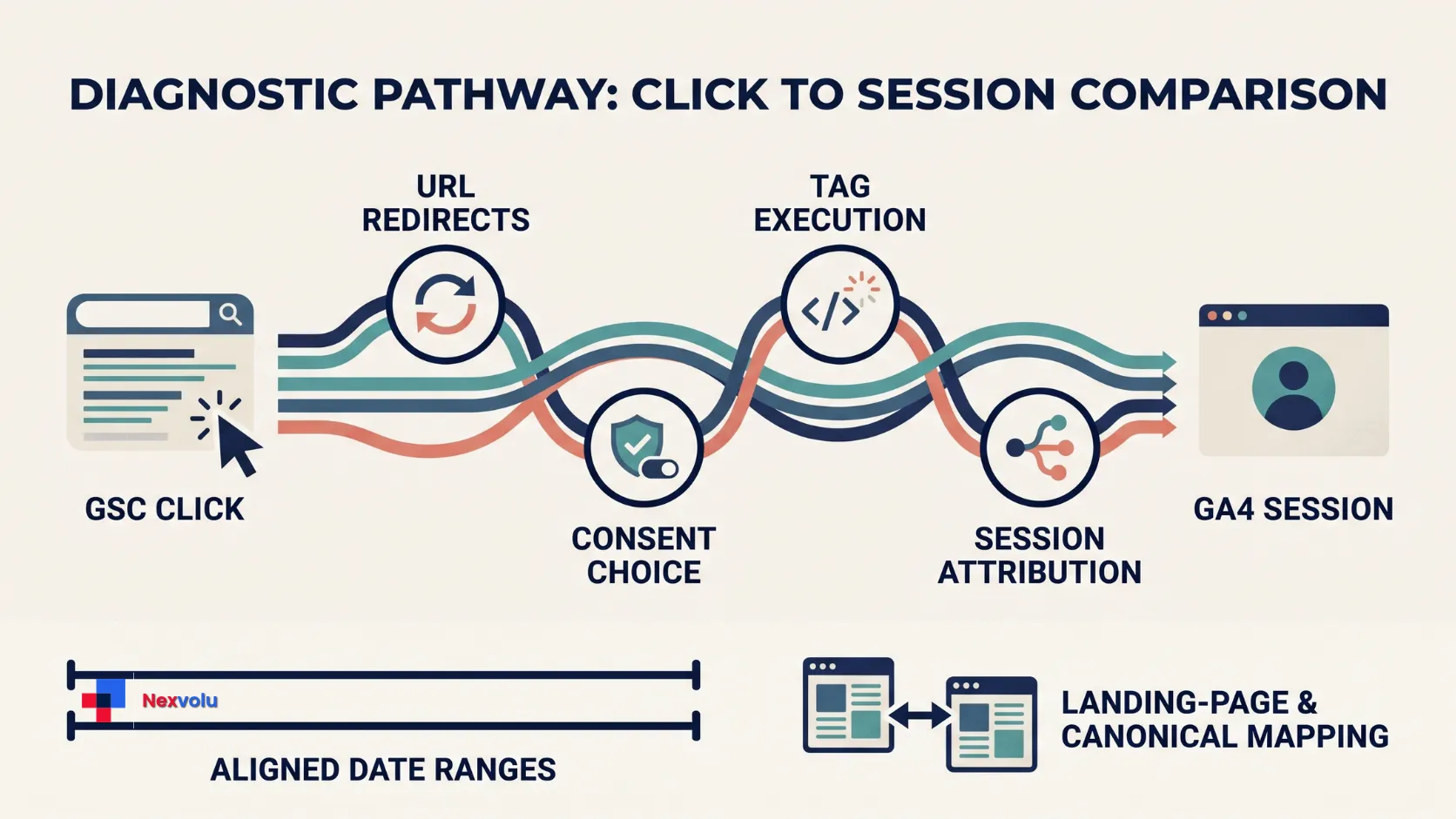
Search Console does not rely on your site’s GA4 tag to count a search click. GA4 measurement, by contrast, depends on the implementation and what happens in the visitor’s browser. Missing tags, blocked requests, JavaScript problems, slow loading, and consent settings can affect what Analytics records.
Consent Mode adds another layer. In basic Consent Mode, the site blocks Google tags until the visitor grants the required consent. In advanced Consent Mode, tags can send cookieless pings while the visitor denies analytics storage, and eligible properties may use those signals for modeling.
What GA4 reports can therefore depend on the consent implementation, visitor choices, and modeling eligibility. Do not bypass consent choices to increase reported sessions. Follow Google’s current Consent Mode documentation and applicable privacy requirements.
Time zones and processing shift totals
Search Console labels daily Performance data in Pacific Time, except for its 24-hour view, which uses your browser’s local time. GA4 uses the reporting time zone configured for its property. A visit near midnight can therefore fall on different calendar days in the two systems.
Google says Search Console data is usually available within two to three days. Google can also mark the newest figures as preliminary; those figures may change. Compare completed weeks or months where possible, and exclude unsettled data when investigating a sudden difference. See Google’s Search Console data discrepancy guidance.
Canonicals, redirects, and files change the page comparison
A canonical URL is the representative version Google selects for a group of duplicate or similar pages. Search Console can credit the Google-selected canonical, while GA4 reports the page that actually loaded and sent measurement data. Redirects, hostnames, trailing slashes, and query strings can therefore put related activity under different rows.
Search Console can report clicks to PDFs and other non-HTML files. However, the PDF itself cannot normally run the standard GA4 webpage tag. Enhanced Measurement can record a file_download event when someone clicks a PDF link on a tracked webpage, but that event is not the same as measuring a GA4 session on the PDF itself.
There is another processing difference: GA4 automatically excludes known bots and spiders, while Search Console does not necessarily apply the same filtering. These are possible explanations to investigate, not automatic diagnoses of a particular discrepancy.
How to compare Search Console clicks and GA4 sessions
Before comparing Search Console clicks and GA4 sessions, record each filter so a colleague can repeat the comparison.
- Match the site scope. Confirm that the Search Console property and GA4 web data stream cover the same website and relevant hostnames. A Domain property can include multiple subdomains, while a GA4 stream measures only pages with its tag.
- Choose the same completed period. Compare identical date ranges in both tools, preferably completed weeks or months. Record the GA4 property’s time zone and remember that Search Console normally uses Pacific Time. Matching date labels do not eliminate the difference.
- Set the Search Console filters. Open the Search results Performance report, select Web, choose the date range, and record the chart-level click total. If you filter by country or device, record those settings so you can apply equivalent filters in GA4.
Match Search Console pages with GA4 sessions
- Filter GA4 to Google organic sessions. Open Reports → Engagement → Landing page. Add Session source / medium as a secondary dimension or filter, and select
google / organic. Keep Sessions as the metric. Apply the same country and device filters where available. If multiple hostnames are involved, include Host name in your analysis, if available in your report or exploration. - Match the actual landing pages. Export Search Console Pages data and GA4 landing-page data. Compare hostnames, paths, query strings, redirects, and canonical URLs before grouping pages. GA4’s Landing page dimension uses the page path and query string, while Search Console generally attributes performance data to Google’s selected canonical URL. Do not merge different hosts or genuinely different URLs.
- Separate property totals from page-level totals. Search Console generally aggregates its unfiltered chart by property, while it can group the Pages table by individual URL. If a user clicks multiple different results from the same property for the same query, the property-level and page-level totals can differ. Page or search-appearance filters change aggregation; also consider table row limits before comparing exported page totals with the main chart. Read how Search Console aggregates performance data.
Google documents the Landing page report and session-source dimension. If the report is missing, an editor may need to add it to your navigation. Your property may also have a customized layout, so names and available filters can vary.
Use a ratio as a diagnostic, not a score
For a repeatable comparison, divide GA4 google / organic sessions by Search Console Web clicks for the same site scope, date range, and filters. Multiply by 100 to express the result as a percentage. If clicks are zero, the ratio is undefined; compare the raw counts instead.
This is a sessions-per-click comparison ratio, not a tracking-completeness rate. Its numerator and denominator are different measurements, and GA4’s attribution rules can include sessions without a new Google Search click in the same reporting period. A value of 75% does not prove that 25% of visitors were lost. The ratio can also exceed 100% when GA4 sessions outnumber Search Console clicks. There is no universal acceptable percentage for every website.
A worked example: Search Console clicks and GA4 sessions
Consider a fictional service business comparing Search Console clicks and GA4 sessions. The table below uses invented numbers, not Nexvolu account data or a tested customer case. The owner compares two completed 28-day periods, using the same Search Console property, Web filter, GA4 stream, google / organic filter, and page definitions. The owner records a GA4 time zone that differs from Pacific Time.
| Segment | Earlier: clicks / sessions | Recent: clicks / sessions | Earlier ratio | Recent ratio |
|---|---|---|---|---|
| Site report total | 1,000 / 800 | 1,000 / 650 | 80% | 65% |
| Service-page group | 400 / 320 | 400 / 200 | 80% | 50% |
| Article-page group | 300 / 240 | 300 / 240 | 80% | 80% |
The site ratio fell by 15 percentage points: 800 ÷ 1,000 = 80%, versus 650 ÷ 1,000 = 65%. The service-page ratio fell by 30 points, while the article-page ratio stayed at 80%. The segments are only selected groups, not a complete breakdown of the site total.
That pattern makes the service template a sensible first place to investigate. It does not prove a tag failure. The owner should map the service pages to their canonicals and redirect destinations, then inspect GA4 coverage and consent behavior. They should also compare the same device and country mix and check for release dates or report changes.
Suppose a consent-respecting test then reveals the Analytics tag does not fire on one service-page template after a documented deployment, while it fires on the article template. That would support a specific implementation issue for the tested pages. It still would not quantify all unmeasured visits or prove that the template explains the entire site-wide gap. Retest after an approved fix and compare a later completed period.
A decision tree for Search Console clicks and GA4 sessions
Use this sequence when Search Console clicks and GA4 sessions diverge.
First: are the reports aligned? Confirm the same property scope, Web search type, google / organic source, hostname coverage, and completed date range. Fix scope differences before investigating tracking.
Next: is the relationship consistent with your own history? If the ratio remains broadly stable over several completed periods, document the baseline. Do not assume the difference itself is an error; a stable ratio can still conceal a long-standing tracking issue.
Then: has the relationship changed materially? Compare the change date with tag-manager, consent, website, redirect, and theme releases. Break the data down by landing page, device, and country to locate the affected segment.
Finally: is one important page group responsible? Check its actual landing URL, canonical, GA4 tag coverage, consent behavior, and session attribution. Make an implementation change only when the evidence supports it.
How to investigate tracking and attribution
Check the page users actually reach
Open the search destination and follow each redirect to the final page. Compare that address with the Search Console page and GA4 landing-page row. Use URL Inspection to check Google’s selected canonical when available. Remember that redirects and canonicals serve different purposes; do not change either solely to make a report look tidy.
Test the measurement setup
Use an authorized browser session and the site’s approved testing process. Inspect whether the correct Google tag loads on representative templates, whether it sends data to the intended GA4 property, and whether the consent banner changes behavior as designed. Test a working page and an affected page for comparison.
Check any recent publishing, tag-manager, or theme releases. For example, a template-specific change might explain why one page group diverges while another does not. Use GA4’s debugging tools or your tag-management preview where appropriate, and avoid drawing conclusions from a single browser or consent state.
If the team needs a fix, document the change and ask the responsible developer or analytics specialist to validate it. Do not switch off consent controls or collect personal information merely to increase reported sessions.
Check where the session was attributed
Attribution is the process Analytics uses to assign a traffic source to a session or credit to a key event. Session source / medium is session-scoped and is different from first-user acquisition and key-event attribution.
GA4 uses non-direct last-click attribution for session source. The session_start event carries information such as the referrer and campaign parameters. This means GA4 can still attribute a later direct visit to a previous non-direct source within the applicable lookback window. Google’s guide to how GA4 sessions work says the relevant setting is 90 days by default.
For example, someone might first arrive through Google organic search and return directly several weeks later. GA4 can still attribute that later session to google / organic, even though no new Google Search click occurred during that reporting period.
Consequently, GA4’s google / organic sessions do not literally count visits that began with Google Search clicks during the same period. Consider this attribution behavior before interpreting a ratio or diagnosing missing tracking.
Review unexpected Direct, Referral, or Unassigned changes alongside google / organic. Then test redirects and campaign tagging without assuming that every Direct session came from Google. Compare equivalent periods and annotate changes before deciding whether an attribution issue exists.
Common interpretation mistakes
Calling the whole gap lost traffic. A numerical difference combines different counting rules and possible measurement limitations. It cannot establish how many individuals arrived without a recorded session.
Comparing page views with clicks. A page view is not a session, and a visitor can view a page after landing elsewhere. Use landing-page sessions for the closest page-level comparison.
Adding visible query rows to recreate all clicks. Search Console can omit anonymized queries from its query table, and row limits or filters can affect totals. Use the appropriate report total and read Google’s explanation of chart and table differences.
Treating AI impressions as visits. Visibility and sessions answer different questions. Nexvolu’s Search Console Generative AI report guide explains the separate AI-feature view. Do not add overlapping AI-feature impressions to Search totals or assume that an AI visibility change caused a GA4 sessions discrepancy.
Treating the ratio as a conversion rate or return on investment. Sessions per click only describes the relationship between two different traffic measurements. It does not tell you how many visitors converted, generated revenue, or produced a profitable return. Use validated conversion, revenue, and CRM data when evaluating business outcomes.
Frequently asked questions
Can GA4 show more sessions than Search Console shows clicks?
Yes. GA4’s broader Organic Search channel can include other search engines, while Search Console reports Google Search separately.
Even after filtering GA4 to google / organic, the totals can be higher. GA4’s non-direct last-click session attribution may credit a later direct visit to an earlier Google organic source. Different session and click-counting rules can also affect the comparison.
Check the source, medium, date range, site scope, and attribution behavior before assuming either tool is reporting incorrectly.
Does linking Search Console to GA4 make the numbers match?
No. Linking makes Search Console reporting available in GA4, but it does not change the underlying definitions or collection methods. Compare the metrics for context rather than expecting the link to reconcile them.
Is there a normal percentage difference?
There is no universal target. Your baseline depends on the site, traffic mix, consent choices, time zones, and measurement setup. Use your own history of Search Console clicks and GA4 sessions to decide what needs a closer look, while remembering that a stable baseline can still hide a long-standing issue.
The bottom line
Search Console clicks and GA4 sessions are complementary signals, not duplicate counters. Align the reports, compare trends and landing-page groups, and investigate changes that matter to your business. When you find a plausible cause, test it before changing the implementation or reporting the difference as lost traffic.