

If your page is indexed but no impressions appear in Search Console, don’t assume Google has penalized it or that the page is broken. Indexing means Google has stored a version that may be eligible to appear; it does not guarantee a search appearance.
First, confirm that you’re looking at the right property, canonical URL, dates, and search type. Then separate an actual zero from an empty query table or unavailable data. Only after those checks should you investigate the page’s search intent, internal links, or technical setup.
Table of contents
Why a page is indexed but no impressions appear
An indexed page is one Google has processed and stored in its index. A Search Console impression means a user has seen, or potentially seen, a link to your site in Google Search under Google’s result-type counting rules. In general, Google counts an impression when an item appears on the current results page, even if the user has not scrolled down to it. Some interactive or expandable result types have additional visibility requirements. Google explains the differences in its impressions documentation.
These are separate events: a page may be indexed yet not appear for the searches, locations, devices, and dates you are examining. Equally, it may have appeared in a different report slice. “URL is on Google” does not guarantee that the page will appear for a particular search.
If URL Inspection instead says the page was crawled but not indexed, start with our guide to crawled, currently not indexed. The workflow below focuses on a page that Google reports as indexed.
Check the property and canonical URL
Open Search Console and select the property that contains the page. A Domain property covers its subdomains and protocols, while a URL-prefix property covers only URLs under that exact prefix.
Next, paste the full page address into URL Inspection. Record the indexed status, last crawl, and Google-selected canonical under Page indexing.
The default URL Inspection view describes the version Google last processed and indexed; it is not a live test of the current page. “URL is on Google” means the URL is eligible to appear in Search, not that Google guarantees it will receive impressions.
Check the canonical for an indexed page with no impressions
Google assigns most Search performance data to the canonical URL it selects. If Google chooses another URL, investigate that canonical and inspect its Performance report. If the selected canonical is outside your current URL-prefix property, use an owned property that covers it where possible. You cannot see the duplicate page’s performance data in the current property when Google credits it to a canonical in a property you do not own.
If you suspect a current access, rendering, or indexing-directive problem, select Test live URL. This checks the current page but does not predict its ranking or impressions, and it cannot test every indexing condition, including duplicate selection, quality, and manual actions.
If Google selects an unexpected page, investigate the content, redirects, internal links, sitemap, and canonical declaration before making changes. Your canonical declaration is a preference, not a command. See Google’s canonical URL guidance.
Indexed but no impressions? Check dates and report filters
Open Performance → Search results and enable Total impressions. Use a page filter for the exact Google-selected canonical. If the canonical is outside the current URL-prefix property, switch to a property that covers it. Inspecting another site you do not manage may not be possible.
Choose Web: text-based for a baseline, and record that choice. Search Console also separates Web: multimodal, Image, Video, and News search types. A zero for text-based Web does not establish a zero across those other views. The separate Discover report is not part of the Search results report. For this tutorial, Web: text-based is the main baseline because it covers standard text searches; Web: multimodal is a separate search type, and its Queries dimension is not available in the same way.
Adjust the dates and filters
If Search Console shows your page as indexed but no impressions appear in a narrow view, remove restrictions before drawing conclusions. Then work through these settings:
- Dates: Select a period containing completed days since publication or the relevant change. Start with the last three months if the page has existed that long; it is a useful baseline, not a Google threshold.
- Filters: Remove query, country, device, and search-appearance filters for the broad view. Keep the page, dates, and search type fixed so you can compare like with like.
- Segments: Reapply a country or device filter one at a time to see whether the result belongs only to that segment. Record each selection.
- Freshness: Check whether the newest figures are preliminary or whether the selected period includes incomplete days. Search Console normally makes collected Performance data available within two to three days. The 24-hour view uses browser-local time; other date views use Pacific Time. Record the reporting date and time zone when comparing screenshots or exports.
A newly created website, or a website newly added to Search Console, can take up to a week to generate report data. This is a data-availability estimate, not a promise that every page will receive impressions. After data begins appearing, Google says collected Search Console data is normally available within two to three days. See Google’s guidance on Search Console data.
For a new page, save the settings and revisit a later completed period.
Compare impressions and query data for the indexed page
If URL Inspection shows a page as indexed but no impressions appear in the report, apply the canonical page filter, remove any query filter, and examine impressions in the chart and the Pages table. Then open the Queries tab to see the available search terms. The chart and table do not always use identical aggregation rules, particularly when you apply page or Search appearance filters.
Indexed with no impressions, or missing query details?
Google omits some anonymized queries from the table to protect user privacy, but those queries can still contribute to chart totals when you apply no query filter. The table can also show at most 1,000 rows, so it may not show every recorded query. An empty Queries table is therefore not proof that the page received zero impressions. See Google’s dimensions and grouping documentation.
For example, a fictional page-filtered report might show 42 impressions in the chart while the Queries table has no visible rows. Record the positive page total and mark the query detail as unavailable. Do not invent the searches or describe the page as having zero impressions.
When a page seems indexed but no impressions show in a table, also distinguish three different states: a numeric 0, a missing page row, and a ~ or - marker. They are not interchangeable. Google says unavailable or not-a-number markers shown in the report can become zeros when exported. Preserve a screenshot of the actual report when the distinction matters.
If the report displays a genuine zero for the selected canonical, dates, and filters, CTR is undefined because there are no impressions to use as the denominator. There is also no recorded average position to interpret. Do not describe either measurement as a meaningful zero.
Use the results to choose your next step
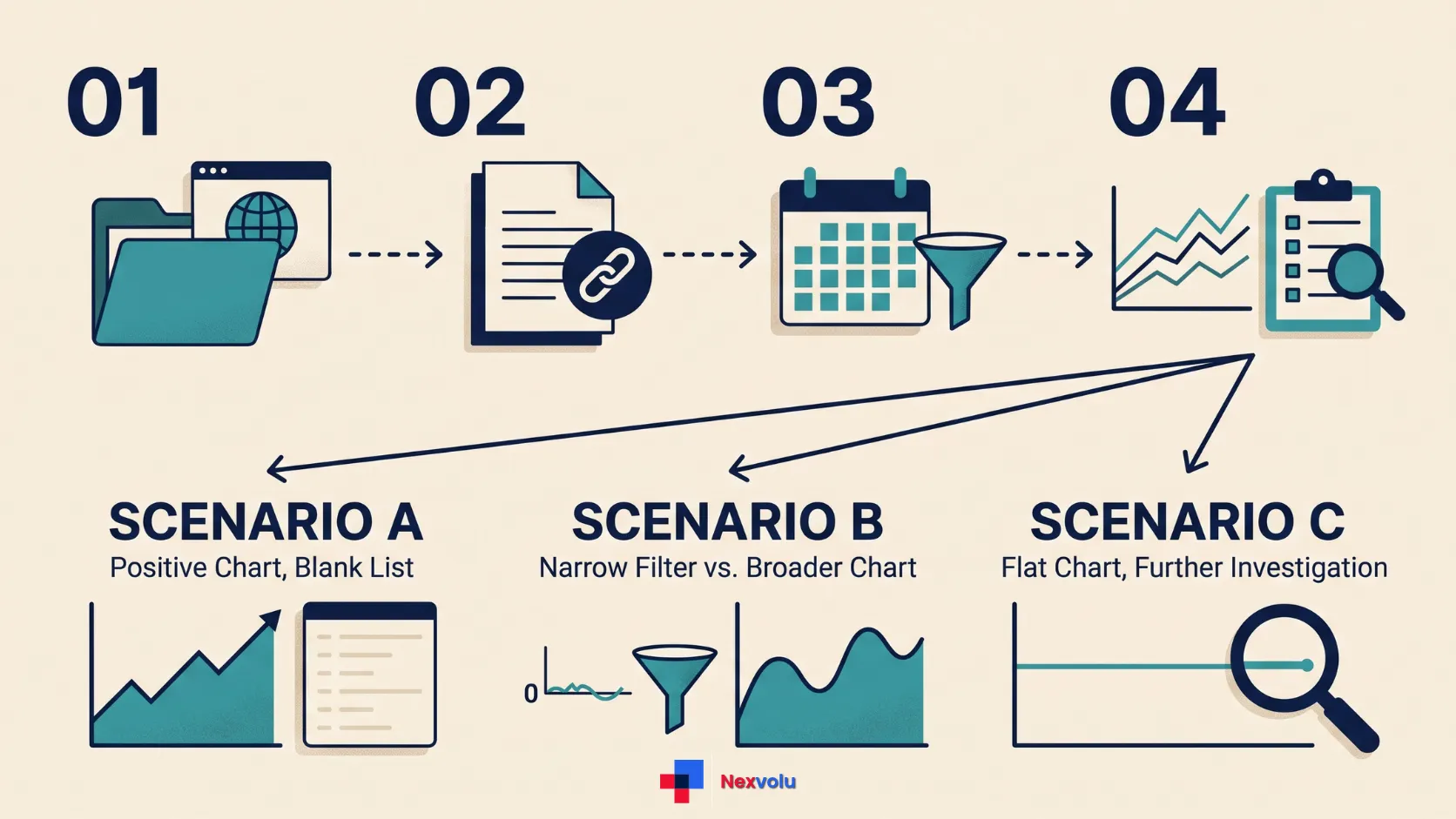
If URL Inspection shows a page as indexed but no impressions appear in Performance, use the following scenarios to choose a next step. They are illustrative, not results from a real Search Console account. Each assumes you record the page and date range before the comparison.
| What you observe | What it supports | Sensible next action |
|---|---|---|
| A URL variant has no row; its selected canonical shows impressions. | Performance may be credited to the canonical. | Use the canonical view; investigate signals only if the selected URL is wrong. |
| The page-filtered chart is positive; the Queries table is empty. | Visibility exists, but query detail is unavailable in this view. | Keep the page total; remove query filters and avoid guessing the missing queries. |
| A country-filtered view is zero; the same page has impressions when the country filter is removed. | Visibility exists outside the narrower view. | Review the target market and save both views; do not label the page globally invisible. |
| A numeric zero remains in a completed, broad view for the selected canonical. | No impressions were recorded in that report slice. | Check the page’s purpose, possible search demand, links, and current accessibility. |
| Several important pages lose visibility together after a site change. | A shared issue is plausible, not proven. | Compare affected and unaffected pages; review changes and seek technical help. |
Record the property, URL, dates, search type, filters, and capture date so the comparison is reproducible.
Indexed but no impressions? Investigate visibility
Check search intent when an indexed page has no impressions
If URL Inspection identifies your page as indexed but no impressions appear in a completed, broad report view, begin with the page’s job. What specific question should it answer, and who would search for that answer? An internal product label or a highly specialized topic might have limited demand. Yet Search Console alone cannot prove that no one searches for it. Use keyword tools or customer conversations for additional evidence.
Next, compare the page with current results for a few relevant searches in your target market. Look at the questions those results answer and the format they use. If results mostly show local services while your page is a broad definition, the mismatch is a useful hypothesis to investigate. A manual search is only a snapshot: results vary by location, device, time, and history.
Review links and content when an indexed page has no impressions
Review whether your page supplies the answer clearly and offers useful detail. Add missing information when it helps readers; don’t rewrite a page simply to reach a word count. Likewise, compare genuinely similar pages on your site. Overlap may be harmless, so don’t merge or redirect pages just because they share a topic.
Finally, check whether relevant pages on your site link to this page with descriptive text. Internal links can help readers and search engines discover related content, but adding links or buying backlinks does not guarantee impressions. Run the live URL test if you suspect an access or rendering problem, and check that the page returns successfully, its main content is accessible, and its canonical and indexing directives match your intention.
If Google has indexed several pages but their comparable report views show no impressions, a shared issue is possible. Check recent site-wide changes, Search Console’s Manual actions report and Security issues report, and server availability. One zero does not establish a penalty, technical failure, or content-quality problem.
For context on another visibility report, see our Search Console Generative AI report guide. It covers a different reporting view; don’t assume AI features caused a page’s missing impressions.
Know when to request a recrawl
When Google has indexed a page but its report shows no impressions, repeated indexing requests are not the first step. If you make a meaningful change or correct a genuine accessibility issue, an owner or full user can request a recrawl through URL Inspection. Google says repeated requests for the same URL do not speed crawling, and a request does not guarantee inclusion or visibility. See Google’s recrawl guidance.
A request notifies Google of a change; it is not a ranking button.
A practical monitoring plan
If Search Console shows your page as indexed but no impressions appear yet, save the canonical URL, capture date, report settings, original value or missing-data marker, and any changes. After a reasonable interval for the page and its search demand, compare the same settings again; there is no universal waiting period that guarantees impressions.
If impressions appear, inspect the available queries and pages before deciding what to improve. If clicks begin but website visits look different, our guide to Search Console clicks versus GA4 sessions explains why those measures need not match.
Frequently asked questions
Does an indexed page always receive impressions?
No. Indexing makes a page eligible for Google to consider, but it does not guarantee that Google will show it for a query or that the selected report will record an impression.
Does an empty Queries table mean nobody searched?
No. Google can anonymize or omit query details, and the page-filtered chart may still show impressions. An empty table cannot establish search demand.
Will a site: search prove my page gets impressions?
No. A site: search can provide a useful clue: if the page appears, it is a sign that Google can show it in that search. However, the operator does not return an exhaustive list of indexed URLs, and the absence of a result does not by itself prove that the page is not indexed.
It also cannot tell you how many impressions the URL received. Use URL Inspection to check Google’s indexed information and the filtered Performance report to measure recorded impressions.
The bottom line
When a page is indexed but no impressions appear, match the response to the evidence: fix the report view, investigate an unexpected canonical, or improve the page for a specific reader need. A zero is a starting point, not a diagnosis.