




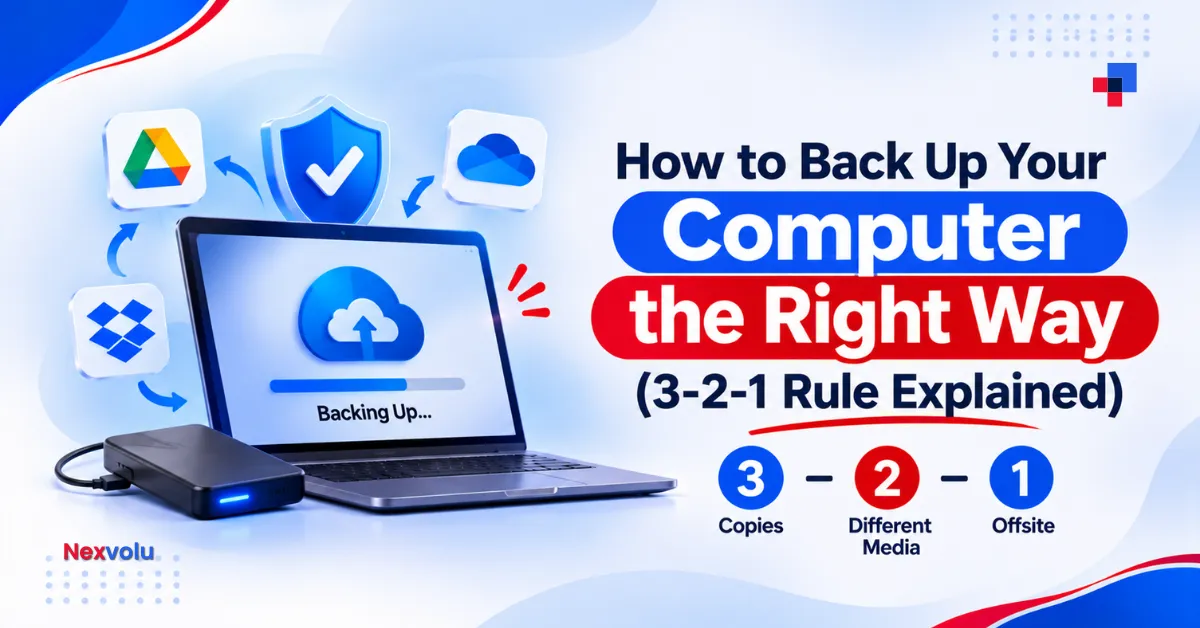
Learning how to back up your computer comes down to one habit: keep three copies of the files you cannot replace, on two different kinds of storage, with one copy stored somewhere else. That is the 3-2-1 backup rule in one sentence. The rest of this guide turns that sentence into a working setup for a Windows laptop, with a Mac version after it, and it ends with a restore test.
The person in the example below is a freelance writer. She works on a Windows 11 laptop with a 512 GB drive, about 180 GB of files, and no IT department.
Her photos live in Pictures, her drafts live in Documents, and her tax records live in a folder she opens twice a year. Your files will differ.
How to back up your computer: what the 3-2-1 backup rule means
The 3-2-1 backup rule says keep three copies of any important file, keep those copies on two different media types, and store one copy offsite. CISA states it that way in its Data Backup Options paper: three copies means one primary copy and two backups, two media types protect against different kinds of hazards, and one copy sits outside your home or office. Photographer Peter Krogh gets wide credit for popularizing the rule, but the government wording is the version worth memorizing.
Each number answers a different failure. Three copies answer a dead drive. If one copy fails, you still have two.
Two media types answer a failure that hits one kind of storage at once. A laptop drive and an external USB drive fail in different ways, and a cloud copy fails in a third way. One offsite copy answers a fire, a flood, or a theft that takes everything in one building.
Two copies on the same drive do not count. Two partitions on one laptop drive share the same hardware and the same accident. A second folder on the same disk will vanish with the disk.
The rule also has a limit worth naming early. It does not require any copy to sit offline. A cloud copy and a plugged in external drive both stay within reach of ransomware on your computer. That gap is why this guide adds two more numbers later.
Sync is not backup, and OneDrive will prove it to you
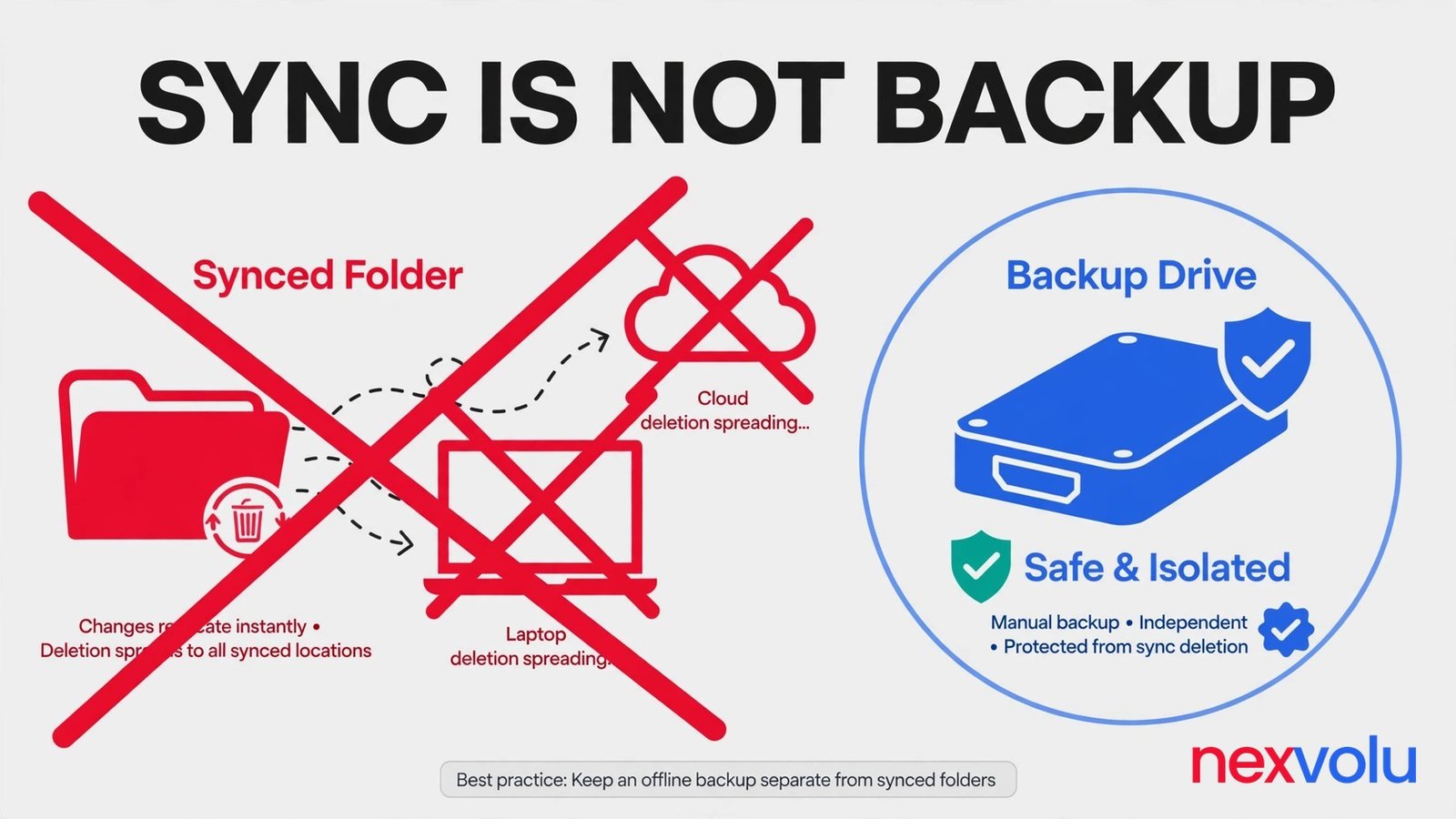
Sync keeps files identical across devices. Backup keeps older versions in a place that a change on your laptop cannot touch. Those two jobs sound alike until a deletion, a bad edit, or ransomware hits.
Delete a file in a synced OneDrive folder and OneDrive syncs the deletion to the cloud and to every other device. Corrupt a file and the corrupt version syncs too. It mirrors the current state of your files, and the current state is sometimes the damaged state.
OneDrive does give you a grace period. Deleted files from a personal account sit in the OneDrive recycle bin for 30 days. A work or school account keeps them for 93 days.
After that window closes, Microsoft does not keep a further copy for you to recover. The recycle bin is a safety net with an expiry date.
How to back up your computer instead of only syncing
The same warning applies to Google Drive, Dropbox, and iCloud Drive. Each one syncs changes fast, each one keeps some version history for a limited time, and none of them exists to rebuild your computer after a drive failure. Use sync for access. Use backup for recovery.
Windows Backup adds to the confusion because Microsoft uses the word backup for a feature that syncs important folders to OneDrive. The folders land in the cloud, which is useful, and it is still sync under a backup label. For a real local copy, use File History or a disk image on a drive you control.
If your only copy outside your laptop lives in a synced folder, you have one copy in two places, and a single bad change can reach both places in seconds.
How to back up your computer on Windows, step by step
Buy one external drive before you touch any settings. Pick a drive at least twice the size of the data you want to protect, and leave room to grow. For the writer in this example, with 180 GB of files, a 1 TB drive works, and a 2 TB drive gives her version history more room to breathe.
Plug the drive in and check that Windows sees it. If Windows does not see it, stop and fix that first.
1. List what you cannot replace
Open File Explorer and look at the size of Documents, Pictures, Desktop, Downloads, and any folder where you keep work. Add up the numbers and write them down. You need this total twice: once to size the drive, and once to check later that the backup actually holds that much data.
Apps do not belong on this list. You can reinstall apps. You cannot reinstall the only copy of a photo from 2019 or a tax return from last year.
2. Turn on File History for your files
File History is the file version tool built into Windows. Microsoft describes it as a feature that saves copies of personal files to an external drive or a network location, so you can restore an earlier version after a bad edit or a deletion. It covers libraries such as Documents, Pictures, Videos, and Music, plus Desktop. It does not back up your apps, and it does not make a full image of Windows.
Connect the external drive. Open Control Panel, go to System and Security, select Save backup copies of your files with File History, choose the drive if Windows has not picked it already, and select Turn on. File History then saves versions of the covered files while the drive stays connected.
Check what it covers. If a folder you care about sits outside the libraries File History watches, add that folder to a library. A backup that skips your most important folder is a common miss, and you will only find it when you need the file.
File History is copy number two in the 3-2-1 backup rule for this setup. It is fast to restore from, and it lives on a drive you can unplug.
3. Make a full disk image with Macrium Reflect, and read the price first
File History saves files. A disk image saves the whole drive: Windows, your apps, your settings, and your files, in one file you can restore to a new drive. That difference matters on the day your laptop drive dies, because restoring files to a fresh Windows install takes hours of reinstalling and reconfiguring, while restoring an image puts the machine back the way it was.
Macrium Reflect makes disk images on Windows, and it has a long reputation for doing that one job well. Here is the part many older guides get wrong.
Macrium Reflect Free was retired in December 2023, and Macrium stopped providing security patches for the free code on 1 January 2024. The current product is Reflect X, and the Home edition costs $49.99 per year for one PC, with a 30 day trial that needs no credit card. Do not download an old free installer from a random mirror and treat it as a current backup tool.
If you want the image without paying, Windows still includes a system image tool in older backup settings, and free imaging tools exist from other vendors. This guide uses Macrium because its imaging and rescue media workflow is well documented. Use the 30 day trial to make your first image and test a restore before you pay anything.
How to back up your computer: make and schedule the disk image
Make the image after File History is running. Open Reflect, choose the drive to image, choose the external drive as the destination, and create rescue media on a USB stick. Rescue media is the bootable stick that starts your computer when Windows will not start. Label the stick and keep it with the external drive.
Schedule the image to run once a week. A daily image wastes time and space, and a monthly image leaves too much work to redo after a failure. File History fills the gap between images with file versions.
4. Add Backblaze for the offsite copy
Backblaze Personal Backup, now sold as Computer Backup, backs up one Mac or Windows computer to the cloud with no storage cap. Backblaze lists the price at $9 per month, $99 per year, or $189 for two years per computer, based on pricing pages checked in October and November 2026. Check the current price on the Backblaze site before you buy.
Install it, sign in, and let the first backup run. The first backup takes the longest because it uploads everything, so leave the laptop plugged in overnight if the upload is large. Backblaze then runs in the background and copies new and changed files as they appear.
Change one setting on day one. Backblaze keeps deleted files and older versions for 30 days by default. Turn on the free one year version history option so that window stretches to a full year at no extra storage charge.
A 30 day window expires fast when a file goes missing and you only notice it six weeks later. The Forever option costs extra per gigabyte per month for versions older than a year.
Backblaze is copy number three. It lives offsite, it runs on its own, and it survives a fire or theft at home. It is a subscription tied to one computer, so a second laptop needs a second license.
5. Unplug the drive, and that unplugged drive is your offline copy
This step costs nothing and it is the one that saves you from ransomware. When File History and the weekly image finish, unplug the external drive and put it in a drawer. A drive that stays plugged in stays reachable. CISA warns in its #StopRansomware Guide that many ransomware variants try to find and delete or encrypt accessible backups.
Use two external drives if you can. Rotate them weekly: one plugged in for backups, one in the drawer. That way a bad week never takes both drives at once. If two drives stretch the budget, one drive unplugged after each backup still beats one drive that never leaves the desk.
Encrypt the external drive if it holds tax records or anything sensitive. BitLocker on Windows Pro can do it. Store that password somewhere you can find it without the laptop, because an encrypted backup with a lost password is a locked box with no key.
How to back up your computer on a Mac
Mac users get a simpler local backup because Time Machine is built into macOS and it does the file version and full system backup jobs in one tool. Plug in an external drive, open System Settings, go to General, then Time Machine, click Add Backup Disk, and pick the drive. Apple recommends a backup disk with at least twice the storage capacity of your Mac, so a 1 TB Mac wants a 2 TB drive or larger.
Time Machine keeps hourly backups for the past 24 hours, daily backups for the past month, and weekly backups for all previous months, and it deletes the oldest backups when the disk fills up. Let the first backup finish before you judge the speed. That first run can take hours.
The rest of the setup matches Windows. Add Backblaze Computer Backup for the offsite copy at the same $9 per month or $99 per year per computer, and turn on the free one year version history on day one.
Then unplug the Time Machine drive between backups, or rotate two drives, so one copy stays offline. Time Machine alone is a local backup. Time Machine plus Backblaze plus an unplugged drive is a 3-2-1 backup rule setup with an offline copy.
3-2-1-1-0, and why the extra numbers exist
The 3-2-1-1-0 rule adds two numbers to the original three. The extra 1 means one copy stays offline or immutable, which means it cannot be changed or deleted for a set period. The 0 means zero errors, proven by a test restore.
This extension comes from backup vendors and industry guides, and Veeam promotes it heavily. It is a convention, and you will not find it in the CISA documents that define the original rule. The original rule was written before ransomware learned to hunt for backups, and a copy that ransomware can reach is a copy at risk.
Immutability sounds technical, and the home version of it is simple. An unplugged drive is immutable while it sits in a drawer because nothing on your computer can write to a drive that is not connected. Backblaze version history gives you a second layer: an encrypted file syncs to the cloud as a new version, and the older clean version stays available for a year if you turned that setting on.
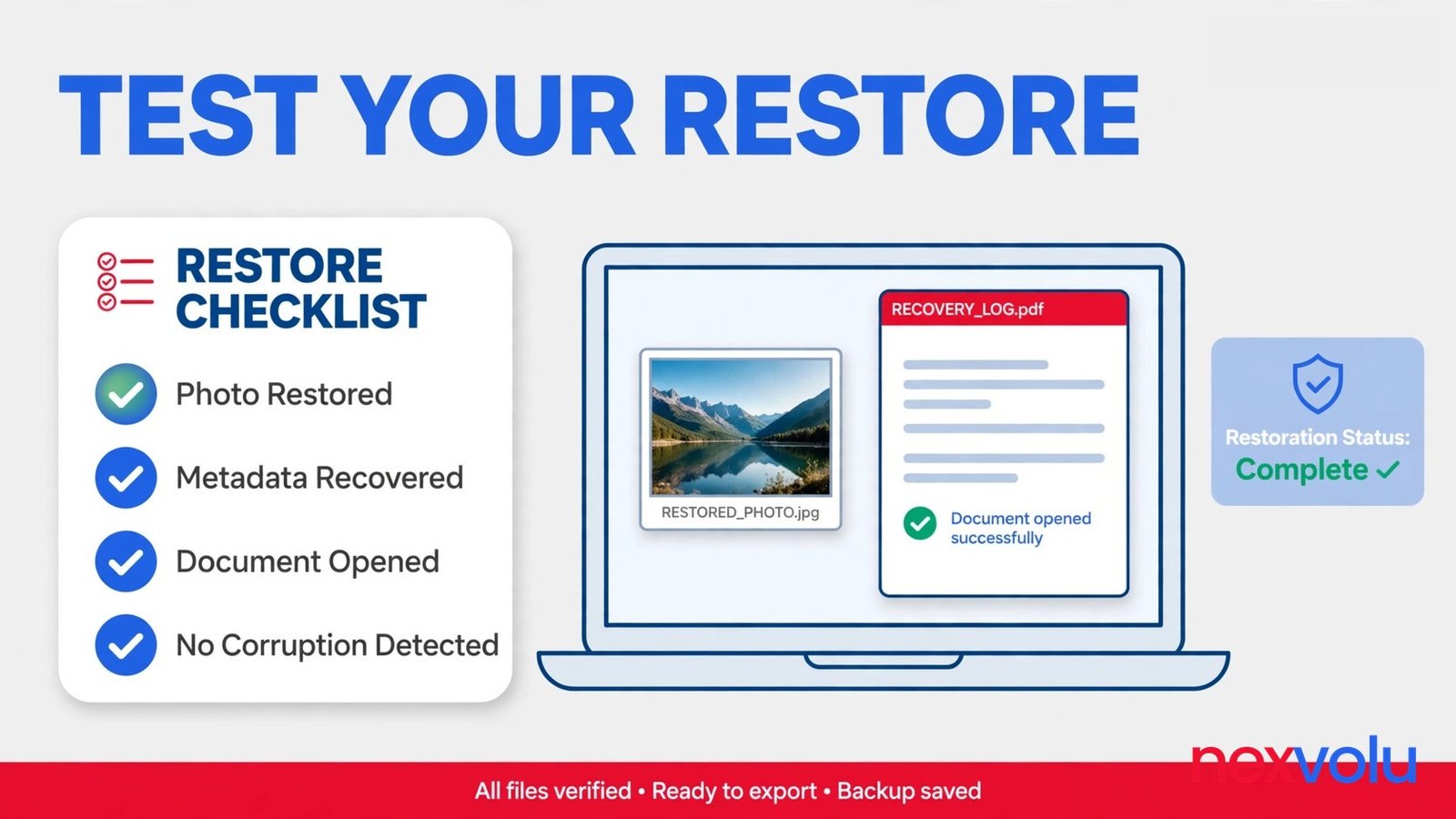
The zero is the stricter part. Zero errors means you restored files from the backup and checked that they open, and the restore came back clean.
A green check mark in a backup app does not prove that. A green check mark proves the app finished writing. Only a restore proves the files come back.
How to back up your computer and test the restore
Pick a test file before you need one. Choose a photo and a document you would miss, and write down their names and where they live. Then restore them from each copy, one at a time, and check that they open.
Start with File History. Open File History, find the document, pick a version from last week, and restore it to a test folder. Open the restored file.
If the text is intact and the formatting looks right, that copy passes. If File History shows no versions, your backup has a hole and you found it on a calm afternoon instead of a bad night.
How to back up your computer: test the disk image
Test the disk image next, in a way that does not risk your working laptop. Boot from the Macrium rescue media on a spare drive if you have one, or use Reflect to mount the image as a virtual drive in Windows and browse the files inside it.
Mounting an image lets you pull a file out and open it without wiping anything. If the image mounts and the files open, the image is good. If Reflect cannot read the image, you have a broken backup and a week to fix it.
Test Backblaze last. Sign in to the Backblaze site, pick the same photo, and download it. Open the download.
This test also checks that you remember the Backblaze password and that two factor authentication works from a different device. A cloud backup you cannot sign in to is a cloud backup you do not have.
Run the full test once after setup, then run a short version every three months. The short version is one file from File History and one file from Backblaze, restored to a test folder and opened. Put a repeating reminder in your calendar for the first Sunday of each quarter.
Write down what you tested and when. A note with the date, the file names, and the result is enough.
How to back up your computer when time is short: what to back up first
Start with the files you cannot recreate. Photos, tax records, legal documents, and work you have already delivered to a client sit at the top of that list. Apps and downloads you can fetch again sit at the bottom.
If your drive is nearly full and the first backup will take all night, back up Documents and Pictures first, then add the rest. A partial backup that covers the irreplaceable files beats a complete backup that never starts.
Check the size of the backup after the first run and compare it to the size of the files you listed in step one. If File History reports 40 GB and your files total 180 GB, something is missing. The most common gaps are a folder outside the watched libraries and an external drive that was unplugged during the backup.
Questions people ask after the first backup
How often should a backup run? File History and Backblaze should run on their own, every day, without you thinking about them. The disk image can run weekly.
Does a second external drive count as the offsite copy? It counts only if it lives somewhere else. A second drive in the same drawer protects against a dead drive, and it does nothing against a fire or a theft that takes the drawer.
Start with the drive in your drawer
Buy the external drive this week, turn on File History or Time Machine tonight, and install Backblaze before the weekend. Make the first disk image, unplug the drive, and restore one file from each copy while the setup is still fresh in your mind. That afternoon of work gives you three copies, two kinds of storage, one offsite copy, one offline copy, and a restore test with zero errors. Then let the automation do the rest, and check the restore again in three months.
Related reading
- External Hard Drive Not Showing Up on Windows 11
- Does Storage Sense Delete Files on Windows 11
- Reset Windows 11 and Keep My Files
- Where to Store 2FA Backup Codes
Sources
- CISA, Data Backup Options, as quoted in
- Microsoft Support, Backup and restore with File History
- Macrium Reflect patch notes, Reflect Free retirement announcement
- Best Backup Reviews, Macrium Reflect review, pricing and trial
- Backblaze Computer Backup pricing and version history
- Backblaze review, pricing checked November 2026
- Apple Time Machine setup and drive size guidance
- CISA #StopRansomware Guide on offline encrypted backups, as quoted in
- Cloud sync is not backup, OneDrive recycle bin retention
- How to back up your computer, the 3-2-1 backup rule setup
Sobia Aslam writes about technology and digital security for Nexvolu, with a focus on practical guides that readers can follow without an IT team. Read more at nexvolu.com