


Microsoft ended free support for Windows 10 on 14 October 2025. That date changed the Windows 11 vs Windows 10 question from a taste test into a security decision. Your PC still starts. Your apps still open.
But Microsoft stopped sending free security fixes to Windows 10 PCs outside its Extended Security Updates program.
So should you upgrade to Windows 11? If your PC qualifies, yes. The upgrade costs nothing.
If your PC fails the check, stay on Windows 10 with ESU and plan your next PC. If you buy a new PC, it ships with Windows 11 anyway.
This guide sorts you into the right group, then walks through the exact next step for that group.
Windows 11 vs Windows 10: your PC decides first
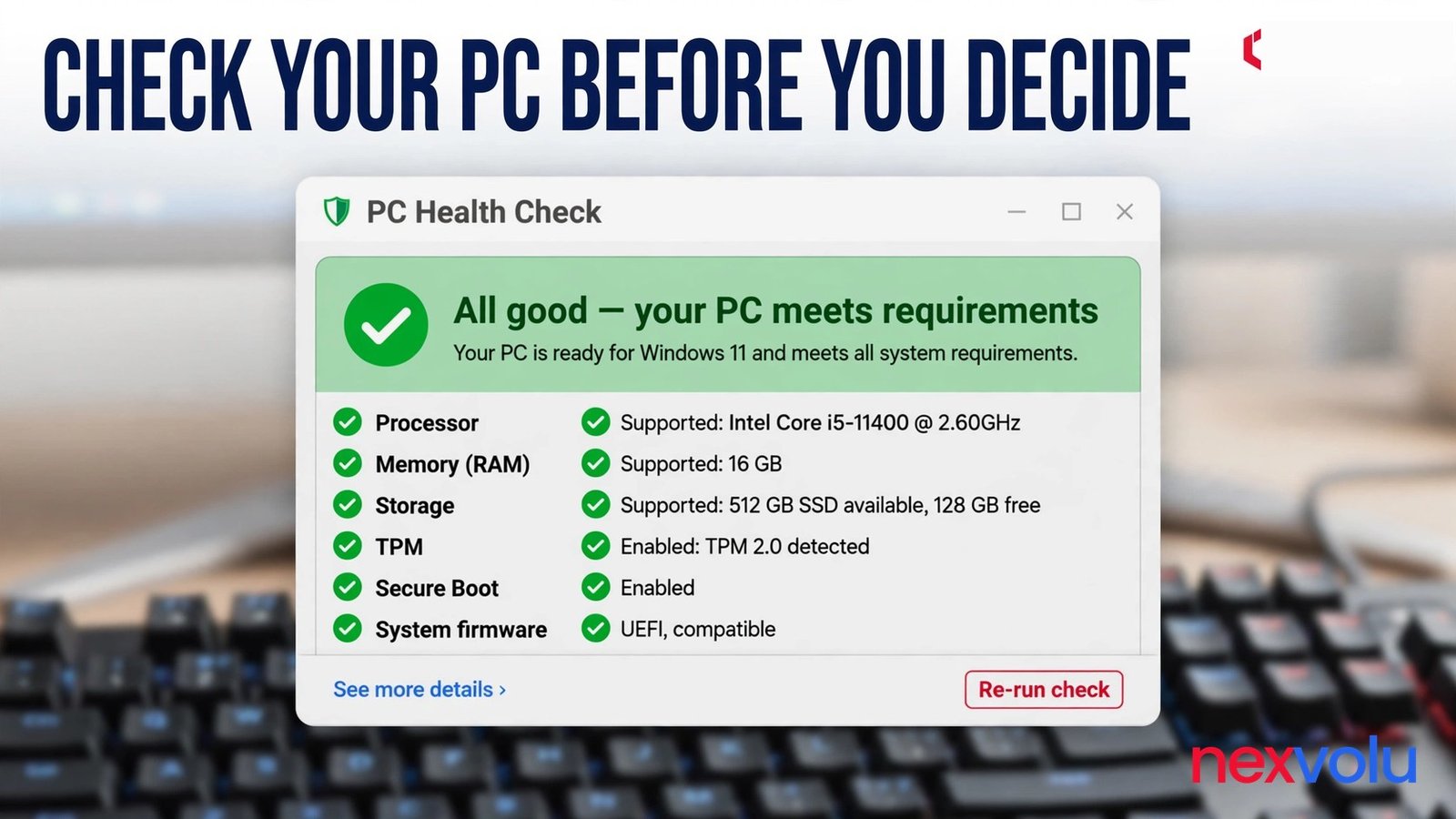
Open PC Health Check before you read another comparison. Microsoft built that free app for one job, and it tells you in about a minute whether your PC meets every Windows 11 requirement.
If PC Health Check is missing, download it from Microsoft at aka.ms/GetPCHealthCheckApp. Click Check now and read the exact item that fails.
Windows 11 asks for a compatible 64-bit processor with two or more cores at 1 GHz or faster. It asks for at least 4 GB of RAM and at least 64 GB of storage. It asks for UEFI firmware with Secure Boot capability.
Windows 11 asks for a Trusted Platform Module version 2.0, known as TPM 2.0. It asks for DirectX 12 graphics with a WDDM 2.0 driver.
Meeting the speed and memory figures alone changes nothing, because the processor also needs a place on Microsoft’s supported processor list, and that list leaves out many chips that still run Windows 10 well.
TPM 2.0 causes most of the confusion, because plenty of PCs have the feature switched off in firmware. Intel calls its firmware version PTT, and AMD calls its version fTPM.
You flip the setting in UEFI. Save and restart, then run PC Health Check again. No setting adds a chip to Microsoft’s list.
Windows 11 vs Windows 10: check TPM and your version
Check TPM directly if PC Health Check blames it. Press Win plus R, type tpm.msc, and press Enter, then read the specification version in the TPM Management window. You want version 2.0.
Microsoft lists 4 GB of RAM and 64 GB of storage as minimum eligibility figures. Those numbers describe a PC that can install Windows 11, and they say nothing about a PC that runs it happily, so judge Windows 11 only on a PC with 8 GB of RAM and an SSD.
| Feature | Windows 10 | Windows 11 |
|---|---|---|
| Support status | Ended 14 October 2025 | Ongoing, with annual feature updates |
| Free security updates | Only with ESU enrollment | Included while your version stays in support |
| Hardware baseline | Loose, runs on older PCs | TPM 2.0, Secure Boot, supported processor |
| Window management | Snap Assist and virtual desktops | Snap Layouts, Snap Groups, multi-monitor memory |
| Gaming stack | DirectX 12 | DirectStorage, Auto HDR, Xbox app integration |
| AI features | No new AI features | Copilot app, extra features on Copilot+ PCs |
Confirm your Windows 10 version. ESU covers Windows 10 version 22H2 only. Open Settings > System > About and read the version number.
If you run an older version, install the pending Windows 10 updates first, because an out of date PC cannot enroll in ESU or take the direct upgrade path.
Windows 11 vs Windows 10: what changes on an ordinary day
Windows 11 looks different the moment you sign in. Start sits in the center of the taskbar by default. The windows have rounded corners.
You can move Start back to the left in Settings if the centered layout annoys you.
Looks alone would never justify an upgrade. The working differences sit underneath.
Snap Layouts change how you arrange windows. Hover over a window’s maximize button and Windows 11 offers a grid. Pick a layout and the window snaps into place.
Snap Groups remember that arrangement, and Windows 11 also remembers window positions on an external monitor, so unplugging a laptop from its dock and plugging it back in later returns your windows to their old spots.
Windows 10 handles basic snapping fine. If you live with a browser and a document open side by side, Snap Layouts save a small amount of fiddling many times a day. File Explorer gained tabs in Windows 11, and the Home view loads faster on current builds.
Windows 11 vs Windows 10: security and performance
Security forms the real gap between the two versions. Windows 11 makes TPM 2.0 and Secure Boot part of the baseline, so every supported PC carries hardware backed security.
That floor explains the strict requirements, because Microsoft drew a line under a generation of hardware and said the new baseline starts here, and people with older PCs pay the price for that line.
Gaming gives Windows 11 its clearest lead for one group of users. DirectStorage streams game assets from an NVMe SSD to the graphics card with less work from the processor, so supported games load faster.
These features need the right hardware. DirectStorage needs an NVMe SSD with the Standard NVM Express Controller driver plus a DirectX 12 GPU with Shader Model 6.0. Auto HDR needs an HDR display.
If your rig lacks those parts, the gaming case for Windows 11 shrinks to nothing. Weigh the upgrade on security alone in that case.
Windows 11 vs Windows 10: Copilot and speed
Copilot sits in Windows 11 as an app, and any Windows 11 PC can run it for everyday cloud powered help. The deeper AI features need a Copilot+ PC. That label means a neural processing unit, or NPU, capable of 40 trillion operations per second or more, plus at least 16 GB of RAM and a 256 GB SSD.
Copilot+ PCs get improved Windows search and Click to Do, plus extra Studio Effects. Treat Copilot as a bonus. Nobody should buy a new PC for a chatbot.
Performance draws the most heated claims in this debate, so keep the expectation dull. Windows 11 performs about the same as Windows 10 on the same hardware for everyday work, with some tasks a touch faster and some older machines a touch slower. A clean install often feels faster than an in place upgrade on either version, because it drops years of accumulated clutter.
If someone promises a big speed boost from Windows 11 alone, ask which benchmark they ran.
Windows 11 vs Windows 10: the ESU bridge and the date older pages get wrong
Windows 10 reached end of support on 14 October 2025, and Microsoft stopped providing free security updates and feature updates for it on that date. Technical assistance ended too.
It points Windows 10 owners toward two options: upgrade an eligible PC to Windows 11, or enroll in the consumer Extended Security Updates program, known as ESU.
ESU started as a one year bridge through 13 October 2026. Then, on 25 June 2026, Microsoft added an editor’s note to its Windows Experience Blog and updated its ESU documentation to add a second year.
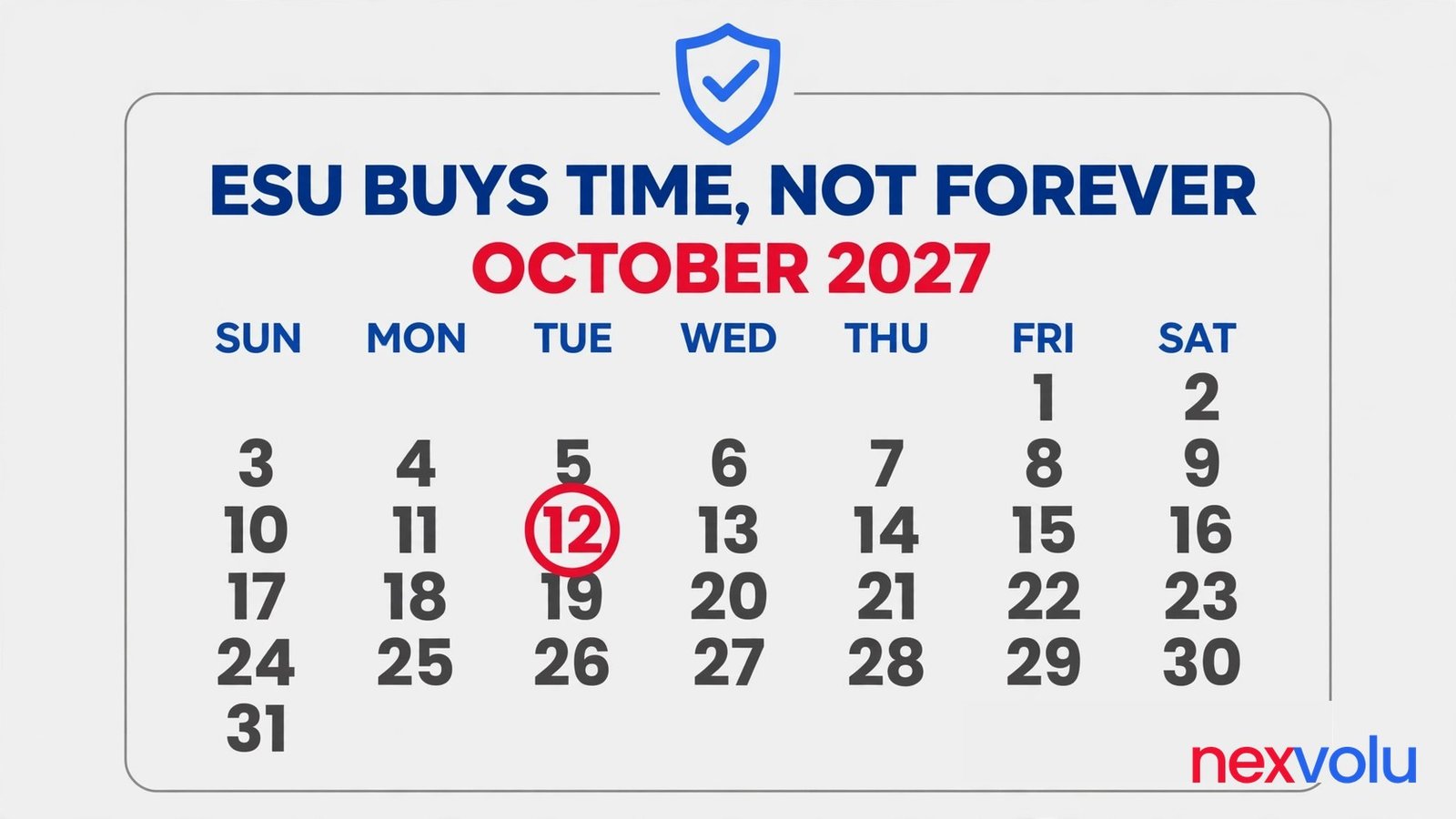
Microsoft’s support page now says the consumer ESU program can protect a Windows 10 device till 12 October 2027, and enrolled PCs carry over automatically with no action needed. You can enroll at any point before the program ends, but every month you wait without ESU leaves known flaws unpatched.
That extension matters because many older pages still list October 2026 as the final date, so check the date on any page that cites it. Microsoft changed the program in June 2026, and the current end date is 12 October 2027.
ESU covers security updates only. It sends critical and important security fixes to Windows 10 version 22H2.
ESU adds no new features and fixes no non-security bugs. It includes no technical support from Microsoft.
Your PC keeps working exactly as it works today, with security patches arriving through Windows Update. Think of ESU as a cast on a broken arm, not a permanent limb.
Windows 11 vs Windows 10: how to enroll in ESU
Enrollment gives you three routes in the United States, and all three cover the same period. Sync your PC settings with Windows Backup to your Microsoft account and enroll at no extra cost. Redeem 1,000 Microsoft Rewards points. Or make a one-time purchase of $30.
One ESU license covers up to 10 PCs tied to the same Microsoft account. Rules differ in the European Economic Area, where enrollment is free as long as you stay signed in with a Microsoft account.
Eligibility stays narrow on purpose. The PC must run Windows 10 version 22H2 in the Home, Pro, Pro Education, or Workstations edition. It needs the latest Windows updates installed, including the ESU Licensing Preparation Package, which Microsoft lists as KB5126256.
The Microsoft account you sign in with must hold administrator rights on the PC, and it cannot be a child account. Domain joined PCs and MDM managed PCs cannot enroll as consumers, so a work PC needs the separate commercial ESU program.
Microsoft will keep providing security updates for Microsoft 365 apps on Windows 10 until 10 October 2028, but that covers the Office apps themselves and not the operating system underneath them.
So who should enroll? Anyone with a personal PC that fails the Windows 11 check and still handles daily work. Enroll now, not in 2027.
The cost is zero for most people who sync settings, and $30 at most for everyone else. Waiting saves nothing.
Windows 11 vs Windows 10: if your PC qualifies, upgrade in an afternoon
An eligible PC makes this decision easy. The upgrade from a genuine Windows 10 license costs nothing, and your files and apps come along on the standard path. Pick a quiet afternoon, not the hour before a deadline.
The 7-step upgrade
- Back up your files first. Copy your documents and photos to an external drive or a cloud backup. The upgrade usually preserves everything.
- Run PC Health Check and confirm the green result. If it names TPM or Secure Boot, enable the setting in UEFI and run the check again. If it names the processor, stop here, because no step below fixes it.
- Update Windows 10 fully. Open Settings > Update and Security > Windows Update and install every pending update, then confirm you run version 22H2.
- Check that your essential apps and drivers support Windows 11. Visit the vendor page for any niche app you depend on. A missing driver causes more pain than any Windows 11 feature can fix.
- Start the upgrade from Windows Update. Open Settings > Update and Security > Windows Update, select Check for updates, and start the download when Windows 11 appears. Keep the PC plugged in.
- Test everything the same day. Open your browser and your most used app, and sign in where needed. If something breaks, you want to find it while the rollback window still stands open.
- Decide within 10 days. Windows keeps the previous installation for 10 days after the upgrade, so open Settings > System > Recovery and choose Go back to return to Windows 10 during that window. Going back keeps your personal files, and it removes apps and drivers you installed after the upgrade. After 10 days, Windows deletes the old installation files, and returning to Windows 10 means backing up and clean installing.
Windows 11 may offer to sync settings with Windows Backup during setup. Read each screen instead of clicking through, because sync helps you move to a new PC later and also gives you the free ESU route on other PCs.
Windows 11 vs Windows 10: if your PC fails the check, use this plan
A failed PC Health Check result feels like a verdict on your hardware. Read it as a timetable instead. Your PC has a support deadline now, and you have about a year of ESU cover to work with. Use that year well.
Start by enrolling in ESU today. Open Settings > Update and Security > Windows Update and look for the Enroll now link, then sign in with an adult Microsoft account that holds administrator rights on the PC.
Pick the free route through Windows Backup settings sync if you can, redeem 1,000 Rewards points if you have them, or pay the one-time $30. Confirm the enrollment in Windows Update.
Next, write down what the PC must keep doing. List the apps and the printer, plus the accounts that matter. That list becomes your shopping list for the replacement PC. It stops you buying a shiny machine that cannot run the one program your work needs.
Ask the vendor about a Windows 11 version now if a niche app ties you to Windows 10.
Windows 11 vs Windows 10: set a replacement date
Then set a replacement date. Pick a month, not a vague someday. A good default is mid 2027, well before ESU ends on 12 October 2027.
A new PC with Windows 11 preinstalled removes the whole upgrade question, and Windows Backup can move your files and settings to the new machine in one pass. Even $20 a month from now reaches a useful amount by mid 2027.
Skip the workaround that tempts every owner of a failed PC. Unofficial methods can force Windows 11 onto unsupported hardware, but Microsoft warns that unsupported installs lose update guarantees and support.
You would trade a supported Windows 10 PC with ESU patches for an unsupported Windows 11 PC with no promise of future patches. That trade makes no sense. Stay on Windows 10 with ESU and move when you can.
One exception deserves care. If your PC fails only because TPM or Secure Boot sits switched off, fix the setting and recheck, because plenty of PCs from 2018 and 2019 pass once firmware TPM is on.
Buying a new PC ends the debate
Every new Windows PC ships with Windows 11. Microsoft’s support page says the same thing in plainer terms: if your PC is not eligible, consider a new PC with Windows 11 preinstalled. The question should you upgrade to Windows 11 answers itself at that point, because the new machine already runs it.
Spend your attention on the specs that decide how the PC feels in two years. Get at least 16 GB of RAM if the budget allows, and a 256 GB SSD at minimum, or 512 GB if you store photos or games locally. Check the screen and keyboard in person if you can.
A Copilot+ PC adds AI features through its NPU. RAM and storage should top your list. The AI label fades. The RAM stays.
Trade in or recycle the old PC through the retailer or manufacturer program when you replace it, and wipe your personal files before you hand it over.
Four traps that catch people in 2026
Trap one: you already run Windows 11, so you assume you are safe. Check your version. Windows 11 version 24H2 in Home and Pro editions reached the end of servicing on 13 October 2026. Version 25H2 stays supported until 12 October 2027.
Version 26H2, the Windows 11 2026 Update, arrived on 29 September 2026 and stays supported until 10 October 2028 for Home and Pro. Open Settings > System > About and read your version. If you sit on 24H2, update to 25H2 or 26H2 now.
Trap two: you wait without ESU because the PC still works. A working PC with no security patches grows more exposed each month, and attackers study the flaws Microsoft patches each month.
ESU costs nothing for most people who sync settings, so waiting without it buys risk at no saving. Enroll, then decide at your own pace.
Trap three: you force Windows 11 onto an unsupported PC and call it an upgrade. The install may succeed. The updates may even arrive for a while. Microsoft still gives no guarantee, and it offers no support for that configuration.
A future update can break a driver or leave the PC in a half updated state. You also lose the clean ESU path, because the PC no longer runs Windows 10 version 22H2.
Trap four: you upgrade in the middle of a project and blame Windows 11 for the chaos. An upgrade changes drivers and settings, and it can reset a default app or drop a printer at the worst moment.
Schedule the upgrade for a gap between projects. Test the printer before the day you need it. Keep your backup where you can reach it.
Questions people ask before they decide
Can I keep using Windows 10 after October 2025? Yes, your PC keeps working, but Microsoft sends no free security updates to it unless you enroll in ESU. ESU now runs through 12 October 2027 for personal PCs.
Is the Windows 11 upgrade really free? Yes, for eligible Windows 10 PCs running version 22H2 that meet the hardware requirements. Microsoft states the upgrade costs nothing on its support page.
Will I lose my files if I upgrade? The standard upgrade keeps your personal files and apps. Back up first anyway.
Should I buy a new PC instead of upgrading? Buy new only if your PC fails the Windows 11 check, or if it already struggles with everyday work. A passing PC with 8 GB of RAM and an SSD has years of useful life on Windows 11.
What to do with the PC in front of you
Run PC Health Check today. That one minute sorts you into a group with a clear next step.
If the result is green, back up first and upgrade this week. When it names TPM or Secure Boot, flip the setting and recheck. If it names the processor, enroll in ESU today and set a replacement date before October 2027.
New PC buyers can skip the whole debate, because Windows 11 already waits on the new machine. Your situation picks the answer in Windows 11 vs Windows 10, and the calendar now sets the pace.
Related reading
- Reset Windows 11 and keep your files
- Does Storage Sense delete files in Windows 11
- External hard drive not showing up in Windows 11
- Do I need a VPN
Sources
- Microsoft Support, Windows 10 support has ended on October 14, 2025
- Microsoft Learn, Windows 11 requirements
- TechRepublic, Windows 10 ESU cheat sheet
- Tutorialpedia, Should I upgrade to Windows 11, a practical 2026 guide
- Tutorialpedia, Windows 11 features list, the complete 2026 guide
- Help Desk Geek, How to check Windows 10 ESU eligibility and enroll
Sobia Aslam writes about technology and digital security for readers who want plain answers and practical steps. Read more at nexvolu.com