


Learning how to use AI to write emails comes down to one habit: give the tool a specific brief, then edit the draft yourself. Skip either half and the result reads like a form letter. Do both and most readers will never guess a tool helped.
Email volume makes this worth fixing. Microsoft telemetry from its 2025 Work Trend Index found the average worker receives 117 emails a day, and most get skimmed in under 60 seconds.
That number comes from trillions of anonymized Microsoft 365 signals collected through February 15, 2025, plus a survey of 31,000 workers in 31 markets. Your reader has no time for warm-up lines.
An older McKinsey estimate from 2012 put email at 28 percent of the knowledge workweek. Treat that one as history, not a current measure. The point still holds: email eats hours, and the fix is a faster first draft, not a longer one.
AI email writing works best as a division of labor. The tool handles structure and phrasing. You handle facts and voice. The test below shows both halves at work.
How to use AI to write emails: the test, one email, three versions
Maya is a freelance web designer. A client owes her $1,850 for a website redesign, due November 14. She needs payment this week, or she needs to know what is wrong with the invoice. Same job, three attempts.
A note on the test: I did not paste these prompts into a tool and copy the replies here. The three versions below are illustrative examples I wrote for this article. Check the pattern with your own next email.
Version 1: the bad prompt
The prompt:
Write a follow-up email to my client about an invoice.
The result:
Subject: Following up

Dear Sir or Madam,

I hope this email finds you well. I am writing to follow up regarding the outstanding invoice for services rendered. Please do not hesitate to reach out if you have any questions. I look forward to hearing from you at your earliest convenience.

Best regards,
Maya
Read it as Dana. You learn nothing. No invoice number, no amount, no date, no deadline.
The greeting guesses at the wrong person, since Maya knows her client by name. A reader skimming for 60 seconds will file this under later.
Version 2: the good prompt
The prompt:
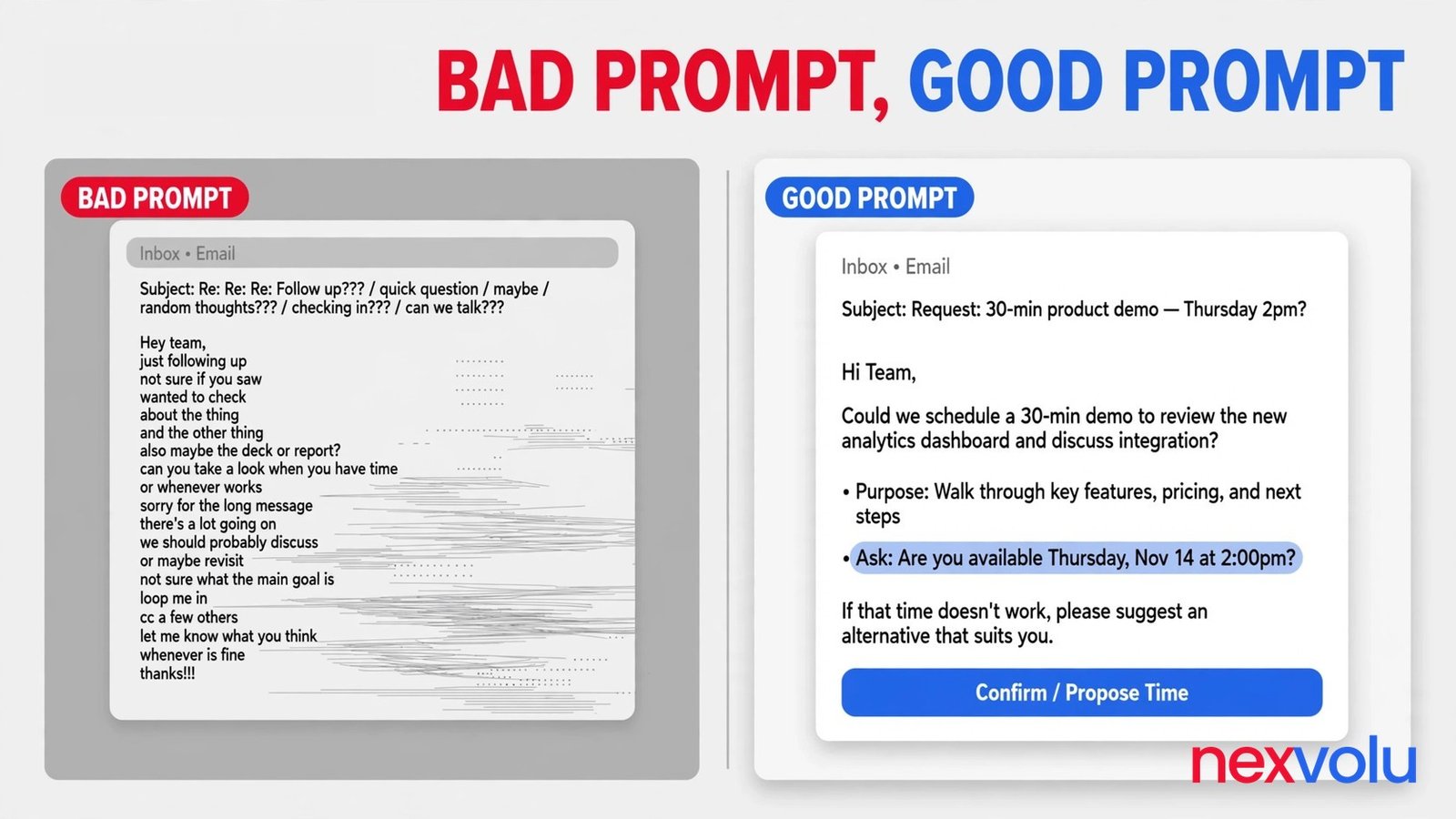
Write a friendly but firm email to Dana at Brightline Studio from Maya, a freelance web designer, following up on invoice 1042 for $1,850 for the website redesign, due November 14. Ask her to pay this week or tell me if something is wrong with the invoice, and keep it under 90 words. Do not use the phrases "I hope this email finds you well" or "do not hesitate to reach out."
The result:
Subject: Invoice 1042, $1,850, due November 14

Hi Dana,

Quick check on invoice 1042 for $1,850 for the website redesign. It was due November 14, and I have not seen payment yet. Can you pay this week, or let me know if anything looks wrong on the invoice?

Thanks,
Maya
Same tool, same writer, different brief. The subject line now carries the facts.
Dana sees the amount and the date in the first two lines, plus a clear ask.
Version 3: the human edit
Maya reads version 2 out loud and fixes two things. “Quick check” sounds like an apology for asking for her own money. Dana once flagged a wrong line item on an earlier invoice, so Maya makes the fix offer concrete.
The result:
Subject: Invoice 1042, $1,850, due November 14

Hi Dana,

Checking in on invoice 1042, $1,850 for the redesign. It was due November 14. Can you send payment this week? If something on the invoice looks off, tell me and I will fix it today.

Thanks,
Maya
Three sentences, one clear ask, one specific offer. The edit took about 40 seconds.
A specific prompt gets you 80 percent of the way. A short human pass supplies the rest. Version 3 sounds like Maya.
How to use AI to write emails: why the vague prompt gives you robot mail
A vague prompt hands the tool a blank. The model fills blanks with the most common phrasing it has seen, and the most common phrasing in business email is polite filler. “I hope this email finds you well” appears in millions of messages. It costs the reader four seconds and tells them nothing.
Specifics crowd filler out. Once the prompt names Dana and invoice 1042 with its November 14 date, the draft has real material to work with. Filler has nowhere to sit.
Word caps help the same way. “Under 90 words” forces choices. “Keep it short” forces nothing.
Length is the other giveaway. Left alone, AI drafts run long and formal, with a greeting paragraph plus background plus a closing paragraph.
Real people rarely write that way to someone they already know. One sentence of context, one ask, one sign-off. That shape fits most work email, and it fits a phone screen.
That is the core skill in AI email writing: the brief matters more than the tool.
How to use AI to write emails: the five part prompt that works
Every good email prompt has five parts. Miss two of them and you get version 1. Fill in all five and you get version 2 or better. Save the template somewhere you can copy it.
- Name the reader and your relationship with them. “Dana at Brightline Studio, a client for six months” beats “my client” every time.
- State the purpose in one sentence. “Follow up on invoice 1042” is a purpose. If you cannot state the purpose in one sentence, write that sentence first and prompt second.
- List the facts the tool cannot guess: invoice numbers, amounts, dates, links, names, deadlines. Type them into the prompt yourself. A model that has to invent a date will invent one.
- Give one tone word and one length cap. “Friendly but firm, under 90 words” is a clear instruction. “Professional” on its own is not.
- Name the ask and ban two filler phrases. End the prompt with the exact action you want. “End by asking her to pay this week. Do not use I hope this email finds you well.”
How to use AI to write emails: the five part template
Here is the template with all five parts in place:
Write a [tone word] email to [name and relationship] with this purpose: [one sentence]. Mention [fact 1], [fact 2], and [deadline or date], then end with this ask: [the specific action you want]. Keep it under [number] words and skip the phrases "[banned phrase 1]" and "[banned phrase 2]."
For example, use it for the email types that eat your mornings. Follow-ups, meeting requests, delay notices, thank-you notes, short apologies.
In fact, the template stays the same. Only the facts change. After a week, filling in the brackets takes about 30 seconds. The drafts stop sounding like a template, because the facts inside them are yours.
In addition, one more habit pays off fast: ask for three subject lines after the body is done, then pick the clearest one. Subject lines decide whether the email gets opened.
“Invoice 1042, $1,850, due November 14” beats “Following up” the way a street address beats “somewhere in town.” AI is good at short options. Let it generate them, then choose like an editor, not a fan.
Feed the tool your old emails so it copies your voice
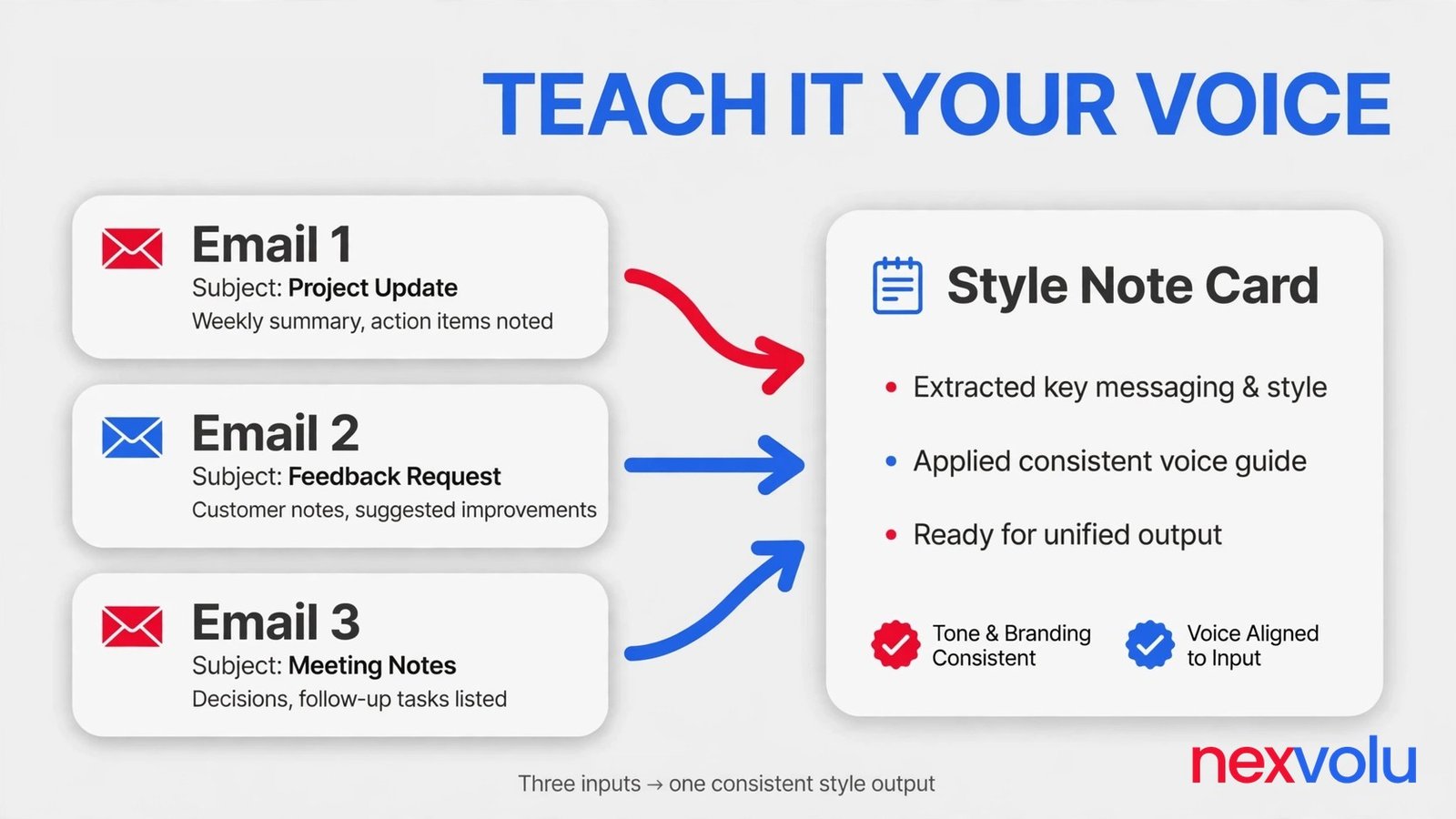
Prompts fix one email. Voice matching fixes all of them. Show the tool how you already write, then ask it to describe what it sees. Most people skip this step, then wonder why every draft sounds like a stranger wrote it.
Start with three emails you sent yourself and felt good about. Pick ones that sound like you on a normal day, not your most formal work. A short follow-up or a thank-you note or a plain status update will do.
Strip out client names and rates. Remove addresses and anything else private. Replace them with brackets like [CLIENT] and [AMOUNT].
Paste the cleaned emails into your chatbot and ask: “Describe my writing style in five lines: sentence length, greeting style, sign-off style, words I repeat.” Cross out anything wrong. Save the corrected version in your notes app.
Now paste that paragraph at the top of every email prompt. A style note like “Short sentences, opens with the point, signs off with Thanks, Maya, no exclamation marks” does more work than any tone adjective.
The tool now has something real to copy: your habits, not a generic idea of friendly.
How to use AI to write emails: warnings and built-in options
Two warnings apply here. First, use your own sent mail only. Pasting someone else’s emails to copy their voice is a fast way to annoy a colleague and a slow way to lose your own.
Second, keep the sample set fresh. If your style changes, feed it three new emails and rewrite the style note. A note built from emails you wrote two years ago will drag your drafts backward.
Gmail users get a version of this built in: Google says Help me write pulls details from your other emails and Drive files to draft a reply that matches your tone and style.
That helps when the details are right, and it misfires when the tool grabs the wrong thread. Check anything it pulled in before you send.
Outlook has a similar option: you can save standing instructions for Copilot drafts, such as keep emails short and direct and sign with your first name. Set those once and every draft starts closer to your voice.
Words that give you away: the banned list
Readers spot AI email by its phrases first. The list below gives each offender a plain replacement. Keep it next to your prompt template.
- “I hope this email finds you well.” Say “Hi Dana,” and start with the point.
- “Please do not hesitate to reach out.” Say “Email me back, or call me at [number].”
- “Just circling back.” Say “Following up on my November 14 email about invoice 1042.”
- “At your earliest convenience.” Say “by Friday.” A date is a request. A vague phrase is a wish.
- “I wanted to reach out.” Say “I am writing about invoice 1042.” You already reached out. The sentence just announces it.
- “Please advise.” Say “What do you think?” or “Can you approve this by Thursday?”
- “As per my last email.” Say “My November 14 email said the redesign was done.”
- “Looking forward to hearing from you.” Say “Can you reply by Friday?” End with the ask, not a ritual closing.
- “I am writing to inform you.” Say the news itself: “The delivery date moved to December 2.”
- “Please find attached.” Say “The contract is attached.” Three words do the job of three plus a ritual.
- “Thank you in advance.” Say “Thanks for checking this.” It sounds like a person, not a form.
- “Feel free to contact me anytime.” Say “Call me Tuesday after 2 p.m. if that helps.”
None of these phrases is rude. They are empty. Empty phrases add length, and length is what makes a reader skim past the ask. Delete them and the email gets shorter and clearer at the same time.
How to use AI to write emails in Gmail and Outlook
In fact, you do not need a separate app for most of this. The tool already sits inside your inbox, and the same prompt habits apply there.
In Gmail, click Compose or open a reply, then click Help me write and type your prompt. Click Create, then use Recreate for a fresh version or Refine to adjust the draft.
Refine offers three buttons: Formalize, Elaborate, Shorten. Click Insert to put the draft in the message body, then edit names and facts before you send.
Google says Help me write generates a new draft or refines existing text for tone and clarity. It also pulls details from your other emails and Drive files. Check those details. A flight time from the wrong trip is worse than no flight time at all.
Access has limits worth knowing before you go looking for the button. Google says Help me write needs an eligible Google Workspace or Google AI plan, and personal Google accounts can use it in the US only.
Since January 2025, Google has folded Gemini into its Business and Enterprise plans instead of selling it as a separate add-on. On those plans, the feature should already be there. If you cannot see the prompt bar, your account or plan may lack access, and the chatbot route is the fallback.
How to use AI to write emails: Outlook and Copilot
In Outlook, start a new message, select the Copilot icon, choose Draft, type your prompt, and select Generate. Adjust tone or length if the draft runs long, then select Keep it and edit the draft before you send.
Microsoft says Copilot drafts from your prompt and the thread you are replying to, so it often needs less pasted context than a chatbot. One catch: in new Outlook and Outlook on the web, Draft with Copilot needs HTML format, not plain text. Switch it in Settings, Mail, Compose and reply.
Copilot also offers Coaching by Copilot, which reviews a draft and flags tone and clarity problems before you send. It catches the two mistakes AI drafts make most: burying the ask halfway down the email, and apologizing three times for one delay. Run it on your own drafts too.
Pick your tool by where you already work. ChatGPT or Claude fit any inbox. Gemini fits Gmail. Copilot fits Outlook.
The prompt stays the same in all four. Switching tools to chase a better model wastes the time the tool was meant to save.
How to use AI to write emails: what never to paste, and the 60 second check
Treat the prompt box like a message you cannot unsend. Never paste passwords, bank details, ID numbers, health details, salary figures, contract terms, or anything covered by an NDA.
Use placeholders in the prompt, then fill in the real values after you copy the draft into your inbox. Fill in real names and amounts only in your own email client, after the draft comes back.
Work rules come first. Check your company policy before you paste a work thread into a personal chatbot account.
If your employer offers an enterprise AI plan, use it for work email.
Before you send any AI draft, run a check that takes about a minute. Read the draft out loud. If a sentence sounds like something you would never say, rewrite that sentence yourself.
Check every name and date against the original thread. Check every amount and promise against your records. A draft that commits you to something you never offered needs one more edit.
Confirm the recipient line, since a good body sent to the wrong person is still a bad email.
The emails you should write yourself
In fact, AI drafts suit routine email: follow-ups, scheduling, status updates, short thank-you notes. Some messages deserve your own words from the first line.
First, write a real apology yourself when you caused the problem. A sincere apology names what happened and owns it, then says what changes next. Rewrite the middle yourself, because the reader can tell when the regret came from a template.
Write condolences yourself. Send a personal thank-you yourself when someone helped you in a way that mattered.
Write anything legal, anything about firing or pay, and anything where the wrong tone costs real money yourself. The tool has no stake in the outcome. You do.
In fact, nobody expects you to announce spell-check on a routine follow-up. Disclosure matters where authenticity is the point, or where your employer or client requires it.
For example, a heartfelt note you did not write is a small fraud. A scheduling email you edited and approved is just a scheduled email.
Questions readers ask
Can AI write a professional email for work? It handles first drafts well. You still verify every fact and adjust the tone before sending. Topics with money or hiring or legal weight deserve a full human read, not a skim.
Will people know AI wrote my email? They often can spot a raw draft: raw drafts run long and stay formal, with zero personal detail. One specific detail plus your natural phrasing plus trimmed filler is usually enough.
Is it safe to paste a work thread into a chatbot? Check your company rules first. Consumer chat apps may use your content to improve their models unless you turn that off.
Business plans usually have stricter data terms. Leave out anything confidential either way: account numbers and passwords stay out of the prompt.
Finally, start with the email you have been putting off. Write the five part prompt and fill in the facts. Generate once and edit by hand. Send it today.
In fact, the second one will take half the time. By the fifth, you will have a style note and a banned list and a template that sound like you on your best day.
Related reading
- How to Write Better AI Prompts
- Is ChatGPT Plus Worth It?
- How to Spot AI-Generated Content
- Can I Use AI at Work?
Sources
- Microsoft WorkLab, Breaking Down the Infinite Workday, Work Trend Index Special Report, June 17, 2025. The average worker receives 117 emails daily, most skimmed in under 60 seconds, and 153 Teams messages per weekday, based on trillions of anonymized Microsoft 365 productivity signals through February 15, 2025 and a survey of 31,000 workers in 31 markets.
- McKinsey Global Institute, The Social Economy: Unlocking Value and Productivity Through Social Technologies, 2012. Knowledge workers spent 28 percent of the workweek reading and managing email.
- Google Gmail Help, Draft emails with Gemini in Gmail. Help me write generates a new draft or refines existing text for tone and clarity, pulls details from other emails and Drive files, requires an eligible Google Workspace or Google AI plan, and is limited to the US for personal Google accounts.
- Microsoft Support, Welcome to Copilot in Outlook. Draft an email by selecting the Copilot icon, choosing Draft, typing a prompt, selecting Generate, then selecting Keep it.
- Microsoft Support, Draft an email message with Copilot in Outlook. In new Outlook and Outlook on the web, Draft with Copilot needs HTML format, not plain text.
- Thesaninfo, How to Use AI to Write Emails That Get Replies. Five part prompt formula and a before and after example showing a vague prompt against a specific one.
- Lenexa, How to use AI to write an email you would actually send. Step by step workflow for Gmail and Outlook, voice matching by reading drafts out loud, and Outlook standing instructions for Copilot drafts.
Sobia Aslam writes about AI tools and digital marketing at Nexvolu. She tests each tool herself and writes for readers who want plain advice that works in a real inbox.